



MMH3 Ultimate Upscale:
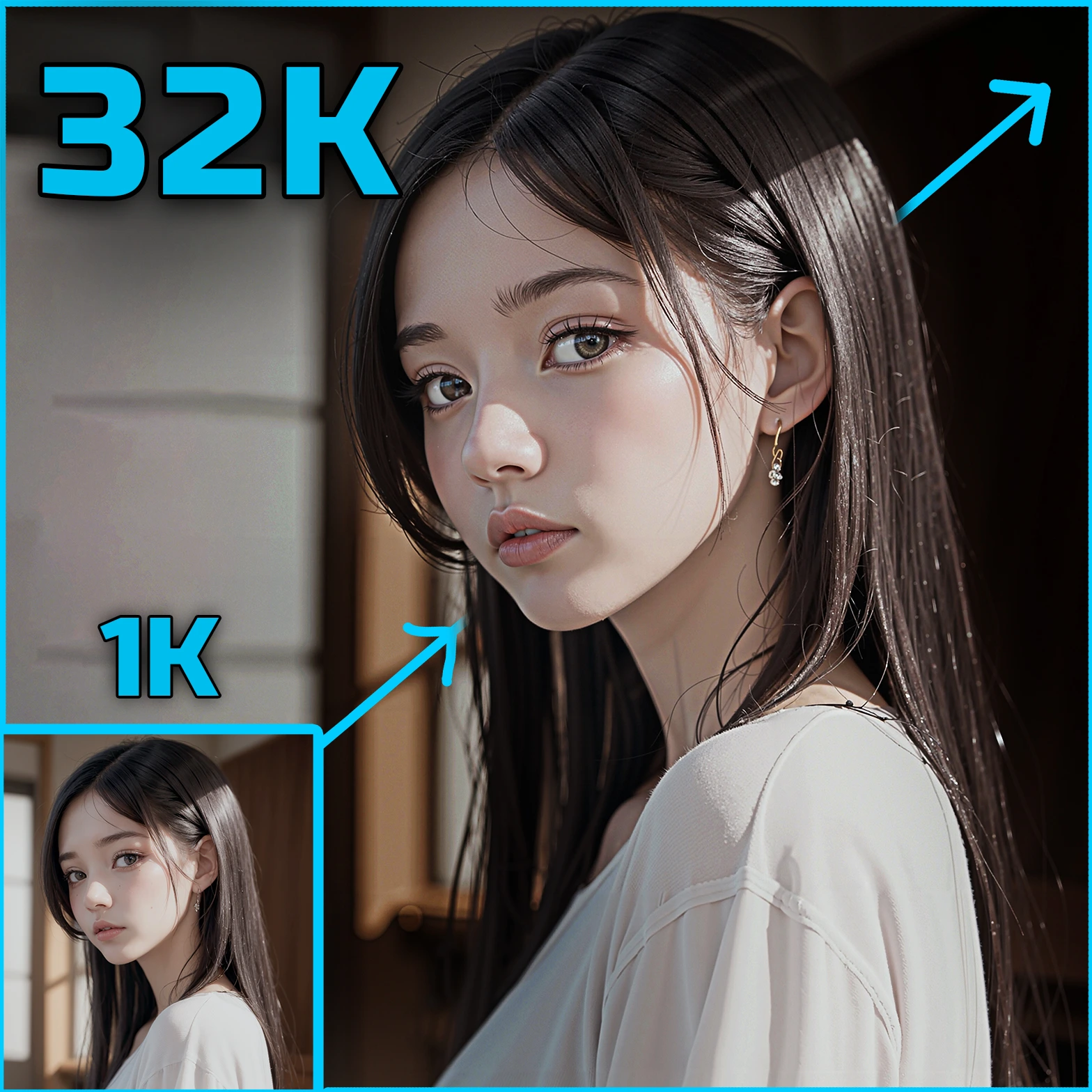
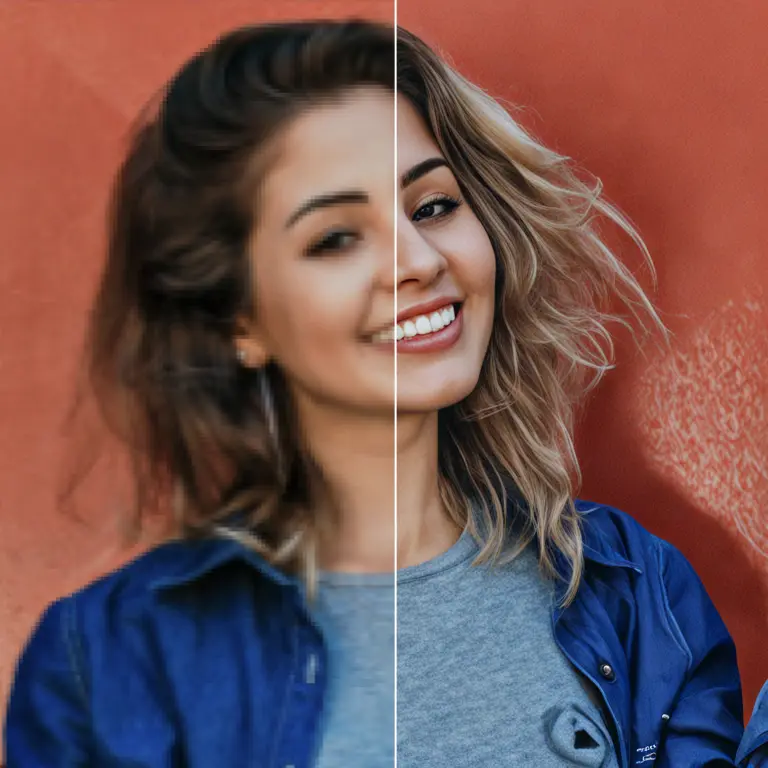
The MMH3 Ultimate Upscale node is designed to enhance the resolution and quality of already-denoised MiniMax H3 AV latents through a comprehensive auto pipeline. This node simplifies the process by integrating multiple stages into a single operation, including temporal splitting, latent upscaling, spatial splitting, per-tile sampling with preview, and both spatial and temporal stitching. The node is particularly beneficial for users looking to upscale video latents while maintaining efficient VRAM usage, as it processes each chunk or tile with a fresh guider built from re-anchored and cropped keyframes. This ensures that the peak VRAM usage is limited to one tile at a time. The node offers flexibility by allowing users to skip certain stages if desired, making it adaptable to various project needs. Overall, the MMH3 Ultimate Upscale node provides a streamlined and efficient solution for enhancing video latents, making it an essential tool for AI artists seeking high-quality upscaling results.
MMH3 Ultimate Upscale Input Parameters:
latent_upscale_param
This optional parameter allows you to specify the settings for upscaling the latent using either a model-free interpolation method or the H3 3D upscaler. If connected, it determines how the video latent is resized spatially, while the audio remains untouched. The parameter can be left unconnected if you wish to skip the upscaling stage entirely.
temporal_split_param
This optional parameter is used to define the settings for temporal splitting of the latent. When connected, it allows the latent to be processed in smaller temporal chunks, which can be beneficial for managing VRAM usage and improving processing efficiency. If left unconnected, the latent will be processed as a single chunk.
spatial_split_param
This optional parameter specifies the settings for spatial splitting of the latent. By connecting this parameter, you can enable the node to sample each chunk in smaller spatial tiles, which can help in managing VRAM usage and ensuring detailed processing. If unconnected, the node will sample each chunk as a whole, without tiling.
MMH3 Ultimate Upscale Output Parameters:
latent_upscale_param
The output of this parameter provides the model-free upscale settings that are consumed by the MMH3 Ultimate Upscale node. It is crucial for determining how the video latent is resized spatially during the upscaling process, ensuring that the final output matches the desired resolution and quality.
MMH3 Ultimate Upscale Usage Tips:
- To optimize VRAM usage, consider using the temporal and spatial split parameters to process the latent in smaller chunks and tiles, respectively. This can help manage resources more efficiently and prevent memory overload.
- If you are looking to maintain the original audio quality, ensure that the latent upscale parameter is set to focus on video-only upscaling, as the audio is designed to pass through untouched.
- Experiment with different interpolation methods in the latent upscale parameter to find the best balance between processing speed and output quality for your specific project needs.
MMH3 Ultimate Upscale Common Errors and Solutions:
Error: "Mismatch in target size and conditioning's generation size"
- Explanation: This error occurs when the target size specified in the latent upscale parameter does not match the size used during the conditioning's generation.
- Solution: Ensure that the width and height specified in the latent upscale parameter match the dimensions used during the conditioning's generation process.
Error: "Insufficient VRAM for processing"
- Explanation: This error indicates that the available VRAM is not enough to process the latent as configured.
- Solution: Try reducing the chunk size by adjusting the temporal and spatial split parameters, or consider using a machine with more VRAM to handle the processing requirements.