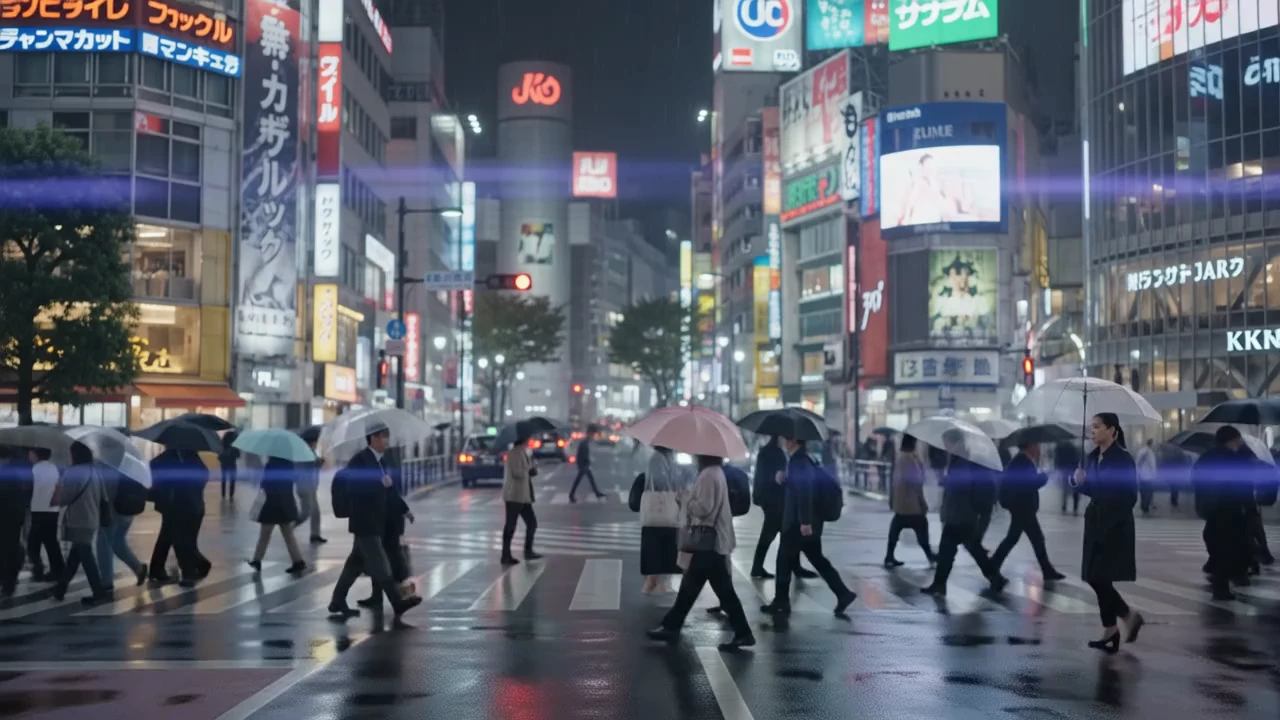
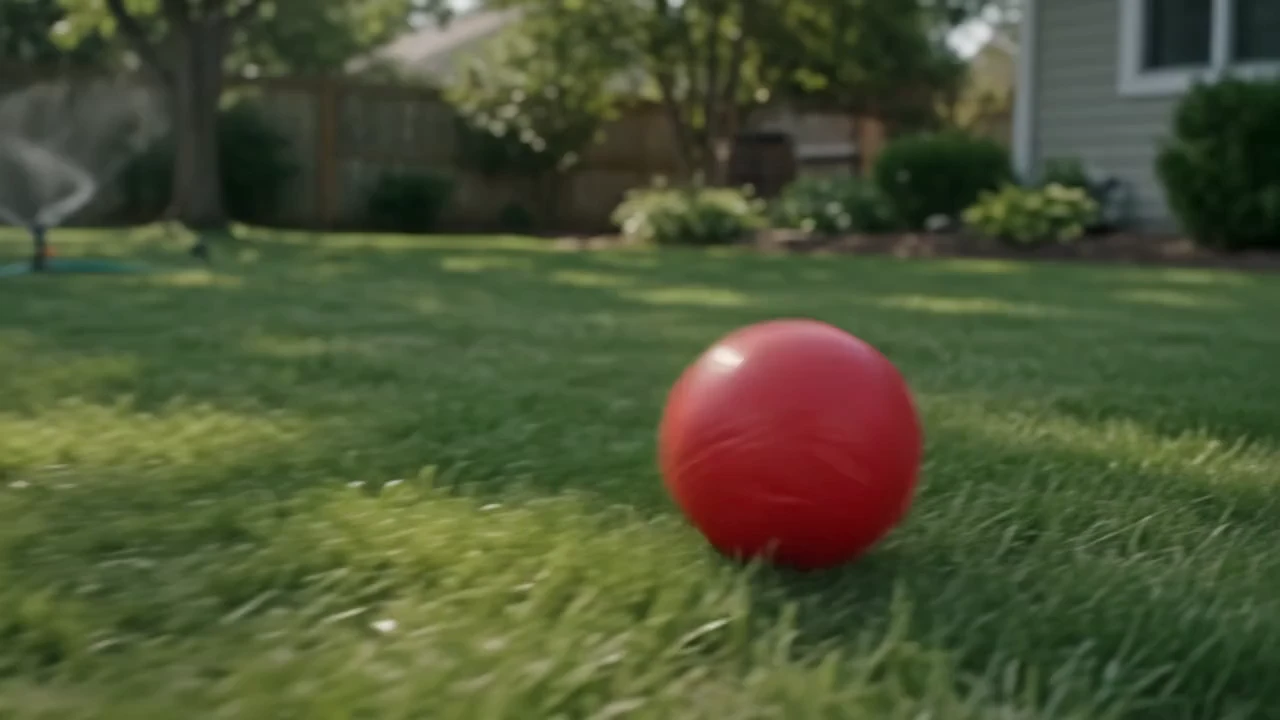
happyhorse-1.0/video-edit
HappyHorse 1.0 Video Edit on Alibaba edits an input video with text instructions and reference images for style transfer, local replacement, and outfit swaps.
Gemini Omni Flash Video Edit is Google's prompt-driven video editing mode from the Gemini Omni Flash family. Instead of generating a clip from scratch, it reads a source video plus a short written instruction and returns a new version that applies the requested change while leaving the rest of the scene intact.
The model treats your text as an edit, not a fresh render, so pacing, framing, and on-screen action stay aligned with the input. That makes it a fit for iterating on a single clip: try a new look, review it, then adjust the instruction and run again.
Because the interface is just a prompt and a video URL, it slots cleanly into both quick manual passes and automated pipelines.
| Parameter | Required | Type | Default | Range / Options | Description |
|---|---|---|---|---|---|
| prompt * | Yes (*) | string | (example provided) | Free text | Plain instruction describing the edit; add "keep everything else the same" to protect the rest of the scene. |
| video_url * | Yes (*) | string (URL) | (example provided) | Public video URL | The source video to edit. |
HappyHorse 1.0 Video Edit on Alibaba edits an input video with text instructions and reference images for style transfer, local replacement, and outfit swaps.

Create multi-scene films with synced dialogue and consistent characters.

FLUX 3 Draft: Fast, low-cost text-to-video previews at 720p

Turn written scenes into cinematic clips with optional native audio.

High-speed text-to-motion generator for cinematic storytelling use.

Generate high quality videos from text prompts using Kling 1.6 Pro.
Gemini Omni Flash Video Edit takes an existing video and a short text instruction, then returns an edited version that applies your requested change. It is built for video-to-video edits such as restyling, relighting, or swapping a background while the original scene structure and motion stay in place.
The model reads your prompt as an edit rather than a fresh generation, so framing, pacing, and on-screen action are carried over from the source clip. Adding a phrase like "keep everything else the same" helps Gemini Omni Flash Video Edit preserve the parts of the scene you don't want touched.
It works well for style changes, lighting and mood shifts, weather or season swaps, and background adjustments. For strong results with Gemini Omni Flash Video Edit, describe one clear change per prompt and state what should stay the same instead of stacking many instructions at once.
You provide two things: a public URL for the source video and a plain-language instruction describing the edit. Because Gemini Omni Flash Video Edit only needs a prompt and a video URL, it is quick to prototype in the RunComfy model UI and easy to wire into an automated pipeline.
Editing an uploaded video is not available for users in the EEA, Switzerland, and the United Kingdom, voice editing is not supported, and audio references cannot be supplied. Both the input clip and the generated output from Gemini Omni Flash Video Edit pass through safety filtering, so check the current RunComfy parameter panel for any additional limits.
Yes. A common workflow is to run one source video through several prompts to compare directions, then keep the best result. Since Gemini Omni Flash Video Edit edits from your footage each time, the underlying scene stays consistent across attempts while only the requested look changes.
Yes. You can prototype in the RunComfy model UI and then call the same model via the RunComfy API with identical parameters. This lets teams move Gemini Omni Flash Video Edit from testing into production automation without changing the request shape.
Generations with Gemini Omni Flash Video Edit are billed at $0.14 per second of the output video, and generations draw down your usd or credit balance. Longer clips cost proportionally more, so trim the source footage to the section you need before editing.
RunComfy is the premier ComfyUI platform, offering ComfyUI online environment and services, along with ComfyUI workflows featuring stunning visuals. RunComfy also provides AI Models, enabling artists to harness the latest AI tools to create incredible art.