

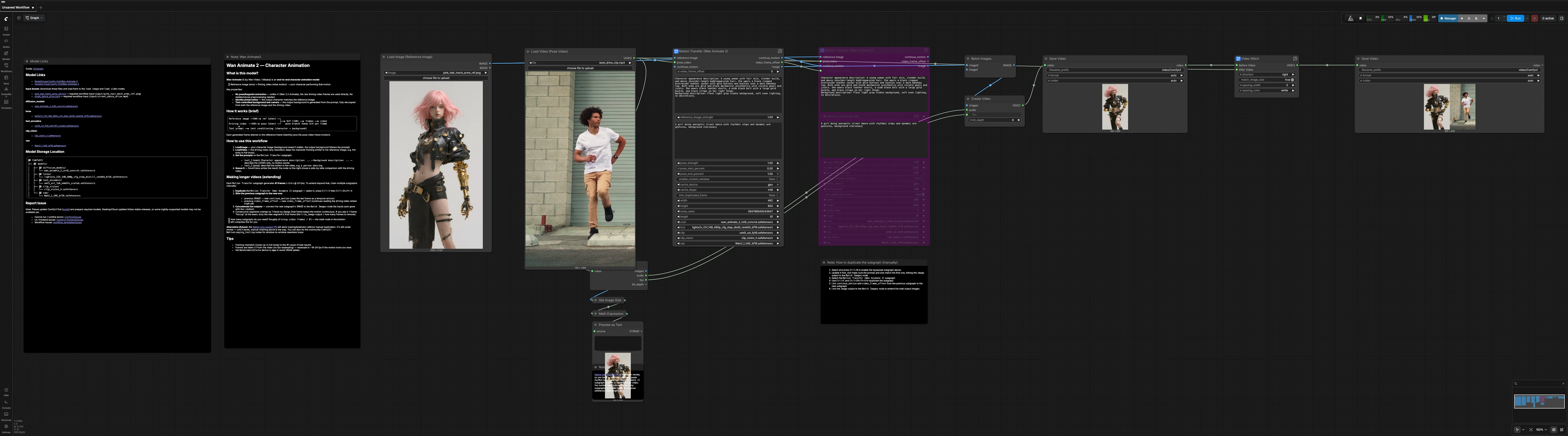
Wan Animate 2 ComfyUI motion transfer: single‑image character animation from a driving video#
Wan Animate 2 ComfyUI turns one reference character still plus a driving pose video into a new full‑body animation clip. It is built around Wan‑Animate‑2, an end‑to‑end diffusion transformer that transfers motion directly from raw frames, so you do not need OpenPose or any skeleton extraction. The workflow preserves character identity from the still while you control background, style, and camera through text.
This RunComfy‑ready graph is ideal for creators who want studio‑style motion transfer inside ComfyUI. You supply a portrait or full‑body reference, drop in a short driving video, set two concise prompts, and Wan Animate 2 ComfyUI produces an identity‑faithful character performance with clean, prompt‑driven scenery.
Key models in Comfyui Wan Animate 2 ComfyUI workflow#
- Wan‑Animate‑2 core weights. The diffusion transformer that performs identity‑aware motion transfer from the driving clip while generating new frames. Source and weights: Wan‑Animate‑2 GitHub and Comfy‑Org/Wan‑Animate‑2.
- LightX2V I2V 14B 480p distilled LoRA. A lightweight adapter that aligns the Wan‑Video backbone for efficient image‑to‑video generation and motion conditioning. File: lightx2v_I2V_14B_480p_cfg_step_distill_rank64_bf16.safetensors at Hugging Face.
- uMT5‑XXL text encoder. Interprets your positive and negative prompts to drive character look, background, and style. File: umt5_xxl_fp8_e4m3fn_scaled.safetensors at Hugging Face.
- CLIP ViT‑H/14 vision encoder. Extracts appearance features from the reference image and complementary cues from pose frames for robust identity and motion guidance. File: clip_vision_h.safetensors at Hugging Face.
- Wan 2.1 VAE. Encodes and decodes video latents while preserving fine texture and color fidelity. File: Wan2_1_VAE_bf16.safetensors at Hugging Face.
How to use Comfyui Wan Animate 2 ComfyUI workflow#
At a glance, the workflow routes a reference image and a driving video through the Motion Transfer subgraph, then decodes frames to a video and optionally stitches a side‑by‑side comparison. The groups below describe how each part contributes and what you may edit.
Models#
This group loads the core Wan‑Animate‑2 model, its LoRA, text encoder, CLIP‑Vision, and VAE. Keep the default model picks unless you know you need alternatives from the same repositories. The UNet and LoRA pair define how motion is interpreted and rendered, while the VAE controls image fidelity during latent encode/decode. If you swap models, ensure they are compatible with Wan Animate 2 ComfyUI assets from the linked repositories.
Prompt#
Use the positive prompt to describe the character’s appearance and the background you want, and the negative prompt to gently exclude artifacts. Describe the look, materials, clothing, lighting, and the set; do not describe movement here because motion comes from the video. Keeping prompts concise and specific improves identity preservation and background consistency across frames. The text encoder converts your text into conditioning used throughout generation.
Reference Image#
Load a single, clean reference portrait or full‑body still with the character centered using Load Image (Reference Image) (#189). Background of this still does not carry over because the scene is generated from your prompt. The group resizes the reference to match the working resolution used downstream so attention maps align with pose features. Well‑lit, sharp references with minimal occlusion produce stronger identity.
Pose Reference Video#
Import the driving clip with Load Video (Pose Video) (#240). Frames are passed directly to the model rather than converted to skeletal keypoints, so natural nuance like weight shifts and secondary motion transfers well. The graph normalizes spatial dimensions while keeping the original clip’s cadence, which means output fps follows the source. Choose clips whose framing roughly matches the reference (for example full‑body to full‑body) to avoid scale drift.
Context Windows & Cache#
ContextWindowsManual controls temporal context, helping longer motions remain coherent across windows. A small ComfySwitchNode toggles whether the context expansion is used, allowing you to trade memory for stability in extended shots. WanAnimate2Cache manages attention cache on gpu or cpu with reduced precision, which helps control VRAM spikes on long sequences. For tight GPUs, placing the cache on cpu is a practical safeguard.
Conditioning#
WanAnimate2ToVideo (#247) is the heart of Wan Animate 2 ComfyUI. It merges positive and negative text conditioning with the reference image, CLIP‑Vision features, and the pose frames to produce a sequence of video latents. You can pass a previous segment’s last frame to continue_motion to maintain continuity between chunks, and you can offset reading of the driving clip with video_frame_offset when chaining. The node also accepts reference_image_strength and pose_strength to balance identity lock versus motion fidelity.
Sampling#
SamplerCustom denoises the video latents using the model prepared by ModelSamplingSD3, BasicScheduler, and an LCM sampler selection. This stage determines speed and texture stability; a fixed seed keeps look and grain consistent across segments, while a randomized seed adds variation. The result is a latent video clip ready for decoding.
Trim the duplicated first frame#
When chaining segments, the first frame of a new segment can duplicate the previous segment’s last frame. TrimVideoLatent plus a small switch path remove that seam automatically. If you still see a single‑frame hiccup, drop the first image of the new chunk when batching.
Video assembly and comparison#
VAEDecode converts the final latents into images, which are batched then sent to CreateVideo to inherit the source clip’s fps and audio if present. SaveVideo writes the generated animation to disk. The Video Stitch subgraph (ImageStitch inside) takes the generated video and the original driving video to produce a side‑by‑side comparison for quick quality checks, then saves that combined view as a separate file.
Extending beyond a single chunk#
Each pass produces a fixed number of frames, so longer shots are created by duplicating the Motion Transfer (Wan Animate 2) subgraph (#261). Connect continue_motion from the previous pass to the next pass and feed the prior video_frame_offset forward so reading of the driving clip continues seamlessly. Wire each pass’s image output into BatchImagesNode (#289) to concatenate segments before video creation. A helper math node at the bottom left computes how many passes you need based on the driving video length, and a small preview prints the number.
Key nodes in Comfyui Wan Animate 2 ComfyUI workflow#
WanAnimate2ToVideo (#247)#
Combines text conditioning, the reference image, CLIP‑Vision features, and pose frames to synthesize video latents. Adjust reference_image_strength to control how tightly the output adheres to the still, and use pose_strength plus pose_start_percent and pose_end_percent to window or soften motion. length sets frames per pass, video_frame_offset advances through the driving clip when chaining, and continue_motion anchors temporal continuity using the prior segment’s last frame. Backed by the Wan‑Animate‑2 implementation and weights in the official repos linked above.
ContextWindowsManual (#257) with ComfySwitchNode (#258)#
Expands the temporal attention window so movements remain consistent across longer sequences. Enable it for complex motions or when you see drifting details across time, at the cost of extra memory. If you hit memory limits, disable or reduce context window size and rely on chunk‑to‑chunk continuity.
WanAnimate2Cache (#224)#
Caches attention keys and values to reduce redundant computation and smooth memory usage. Set the cache device to cpu when VRAM is tight or to gpu for maximum throughput, and keep the lightweight dtype for stability. This is especially helpful when you stack multiple passes for extended shots. Assets are provided with the official Comfy‑Org/Wan‑Animate‑2 release.
SamplerCustom (#19) with KSamplerSelect and BasicScheduler#
Runs the denoising trajectory over the video latents. The LCM sampler is chosen for fast, high‑quality steps suitable for interactive iteration. Use a fixed seed to lock texture and shading across chained passes; change the seed to explore alternates while keeping motion identical.
TrimVideoLatent (#223)#
Removes the duplicated first frame that can appear when you chain segments, eliminating visible seams. Leave it enabled when building longer sequences and disable it for single‑pass clips.
Optional extras#
- Keep framing consistent between the reference and driving video. Full‑body to full‑body or medium‑shot to medium‑shot works best.
- Because Wan Animate 2 ComfyUI reads raw frames for motion, use driving clips with clear silhouettes and minimal motion blur.
- Describe backgrounds in the positive prompt rather than relying on the reference image background; the model generates new scenery from text.
- Output fps follows the input clip. If motion appears too slow or fast, resample the driving video before running the workflow.
- For GPUs with limited memory, set the cache device to cpu in
WanAnimate2Cacheand prefer shorter chunks you can later stitch. - Use the side‑by‑side output from the
Video Stitchsubgraph to quickly A/B motion fidelity before rendering longer runs.
Acknowledgements#
This workflow implements and builds upon the following works and resources. We gratefully acknowledge Comfy Org for the “Wan Animate 2 is now available in ComfyUI” announcement and templates, Wan-Video for the Wan-Animate-2 codebase, Comfy-Org for the Wan-Animate-2 model weights on Hugging Face, and ComfyUI for the “Wan Animate 2: Motion Transfer” workflow template for their contributions and maintenance. For authoritative details, please refer to the original documentation and repositories linked below.
Resources#
- Comfy Org/Wan Animate 2 is now available in ComfyUI
- GitHub: Comfy-Org/workflow_templates
- Hugging Face: Comfy-Org/Wan-Animate-2
- Docs / Release Notes: Wan Animate 2 is now available in ComfyUI
- Wan-Video/Wan-Animate-2
- GitHub: Wan-Video/Wan-Animate-2
- Hugging Face: Wan-AI/Wan2.2-Animate-2-14B
- arXiv: 2608.06009
- Comfy-Org/Wan-Animate-2
- Hugging Face: Comfy-Org/Wan-Animate-2
- arXiv: 2608.06009
- ComfyUI/Wan Animate 2: Motion Transfer
- Docs / Release Notes: Wan Animate 2: Motion Transfer - ComfyUI Workflow
Note: Use of the referenced models, datasets, and code is subject to the respective licenses and terms provided by their authors and maintainers.