



Precise portrait editing with PixelSmile fine-grained expression control#
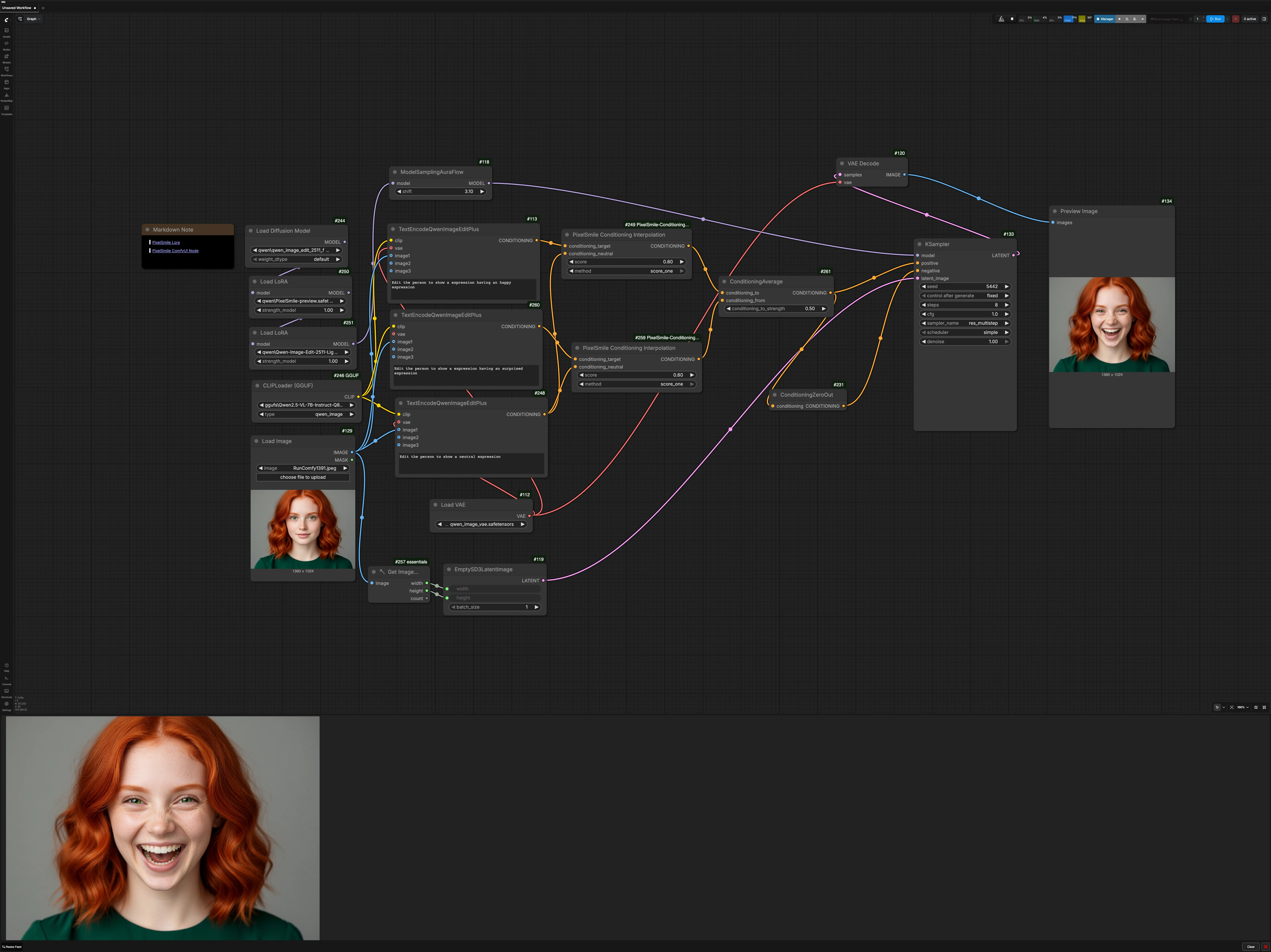
This ComfyUI workflow delivers PixelSmile fine-grained expression control on top of Qwen Image Edit. It lets you steer a face from neutral to specific emotions and blend between them while keeping identity and composition intact. Typical use cases include subtle retouching for headshots, exploring emotional variations of a character, and crafting controlled expression mixes in a single canvas.
Under the hood, the graph encodes neutral and target prompts with Qwen’s edit encoder, computes PixelSmile deltas to isolate expression change, blends multiple targets, then samples with a lightweight Lightning LoRA for fast, consistent results. You get predictable control over happy, surprised, neutral, or any other promptable expression without restructuring the scene.
Key models in Comfyui PixelSmile fine-grained expression control workflow#
- Qwen-Image-Edit-2511. The diffusion-based image editing backbone that preserves layout and identity during edits. It extends Qwen-Image for structure-aware, localized modifications and stable text-conditioned changes. Model card
- Qwen2.5-VL-7B-Instruct. The text-vision model used here as the prompt encoder to produce robust edit conditionings from short, natural phrases. Model card
- PixelSmile LoRA. Expression-focused LoRA that provides linear, intensity-controlled facial changes aligned with prompt semantics. See the open-source weights and project resources. Hugging Face Paper
- Qwen-Image-Edit-2511-Lightning LoRA. A speed-optimized LoRA that enables high-quality edits in very few steps, ideal for interactive expression exploration. Model card
How to use Comfyui PixelSmile fine-grained expression control workflow#
The flow takes a source portrait, builds neutral and target expression conditionings, computes PixelSmile deltas, blends multiple targets, then samples and decodes the result. Edit prompts in the encoder nodes, adjust PixelSmile intensity and blend, and preview the output.
Load the source portrait and set working size#
- Use
LoadImage(#129) to bring in your portrait. The image feeds both the encoders and a size probe so the graph can render at the original resolution. GetImageSize+(#257) reads width and height, andEmptySD3LatentImage(#119) allocates a latent of the same size. This keeps framing and composition stable throughout sampling.
Describe neutral and target expressions#
TextEncodeQwenImageEditPlus(#248) encodes a neutral description (for example “neutral expression”) paired with the source image. This becomes your reference state.- Create one or more target descriptions in
TextEncodeQwenImageEditPlus(#113, #260), such as “happy expression” or “surprised expression.” Each target uses the same source image, which anchors identity and pose. - Prompts can be short and natural. The encoder uses Qwen2.5-VL-7B-Instruct to derive edit conditionings tailored to Qwen-Image-Edit-2511.
Compute PixelSmile deltas for precise control#
- For each target,
PixelSmileConditioning(#249, #259) takes the target conditioning and the neutral conditioning, then computes a delta that isolates just the facial-expression change. - The node exposes a strength control that linearly scales expression intensity. It also supports a token-scope method that limits interpolation to the expression word, which helps avoid unwanted changes outside the face region.
Blend multiple expressions#
ConditioningAverage(#261) blends two PixelSmile outputs into a single positive conditioning. Use it to mix, for example, 40% surprised with 60% happy for compound emotions.ConditioningZeroOut(#231) provides a clean negative by zeroing residual guidance. This keeps the edit focused and reduces drift.
Sample with Qwen Image Edit and Lightning#
- The model stack loads the Qwen-Image-Edit-2511 UNet, applies the PixelSmile LoRA, then layers the Lightning LoRA for fast, consistent steps (
UNETLoader(#244) →LoraLoaderModelOnly(#250, #251) →ModelSamplingAuraFlow(#118)). KSampler(#133) executes the denoising using the blended positive and zeroed negative conditionings. The Lightning LoRA enables responsive previews with few steps, which is ideal when iterating on PixelSmile strength and blend.
Decode and preview#
VAEDecode(#120) converts the final latent back to an image, andPreviewImage(#134) displays the result. Because the latent size matches the source, the output maintains composition and aspect ratio.
Key nodes in Comfyui PixelSmile fine-grained expression control workflow#
PixelSmileConditioning (#249)#
Computes the expression delta between a target prompt and the neutral baseline, then scales it to control intensity. Adjust score to increase or soften the expression shift. The method toggle lets you interpolate across all tokens for broader stylistic changes or limit interpolation to the expression token for tighter facial control, which often preserves hair and background more faithfully. See the node implementation for details. GitHub
PixelSmileConditioning (#259)#
A second instance that enables a parallel target (for example “surprised”) against the same neutral baseline. Use this to set up A/B expression tracks you can blend. Keep both PixelSmile score values moderate if you plan to mix them, since extreme settings on both tracks can cancel or overdrive the result.
ConditioningAverage (#261)#
Blends two PixelSmile conditionings into one positive conditioning. Increase the weight toward the expression you want to dominate, or set fully to one side for a pure single-expression run. When building nuanced emotions, start near an even split, then bias by small increments until micro-features like eyebrows and mouth corners look natural.
TextEncodeQwenImageEditPlus (#113)#
Produces edit conditionings from short prompts and the input image, leveraging Qwen2.5-VL-7B-Instruct as the encoder for Qwen-Image-Edit-2511. Keep phrasing concise and specific to the emotion. Pairing the same source image across neutral and target encoders is key to identity preservation.
KSampler (#133)#
Runs denoising with the stacked Qwen-Image-Edit backbone and Lightning LoRA. Use it mainly to control overall iteration count and variability while you fine-tune PixelSmile intensity and the blend. If artifacts appear, reduce the PixelSmile score first before increasing steps.
Optional extras#
- Keep expression words explicit, for example “subtle happy expression” or “slight surprise,” to bias PixelSmile deltas toward micro-expressions.
- If the face changes bleed into hair or background, switch the PixelSmile
methodto token-limited interpolation and reducescoreslightly. - Crop loosely around the face before editing if expressions feel underpowered, then reapply to the full image once you find a setting you like.
- For preview speed, iterate with the Lightning LoRA and low steps, then raise steps only for the final export if needed.
Links to reference models and project resources:
- PixelSmile project and weights: Hugging Face and paper PixelSmile: Toward Fine-Grained Facial Expression Editing
- PixelSmile ComfyUI node: GitHub
- Qwen-Image-Edit-2511: Hugging Face
- Qwen2.5-VL-7B-Instruct: Hugging Face
- Qwen-Image-Edit-2511-Lightning: Hugging Face
Acknowledgements#
This workflow implements and builds upon the following works and resources. We gratefully acknowledge the r/StableDiffusion community for the source post, PixelSmile for the PixelSmile model, and judian17 for the ComfyUI PixelSmile Conditioning Interpolation node for their contributions and maintenance. For authoritative details, please refer to the original documentation and repositories linked below.
Resources#
- r/StableDiffusion/Source post
- Docs / Release Notes: Reddit post
- PixelSmile/PixelSmile
- Hugging Face: PixelSmile/PixelSmile
- judian17/ComfyUI-PixelSmile-Conditioning-Interpolation
Note: Use of the referenced models, datasets, and code is subject to the respective licenses and terms provided by their authors and maintainers.