Qwen Image 2.1 Outfit Change ComfyUI Workflow#
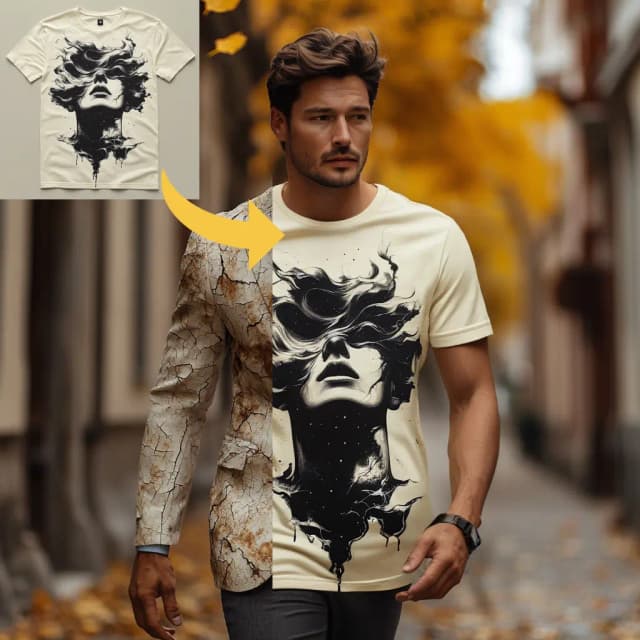
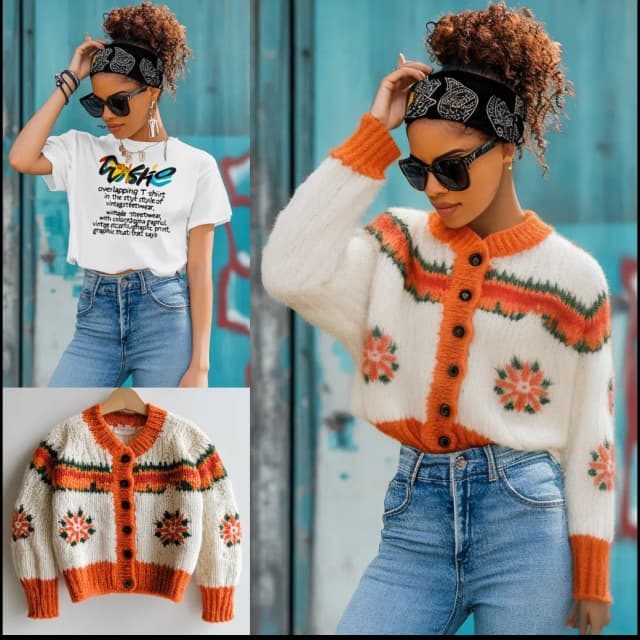
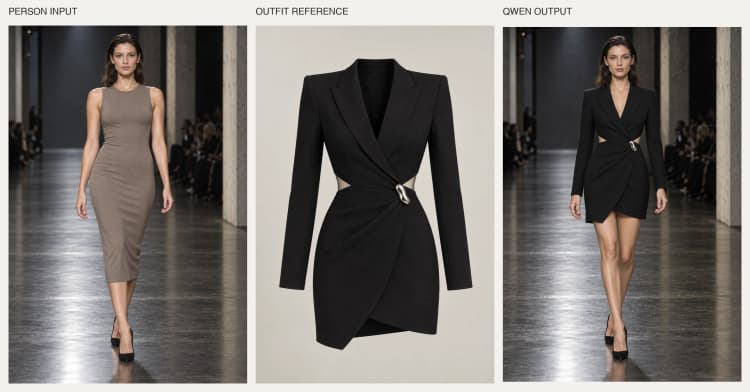
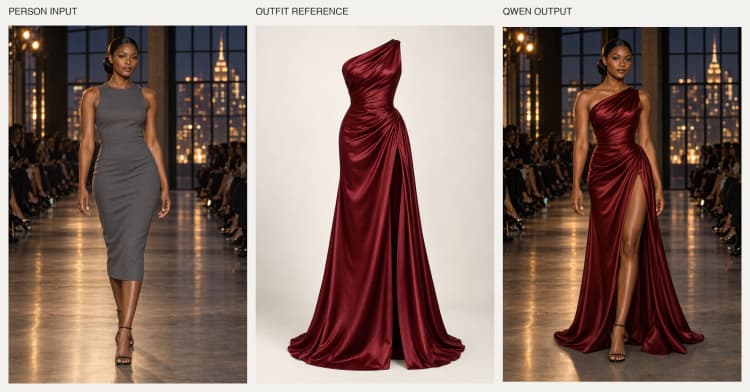
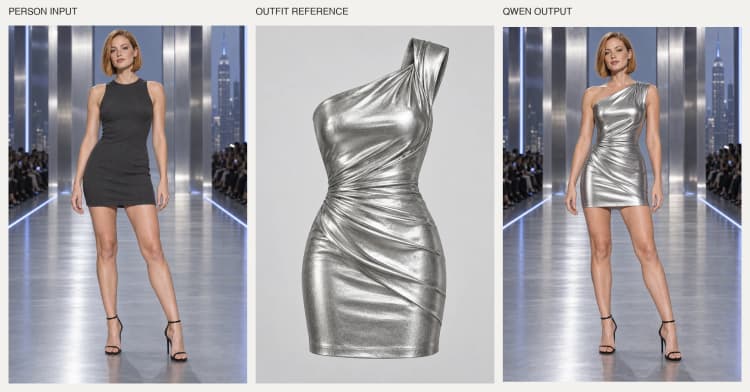
The Qwen Image 2.1 Outfit Change ComfyUI Workflow transfers clothing from an outfit reference image onto a person from a second image, guided by a short instruction. It aims to keep the subject, pose, face, background and camera framing from Image 1 while borrowing silhouette, color and texture from Image 2, producing a single realistic photograph.
Built around the unified Qwen-Image-2.1 model with prompt enhancement, this workflow is designed for virtual styling, fashion editorials, e‑commerce mockups and wardrobe visualization. You provide Image 1 (the person), Image 2 (the outfit) and a concise prompt; the pipeline handles multimodal conditioning, generation and decoding for you.
Key models in ComfyUI Qwen Image 2.1 Outfit Change ComfyUI Workflow#
- Qwen-Image-2.1. The unified vision-language and image generation model that interprets your instruction together with both images, then drives the diffusion process to synthesize the final outfit swap. Model card
- Qwen-Image-2.1 VAE. The variational autoencoder that encodes images to latents for conditioning and decodes the sampler’s output back to RGB, preserving fine fabric detail and color fidelity. Weights are provided with the ComfyUI pack. Weights
- Qwen-Image-2.1 text encoders. The bundled Qwen-VL family text encoders that turn your instruction and visual context into conditioning that the diffusion backbone can follow. Included with the ComfyUI weights. Weights
How to use ComfyUI Qwen Image 2.1 Outfit Change ComfyUI Workflow#
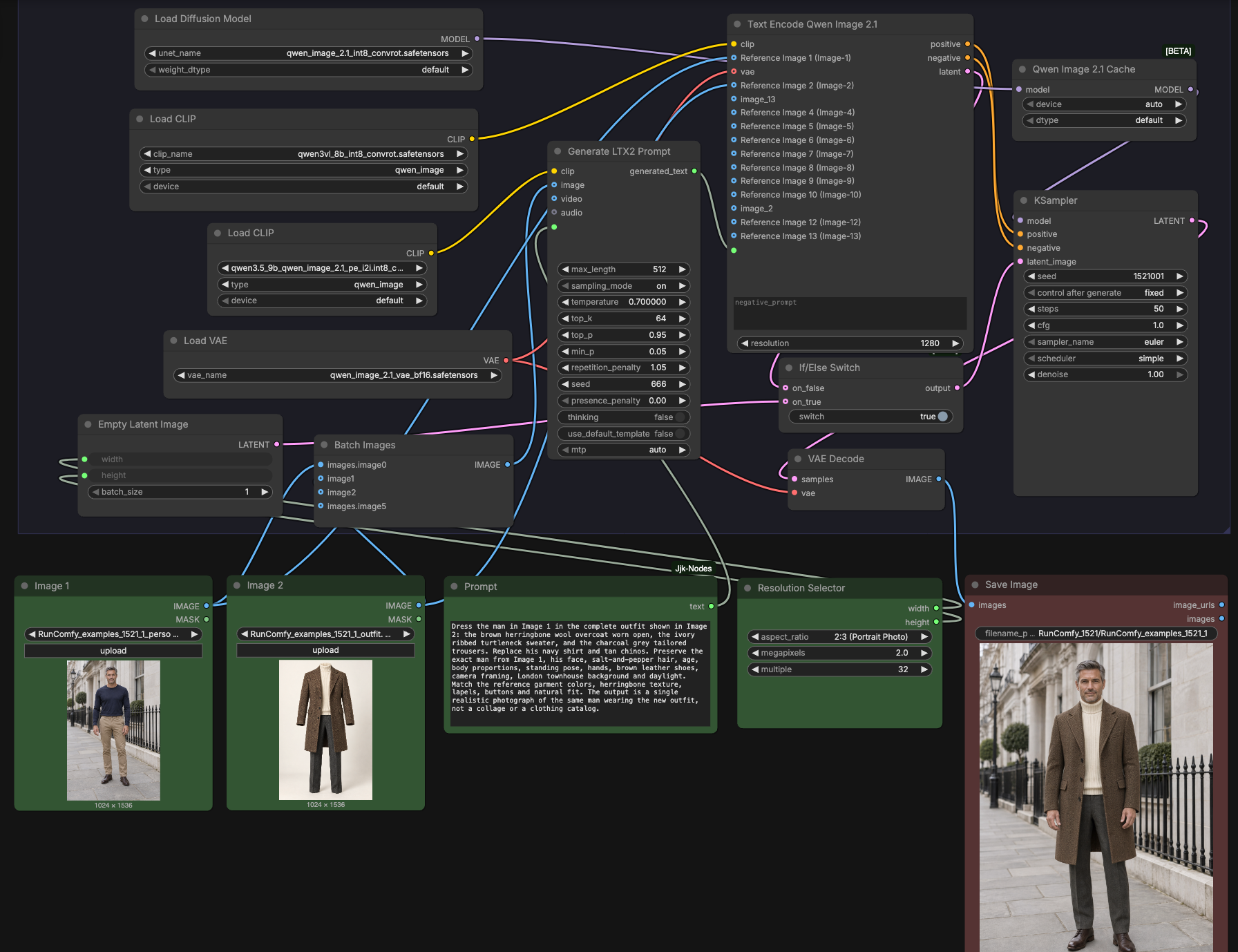
This workflow runs as a single group that ingests two images plus a text instruction, enriches the prompt using both visuals, builds multimodal conditioning for Qwen-Image-2.1, then samples and decodes the final image.
Qwen Image 2.1 Outfit Swap group#
This group pairs Image 1 (the person to restyle) with Image 2 (the outfit reference) and your instruction, then routes them through prompt enhancement and Qwen-Image-2.1 conditioning. The pipeline preserves the identity and scene from Image 1 while transferring garment silhouette, color and fabric traits from Image 2. It creates the latent canvas at your chosen resolution, samples with the Qwen-Image-2.1 model, and decodes to a ready-to-save image. Use this group for end-to-end outfit change with minimal setup.
LoadImage (#470) Image 1#
Load the source person photo here. Choose a single, well-framed shot where the subject and pose you want to keep are clearly visible. The image feeds both the prompt enhancer and the Qwen-Image-2.1 encoder so identity, pose and background are preserved during generation.
LoadImage (#510) Image 2#
Load the outfit reference here. Pick a clear view of the clothing with visible silhouette and textures. This reference informs prompt enhancement and becomes part of the encoder’s visual conditioning so color, fabric and garment structure transfer accurately.
JjkText (#516) Prompt#
Write a short instruction that tells the model what to swap and what to preserve. Mention the garment pieces to transfer from Image 2 and explicitly state that identity, pose and background from Image 1 should remain. Keep it specific and concise for stronger adherence.
BatchImagesNode (#505)#
This utility combines Image 1 and Image 2 for the prompt enhancer. It ensures the enhancer sees both visuals when rephrasing your instruction, which improves garment naming, color terms and fabric descriptors in the final prompt.
TextGenerateLTX2Prompt (#502)#
Generates a refined, model-friendly instruction by reading both images alongside your text. The result is a single enhanced prompt string that captures garment attributes, fit and scene-preservation cues. This string is passed downstream as the final instruction.
CLIPLoader (#500) and CLIPLoader (#478)#
These nodes load the Qwen-Image-2.1 text encoders used by the enhancer and the main encoder. They tokenize your refined instruction and prepare language embeddings aligned with the visual features extracted from the two images.
TextEncodeQwenImage21 (#485)#
Builds multimodal conditioning for Qwen-Image-2.1 from Image 1, Image 2, the refined prompt and the VAE. It emits positive and negative conditioning plus an optional initial latent that can anchor composition and layout. This is the heart of the outfit transfer, aligning language and both images before sampling.
ResolutionSelector (#13)#
Chooses the output width and height for generation. Select an aspect ratio that matches your target framing, then set the overall size. The selection drives the latent canvas used during sampling.
EmptyLatentImage (#480) and ComfySwitchNode (#483)#
Creates a fresh latent canvas at the chosen resolution, and lets you switch between starting from this blank latent or from the encoder’s latent. Use the switch to favor stronger outfit transfer (blank latent) or tighter preservation of Image 1’s composition (encoder latent).
UNETLoader (#477) and QwenImage21Cache (#484)#
Load and prepare the Qwen-Image-2.1 diffusion backbone for efficient sampling. The cache keeps model state ready across runs, reducing overhead during iteration.
KSampler (#482)#
Runs the diffusion process with the Qwen-Image-2.1 model and the conditioning produced earlier. It interprets your instruction while balancing adherence to Image 2’s garments and preservation of Image 1’s identity and scene. The result is a latent image ready for decoding.
VAEDecode (#481) and SaveImage (#518)#
Decode the final latent back to an RGB image with the Qwen-Image-2.1 VAE, then save it using your chosen filename prefix. The saved output is a single cohesive photo of the subject from Image 1 dressed in the outfit from Image 2.
Key nodes in ComfyUI Qwen Image 2.1 Outfit Change ComfyUI Workflow#
TextEncodeQwenImage21 (#485)#
This node fuses Image 1, Image 2, your refined instruction and the VAE into conditioning that the Qwen-Image-2.1 backbone can follow. Adjust the prompt and optional negative_prompt to steer garment detail versus scene preservation. The resolution input determines the encoder’s working scale and should be consistent with your chosen output size. See the model card for behavior context. Qwen/Qwen-Image-2.1
ComfySwitchNode (#483)#
Controls the starting point for sampling. Leave the switch on to begin from a fresh latent for stronger outfit adoption, or turn it off to reuse the encoder’s latent when you want to lock in composition or pose from Image 1. Toggle it to explore different identity-versus-outfit trade-offs without rewriting your prompt.
KSampler (#482)#
Governs how faithfully the model follows the instruction and references. Use denoise to balance outfit strength against preservation of the base image, and tune cfg, sampler_name, steps and seed for flavor, sharpness and reproducibility. For general guidance on sampling behavior in ComfyUI, refer to the project repository. ComfyUI
ResolutionSelector (#13)#
Sets your output dimensions. Match aspect ratio to your input photo’s framing when you want the background and crop to remain stable, or change it to recompose the shot. Larger sizes capture more fabric texture at the cost of compute.
Optional extras#
- Use high-quality inputs: a sharp, front-lit Image 1 and a clear, unobstructed Image 2 produce better silhouette and texture transfer.
- Be explicit in your instruction: name garment pieces, colors, textures and what must be preserved from Image 1.
- To keep composition, faces and background nearly identical to Image 1, switch to the encoder latent and lower overall aggressiveness through
denoise. - For stronger style takeover when Image 2’s outfit is very different, start from a fresh latent and keep the prompt concise and specific.
- Vary
seedto explore alternatives without changing your setup, then lock the one you like for reproducible results.
Links to model resources
- Qwen-Image-2.1 model card: https://huggingface.co/Qwen/Qwen-Image-2.1
- ComfyUI weights bundle (UNet, VAE, text encoders): https://huggingface.co/Comfy-Org/Qwen-Image-2.1
Acknowledgements#
This workflow implements and builds upon the following works and resources. We gratefully acknowledge Qwen for the Qwen-Image-2.1 model and release, Comfy-Org for the ComfyUI Qwen-Image-2.1 weights, and Wendy Wu for the source workflow for their contributions and maintenance. For authoritative details, please refer to the original documentation and repositories linked below.
Resources#
- Wendy Wu/Source workflow
- Docs / Release Notes: runninghub.ai post
- Qwen/Qwen-Image-2.1
- GitHub: QwenLM/Qwen-Image-2.1
- Hugging Face: Qwen/Qwen-Image-2.1
- Comfy-Org/ComfyUI Qwen-Image-2.1 weights
- GitHub: Comfy-Org/workflow_templates
- Hugging Face: Comfy-Org/Qwen-Image-2.1
- Qwen/Qwen-Image-2.1 release
- Docs / Release Notes: Qwen blog
Note: Use of the referenced models, datasets, and code is subject to the respective licenses and terms provided by their authors and maintainers.