
MOSS-Image Base Text to Image workflow for photorealistic, editorial, and type-led images#
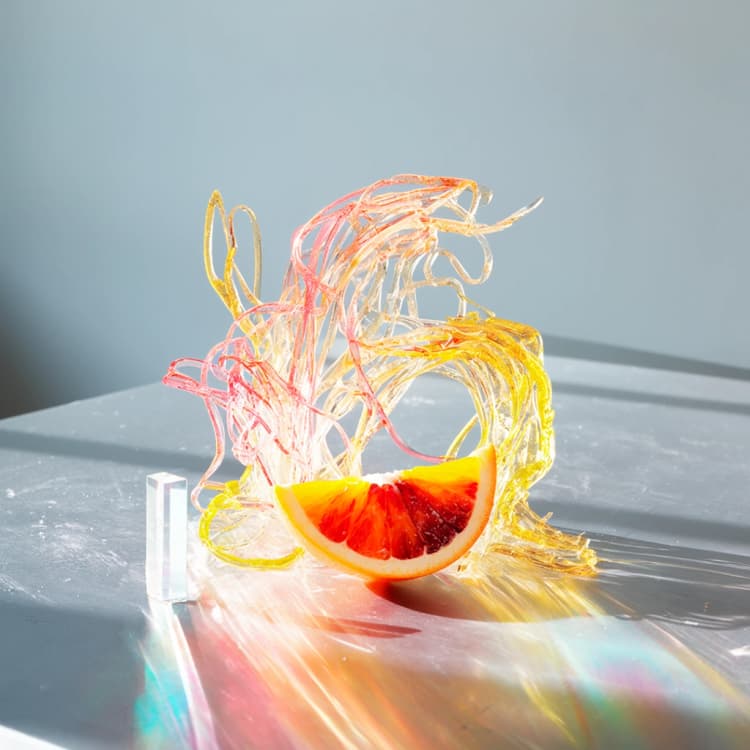
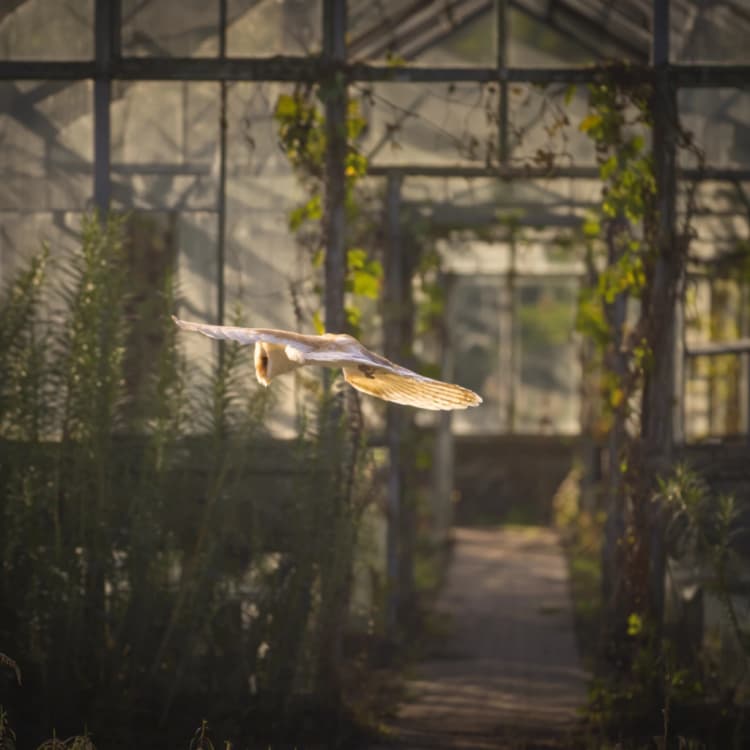
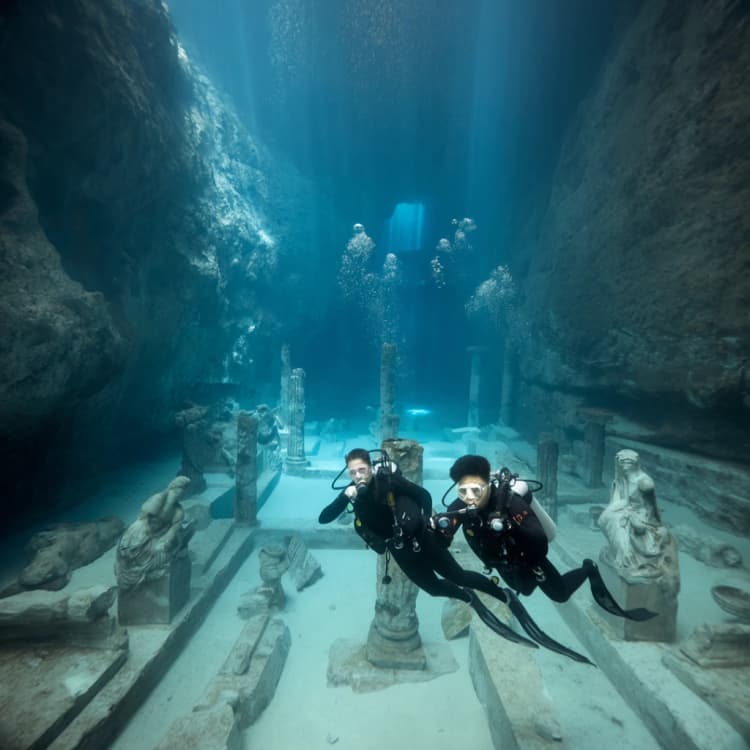
This ComfyUI template turns natural-language prompts into finished visuals with the MOSS-Image Base checkpoint. It is designed for fast concepting and reliable typography, with an optional Qwen3.5 prompt enhancer that can rewrite ideas into strong, model-friendly captions. Use MOSS-Image Base Text to Image when you want the non-post-trained Base model as a flexible foundation for photorealistic scenes, illustrations, editorial graphics, and community LoRA experimentation.
Creators, designers, and art directors can iterate quickly on posters, product shots, and layout-heavy compositions. The workflow keeps controls minimal while exposing the switches that matter most: prompt enhancement, resolution, sampling strategy, and Skip Layer Guidance for sharper type and edges.
Key models in Comfyui MOSS-Image Base Text to Image workflow#
- OpenMOSS MOSS-Image Base checkpoint. Core diffusion transformer used for image generation; the Base variant omits post-training so it generalizes well and plays nicely with LoRAs. Model card and files • Project repo
- Qwen3.5 text encoder (9B, GPTQ W4A8) packaged for MOSS-Image. Encodes prompts and enhanced captions into conditioning that preserves wording and layout hints. Files are included under text_encoders in the model card. huggingface.co/Comfy-Org/MOSS-Image
- FLUX.2 Small VAE. Decodes latents from the diffusion process back to images with crisp detail and stable colors. Included under vae in the model card. huggingface.co/Comfy-Org/MOSS-Image
How to use Comfyui MOSS-Image Base Text to Image workflow#
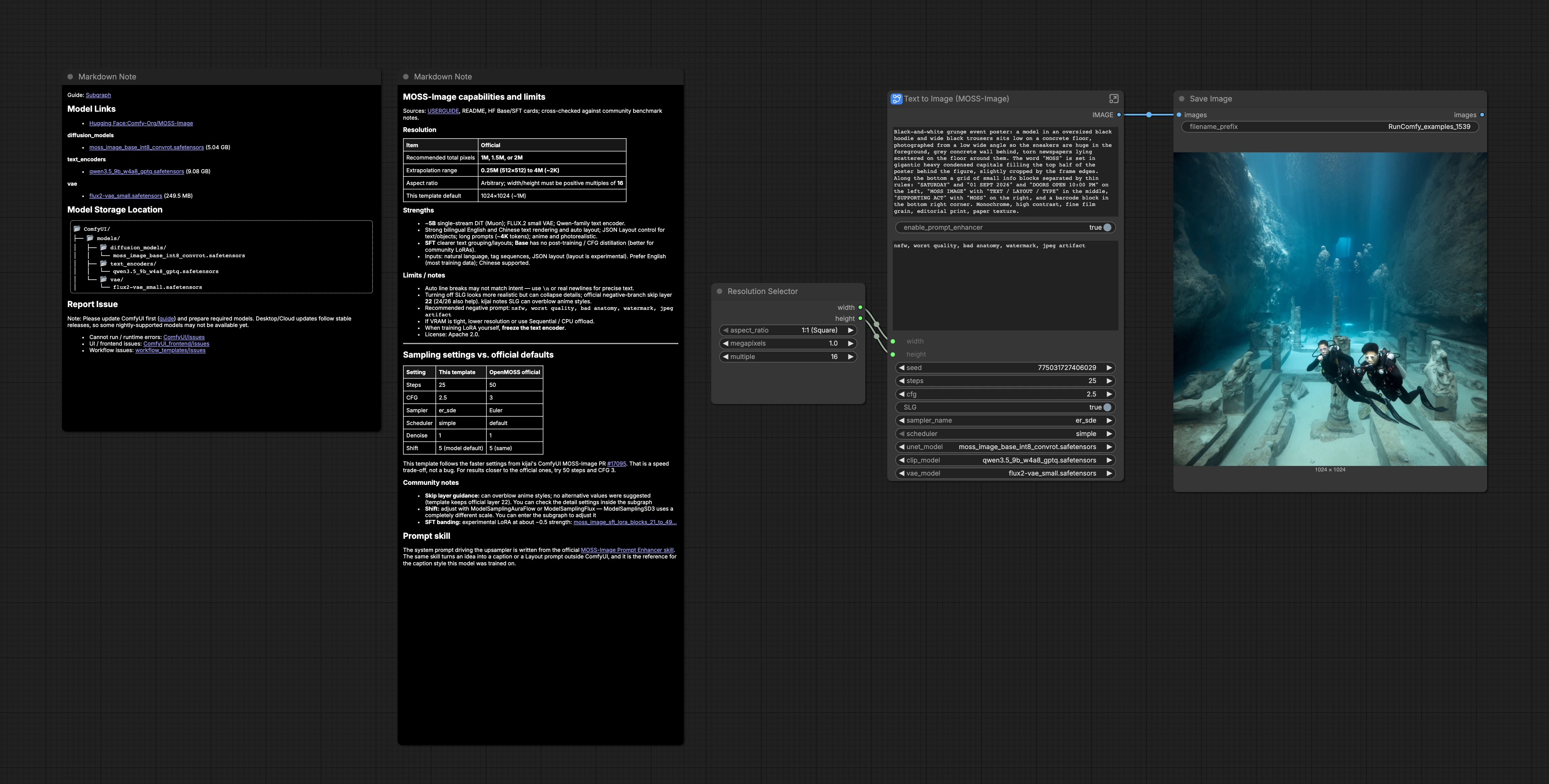
At a glance: your prompt enters a prompt-enhancement switch, becomes conditioning for the model, a latent canvas is sampled, then decoded and saved. The groups below run in order from setup to output.
Models#
Select the provided MOSS-Image Base UNet, the Qwen3.5 text encoder, and the FLUX.2 VAE. These are preloaded in the template so you can generate immediately. If you plan to experiment with LoRAs, keep using the Base model rather than the SFT variant for broad compatibility. A model switch also lets you wrap the UNet with Skip Layer Guidance for extra sharpness when needed.
Prompt#
Enter a clear positive prompt describing the finished image, plus an optional negative prompt to steer away from artifacts. Prompts can include typography; quote visible text exactly and write where it appears in the layout. Keep style, lighting, lens, and materials concrete to anchor composition and mood. The prompt is encoded into conditioning with the Qwen-family text encoder.
Prompt Enhancer#
Toggle the prompt enhancer to let an internal Qwen3.5 stage rewrite your idea into a detailed caption aligned to how MOSS-Image was trained. When enabled, your input flows through a system prompt that emphasizes visual-only details, text placement, and line breaks. When disabled, your original wording is used verbatim. Use this to A/B test whether a hand-written or enhanced caption suits your subject and typography.
Image Size#
Pick an aspect ratio and megapixel target with the resolution selector, which outputs width and height for the latent canvas. MOSS-Image works best around 1 to 2 megapixels for speed and quality. All sizes must be multiples of 16 and can scale up to roughly 4 megapixels on capable GPUs. Larger canvases increase detail but cost VRAM and time.
Sampling and decode#
The sampler runs the diffusion steps on the latent canvas using your conditioning and chosen strategy, then the VAE decodes to an image. Use more steps for complex compositions or subtle lighting; fewer steps for rapid drafts. Guidance can be nudged up for stronger adherence to the caption or down for more naturalistic detail. The result is previewed and passed to saving.
Save and review#
Images are written by the save node with a prefix you can change to organize outputs. Review typography, spacing, and edge sharpness; if text groups look too forceful, try disabling Skip Layer Guidance or slightly reducing guidance strength. If text fidelity drops, enable the enhancer and be explicit about line breaks.
Key nodes in Comfyui MOSS-Image Base Text to Image workflow#
TextGenerate (#11)#
Optional Qwen3.5-based prompt enhancement that expands your idea into a detailed, training-aligned caption. Turn it on when you need stronger composition cues, precise text placement, or more descriptive lighting and materials. If you already write detailed captions, leave it off to preserve your voice.
ComfySwitchNode (#16)#
Routes either your raw prompt or the enhanced caption into the positive encoder based on the “enable_prompt_enhancer” switch. Use it to A/B test outputs quickly without touching downstream nodes.
SkipLayerGuidanceDiTSimple (#15)#
Wraps the Base model with Skip Layer Guidance. Enabling it often sharpens edges, type, and micro-contrast in posters and product shots. Disable it for a softer, more photographic look or if fine textures start to overshoot.
KSampler (#7)#
Controls the diffusion process. Increase steps when scenes are intricate or typography is dense; decrease for speed while exploring ideas. Adjust guidance to trade off between strict prompt adherence and organic detail. Switching sampler or scheduler can subtly change noise shaping and texture.
ResolutionSelector (#19)#
Outputs width and height from a friendly aspect-ratio and megapixel choice. Aim near 1–2 megapixels for balanced quality and speed, and keep dimensions in multiples of 16. Scale up carefully if you see VRAM pressure.
Optional extras#
- Use explicit line breaks to control typography: write “Headline”, then a newline, then the next line to match reading order.
- For text-heavy designs, keep the prompt enhancer on and quote every piece of visible text exactly as it should appear.
- A lightweight negative prompt like “nsfw, worst quality, bad anatomy, watermark, jpeg artifact” is a practical default for cleaner outputs.
- If outputs look over-sharpened, disable Skip Layer Guidance; if they look too soft or text edges fuzz, enable it again.
- Prefer the Base checkpoint for LoRA training and community LoRA testing; switch to SFT only if you specifically want its stronger, more prescriptive layouts.
Acknowledgements#
This workflow implements and builds upon the following works and resources. We gratefully acknowledge OpenMOSS for the MOSS-Image model and repository, Comfy-Org for the MOSS-Image ComfyUI model files, and the ComfyUI Docs team for the official MOSS-Image ComfyUI tutorial for their contributions and maintenance. For authoritative details, please refer to the original documentation and repositories linked below.
Resources#
- ComfyUI Docs/MOSS-Image in ComfyUI: Text-to-Image and Layout Workflows
- GitHub: OpenMOSS/MOSS-Image
- Hugging Face: Comfy-Org/MOSS-Image
- Docs / Release Notes: MOSS-Image in ComfyUI: Text-to-Image and Layout Workflows
- Comfy-Org/MOSS-Image
- Hugging Face: Comfy-Org/MOSS-Image
- OpenMOSS/MOSS-Image
- GitHub: OpenMOSS/MOSS-Image
- Hugging Face: OpenMOSS-Team/MOSS-Image-Base
- arXiv: MOSS-Image Technical Report (arXiv:2610.23374)
Note: Use of the referenced models, datasets, and code is subject to the respective licenses and terms provided by their authors and maintainers.