

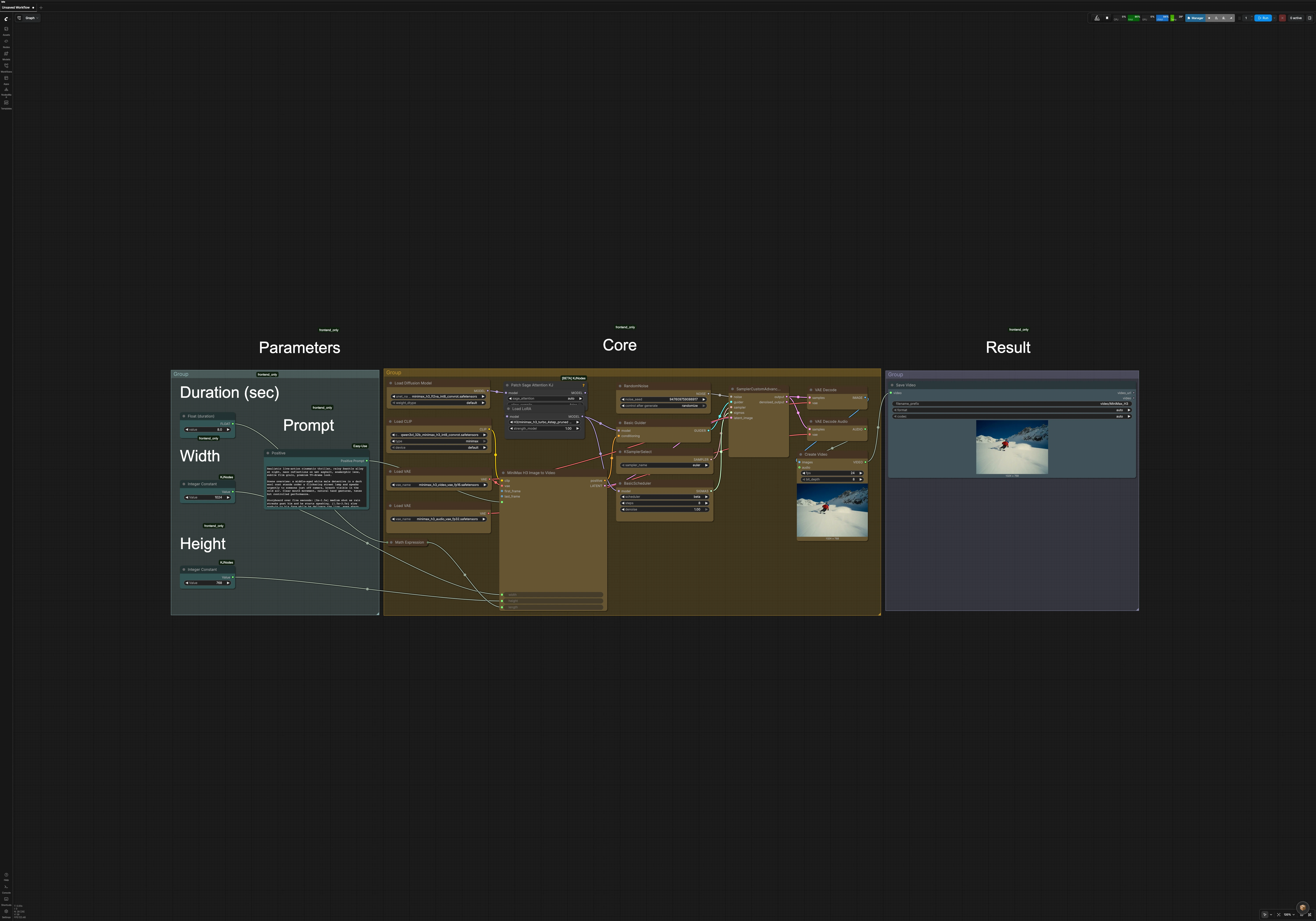
MiniMax H3 ComfyUI Texto-a-Video Turbo de 4 pasos: aviso a clip con audio nativo en una sola pasada#
Este flujo de trabajo convierte un único aviso cinematográfico en un video corto con audio estéreo generado conjuntamente usando MiniMax H3. Aplica un LoRA de aceleración Turbo de 4 pasos para que puedas iterar rápidamente en diálogos, canto y escenas ambientales mientras mantienes el movimiento y el sonido estrechamente acoplados.
Construido para creadores que desean borradores solo con avisos, el flujo de trabajo Turbo de 4 pasos de MiniMax H3 ComfyUI Texto-a-Video produce habla o voces limpias, sonido ambiental cohesivo y cinematografía coherente sin ensamblaje manual de audio. El gráfico maneja la alineación de longitud, muestreo latente, decodificación y multiplexación automáticamente, para que puedas enfocarte en la narración y las señales de actuación.
Modelos clave en el flujo de trabajo Turbo de 4 pasos de MiniMax H3 ComfyUI Texto-a-Video#
- Modelo de difusión MiniMax H3 (FL2VA UNet). Generador audiovisual central que aprende un latente compartido para imagen y sonido, permitiendo un movimiento y audio sincronizados desde la misma pasada de muestreo. Pesos: Comfy-Org/MiniMax-H3.
- Codificador de texto Qwen3-VL 32B para H3 (variante AWQ/NVFP4). Codifica avisos ricos y multi-oración en condicionantes que dirigen la disposición de la escena, el rendimiento y los eventos de audio. Empaquetado en Comfy-Org/MiniMax-H3.
- MiniMax H3 Video VAE. Decodifica el latente de video muestreado en cuadros con tono y detalle cinematográfico. Archivo: minimax_h3_video_vae_fp16.safetensors.
- MiniMax H3 Audio VAE. Decodifica el latente compartido en audio estéreo alineado en el tiempo para habla, canto y ambiente. Archivo: minimax_h3_audio_vae_fp32.safetensors.
- MiniMax H3 Turbo 4-step LoRA. Aplica la receta de aceleración que preserva la fidelidad de la escena mientras permite un muestreo muy rápido. Archivo: minimax_h3_turbo_4step_pruned_comfyui.safetensors.
Cómo usar el flujo de trabajo Turbo de 4 pasos de MiniMax H3 ComfyUI Texto-a-Video#
A un alto nivel, tu aviso se codifica, un modelo H3 aumentado con Turbo muestrea un único latente audiovisual, y los VAEs de video y audio decodifican ese latente antes de que el clip se multiplexe a un archivo reproducible.
1) Escribe el aviso cinematográfico y establece la duración#
Usa el campo de texto easy positive (#147) para describir apariencia, acción y rendimiento. Para guiar la voz o música, incluye señales claras como "Audio: voz masculina de mediana edad entrega la línea... ambiente de lluvia... baja subrayado de thriller." El controlador Float (duration) (#133) establece la longitud del clip en segundos. Un nodo matemático convierte tu duración en cuadros y alinea silenciosamente el conteo al ritmo requerido de H3, por lo que no necesitas gestionar las matemáticas de cuadros.
2) Carga H3, codificador de texto, VAEs y Turbo LoRA#
UNETLoader (#127) carga el modelo de difusión MiniMax H3, y CLIPLoader (#128) carga el codificador de texto Qwen3-VL adaptado para H3. Dos nodos VAELoader traen el VAE de video (#119) y el VAE de audio (#120). LoraLoaderModelOnly (#153) aplica el MiniMax H3 Turbo 4-step LoRA al modelo para que el programador y el muestreador operen en un régimen rápido sin perder coherencia audiovisual.
3) Construir el acondicionamiento y el latente audiovisual inicial#
MiniMaxH3ImageToVideo (#131) convierte tu aviso en un acondicionamiento positivo y prepara un latente inicial alineado a tu ancho, alto y cantidad de cuadros elegidos. Existen entradas opcionales first_frame y last_frame para anclar una imagen de inicio o final si decides extender el gráfico más tarde. El nodo produce el acondicionamiento y el latente que el muestreo posterior refinará.
4) Muestreo con Turbo#
BasicGuider (#126) empareja el modelo con tu acondicionamiento, KSamplerSelect (#123) elige el algoritmo de muestreo, y BasicScheduler (#124) establece el programa de pasos que funciona con el Turbo LoRA. RandomNoise (#129) siembra la generación para reproducibilidad. SamplerCustomAdvanced (#125) realiza la pasada de desruido para producir el latente compartido final que codifica tanto video como audio.
5) Decodificar y exportar el clip final#
VAEDecode (#122) reconstruye los cuadros de imagen del latente mientras VAEDecodeAudio (#121) reconstruye el audio estéreo sincronizado. CreateVideo (#130) multiplexa cuadros y audio en un solo flujo, luego SaveVideo (#92) escribe el archivo en disco usando el prefijo de nombre de archivo que estableciste.
Nodos clave en el flujo de trabajo Turbo de 4 pasos de MiniMax H3 ComfyUI Texto-a-Video#
MiniMaxH3ImageToVideo (#131)#
Produce el acondicionamiento positivo e inicializa el latente audiovisual a partir de tu aviso, resolución y longitud. Ajustar width, height o length cambia tanto la escala de movimiento como cuánto puede caber la acción en pantalla. Si más tarde extiendes el gráfico, first_frame y last_frame te permiten bloquear la continuidad a través de tomas.
LoraLoaderModelOnly (#153)#
Aplica el Turbo 4-step LoRA al modelo H3 cargado. Mantén el programador en un régimen de bajo paso para beneficiarte del Turbo; aumentar sustancialmente los pasos desvía la apariencia del comportamiento de iteración rápida previsto. Este LoRA está diseñado específicamente para MiniMax H3 y se encuentra junto a los pesos principales en el repositorio H3.
BasicScheduler (#124)#
Controla el programa de desruido que sigue el muestreador. Úsalo para equilibrar la velocidad y la fidelidad mientras te mantienes compatible con el Turbo LoRA. Si cambias el algoritmo del muestreador, revisa la elección del programa para mantener un movimiento estable y un audio limpio.
SamplerCustomAdvanced (#125)#
Ejecuta el desruido real dado el ruido, el guía, el muestreador, las sigmas y el latente inicial. Es el árbitro final de la textura, el tiempo y la nitidez audiovisual. Usa la misma semilla al comparar ajustes de aviso para que puedas atribuir diferencias a cambios de texto en lugar de ruido.
PathchSageAttentionKJ (#150)#
Aplica una optimización de atención antes de la inyección de LoRA para mejorar el rendimiento en grandes resoluciones. Proporcionado por KJNodes, que ofrece ayudas de rendimiento para ComfyUI. Repositorio: ComfyUI-KJNodes.
CreateVideo (#130)#
Combina cuadros decodificados con el audio decodificado en un clip sincronizado. Puedes cambiar la tasa de cuadros o la profundidad de bits aquí si necesitas ajustar las especificaciones de entrega. El nodo mantiene la sincronización audio-video derivada del latente compartido.
SaveVideo (#92)#
Escribe el clip renderizado en disco con el prefijo de nombre de archivo, contenedor y códec que elijas. Usa un nombre consistente para rastrear iteraciones para la misma escena y semilla.
Extras opcionales#
- Avisos para habla: pon la línea exacta después de "Audio:" y describe la edad, género, tono y ritmo de la voz. Para cantar, especifica estilo y tempo. Para ambiente, enumera fuentes, intensidad y si deseas solo subrayado.
- Compromisos de resolución y duración: cuentas de píxeles más altas y clips más largos cuestan más tiempo de muestreo. Si necesitas muchas tomas, comienza más pequeño, luego escala o alarga una vez que el tiempo y la entrega se sientan correctos.
- Reproducibilidad: mantén la misma semilla al ajustar solo el texto para que puedas hacer A/B de pequeños cambios de aviso.
- La alineación de longitud es automática: el gráfico convierte segundos en cuadros y alinea el conteo al ritmo interno de H3 para una síntesis audiovisual estable.
- Opciones de continuidad: el nodo del modelo expone
first_frameylast_frameopcionales. Si extiendes el flujo de trabajo más tarde, conecta imágenes allí para que coincidan los inicios o finales de tomas a través de ediciones. - Seguridad: evita personajes con derechos de autor, semejanzas de personas reales sin consentimiento y logotipos o subtítulos en pantalla en tu aviso.
Agradecimientos#
Este flujo de trabajo implementa y se basa en los siguientes trabajos y recursos. Agradecemos a MiniMax por el modelo de generación multimodal MiniMax H3 y el anuncio, a Comfy.org por el tutorial de flujo de trabajo de MiniMax H3 ComfyUI, y a Comfy-Org por los pesos del modelo MiniMax-H3 por sus contribuciones y mantenimiento. Para detalles autorizados, por favor consulta la documentación original y los repositorios vinculados a continuación.
Recursos#
- MiniMax/MiniMax H3: Un Modelo Abierto Rompiendo las Fronteras Entre Tareas y Modalidades
- GitHub: MiniMax-AI/MiniMax-H3
- Hugging Face: MiniMaxAI/MiniMax-H3
- Documentación / Notas de Lanzamiento: Anuncio oficial de MiniMax H3
- Comfy.org/MiniMax H3: Ejemplos de Flujo de Trabajo de ComfyUI
- GitHub: Comfy-Org/docs
- Documentación / Notas de Lanzamiento: Tutorial de MiniMax H3 de Comfy.org
- Comfy-Org/MiniMax-H3
- Hugging Face: Comfy-Org/MiniMax-H3
Nota: El uso de los modelos, conjuntos de datos y código referidos está sujeto a las respectivas licencias y términos proporcionados por sus autores y mantenedores.