

ComfyUI MOSS TTS: text-to-speech, voice cloning, SFX, and dialogue in one workflow#
This ComfyUI MOSS TTS workflow turns text into vivid 24 kHz speech using the OpenMOSS MOSS-TTS family. It covers fast single-speaker synthesis, zero-shot voice cloning from a short reference clip, descriptive voice design, procedural sound effects, and multi-speaker dialogue with optional per-speaker references.
Built on the official MOSS-TTS node stack and model family, it balances speed and quality. The Local 1.7B path is the practical fast lane on a single GPU, while the larger Delay 8B models trade speed for broader capability and expressiveness. If you need reusable prompts, cloned voices, or dialogue inside ComfyUI, this ComfyUI MOSS TTS workflow is designed for you.
Key models in Comfyui ComfyUI MOSS TTS workflow#
- OpenMOSS MOSS-TTS Local 1.7B. Single-GPU friendly text-to-speech transformer that delivers fast, natural 24 kHz speech for everyday production work. Model card: MOSS-TTS-Local-Transformer.
- OpenMOSS MOSS-TTS Delay 8B. A larger model line that emphasizes quality, speaker similarity, and prosody at the cost of speed and memory. Model card: MOSS-TTS.
- MOSS Audio Tokenizer. The learned codec that bridges waveforms and discrete tokens for the MOSS-TTS models, enabling high-fidelity decoding. Model card: MOSS-Audio-Tokenizer.
For implementation details and updates, see the official repositories: OpenMOSS/MOSS-TTS and the node stack powering this workflow richservo/comfyui-moss-tts.
How to use Comfyui ComfyUI MOSS TTS workflow#
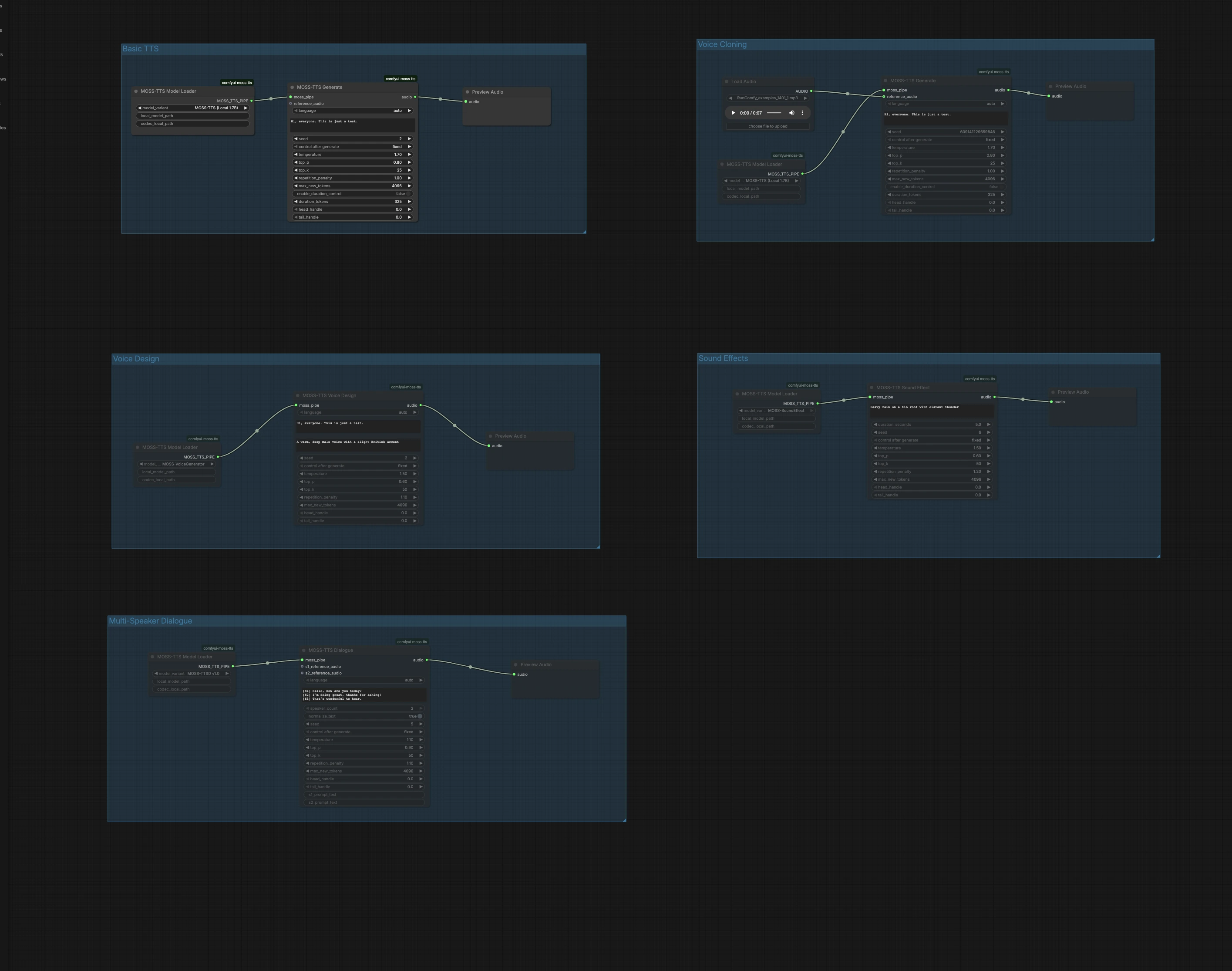
This graph is organized into five independent groups. Pick the group that matches your goal, run it, then preview audio right in the canvas. You can run multiple groups in parallel to audition different approaches.
Basic TTS#
The Basic TTS group converts plain text to speech with the Local 1.7B fast path. Load the model in MossTTSModelLoader (#1), feed your text to MossTTSGenerate (#2), then listen in PreviewAudio (#3). The generator conditions on your prompt to shape pronunciation and prosody, so write naturally with punctuation for pacing. Keep the seed fixed when you want repeatable takes, or randomize it when exploring delivery variants.
Voice Cloning#
The Voice Cloning group performs zero-shot voice cloning from a short reference audio clip. Import a clean voice sample using LoadAudio (#4), connect it to MossTTSGenerate (#6) driven by MossTTSModelLoader (#5), and provide the target text. The model extracts speaker timbre and style from the reference and renders your new script in that voice. Use neutral content and minimal background noise in the reference to improve similarity, and keep durations moderate for fastest turnaround.
Voice Design#
Voice Design creates a new voice from a natural-language description rather than an example clip. MossTTSVoiceDesign (#9) uses a text description like “A warm, deep male voice with a slight British accent,” combined with your script, to synthesize 24 kHz speech. The node is powered by a dedicated voice generator path loaded via MossTTSModelLoader (#8). This is ideal when you want a consistent, reproducible persona without sourcing real recordings. Refine descriptors with traits such as age, timbre, accent, and energy to steer the sound.
Sound Effects#
Sound Effects generates non-speech audio from text prompts, useful for bed tracks, transitions, or ambient layers. With MossTTSSoundEffect (#12) and its model pipe from MossTTSModelLoader (#11), prompts like “Heavy rain on a tin roof with distant thunder” produce rich, loopable textures. Use concise nouns and actions to define the scene, then add a few adjectives to nail intensity or distance. Preview in PreviewAudio (#13) and iterate quickly to fit your mix.
Multi-Speaker Dialogue#
The Multi-Speaker Dialogue group renders scripted conversations with optional per-speaker reference clips. Write your script using bracketed speaker tags, for example [S1] Hello. and [S2] Hi!, then pass it to MossTTSDialogue (#15) under the model pipe from MossTTSModelLoader (#14). You can attach reference audio inputs for S1 and S2 to clone specific voices for each role, or leave them empty to let the model pick distinct speakers from text context alone. This path is well suited for call-and-response, narration with character lines, or voice UI mockups.
Key nodes in Comfyui ComfyUI MOSS TTS workflow#
MossTTSModelLoader (#1)#
Loads the selected OpenMOSS model family and assembles the internal TTS pipeline. Choose the Local 1.7B variant for fast iteration on a single GPU, or switch to a larger Delay 8B model when you prioritize expressiveness and similarity. Keep one loader per task family so each downstream branch stays self-contained.
MossTTSGenerate (#2)#
The main single-speaker synthesizer that consumes your text prompt and optional reference audio to produce 24 kHz speech. Provide clean, well-punctuated text for clearer pacing, and connect a short voice clip when you need zero-shot cloning. Toggle seeding between fixed and random to balance reproducibility and exploration.
MossTTSVoiceDesign (#9)#
Generates a novel voice from a descriptive prompt along with the text to speak. Focus the description on timbre, age, accent, and energy to steer identity while keeping it concise. This is a strong choice when licensing or sourcing a real voice is not practical.
MossTTSSoundEffect (#12)#
Synthesizes non-verbal audio from a short textual description. Write compact prompts that anchor the source, action, and space, then iterate to match the scene. Great for ambience and one-shots inside the same ComfyUI MOSS TTS graph you use for dialogue.
MossTTSDialogue (#15)#
Parses bracketed speaker tags and renders multi-turn conversations as a single audio output. Use [S1], [S2], and so on to mark each line, and optionally connect per-speaker reference clips to preserve identity across turns. Keep lines concise for the most reliable hand-offs between speakers.
Optional extras#
- Start with the Local 1.7B model for quick drafts, then switch to a Delay 8B checkpoint when you need stronger similarity or richer prosody.
- For zero-shot cloning, use a clean 5–15 s voice clip with minimal reverb and noise to improve timbre transfer.
- In dialogue, keep speaker tags consistent and free of punctuation like
[S1]to avoid parsing errors. - Craft voice design prompts with 3–6 traits such as timbre, age, accent, style, and energy for predictable results.
- Use punctuation and line breaks in your text to control pauses and pacing in ComfyUI MOSS TTS outputs.
- Add a
SaveAudionode after any preview if you want automatic file export for batch renders.
References: OpenMOSS/MOSS-TTS • MOSS-TTS-Local-Transformer • MOSS-TTS • MOSS-Audio-Tokenizer • comfyui-moss-tts
Acknowledgements#
This workflow implements and builds upon the following works and resources. We gratefully acknowledge richservo for the ComfyUI MOSS-TTS custom nodes, OpenMOSS for the MOSS-TTS repository, and OpenMOSS-Team for the MOSS-TTS models (Delay 8B and Local 1.7B) and the MOSS Audio Tokenizer for their contributions and maintenance. For authoritative details, please refer to the original documentation and repositories linked below.
Resources#
- richservo/comfyui-moss-tts
- GitHub: richservo/comfyui-moss-tts
- OpenMOSS/MOSS-TTS
- GitHub: OpenMOSS/MOSS-TTS
- Hugging Face: OpenMOSS-Team/MOSS-TTS
- arXiv: 2603.18090
- OpenMOSS-Team/MOSS-TTS (Delay 8B)
- GitHub: OpenMOSS/MOSS-TTS
- Hugging Face: OpenMOSS-Team/MOSS-TTS
- arXiv: 2603.18090
- OpenMOSS-Team/MOSS-TTS-Local-Transformer (Local 1.7B)
- GitHub: OpenMOSS/MOSS-TTS
- Hugging Face: OpenMOSS-Team/MOSS-TTS-Local-Transformer
- arXiv: 2603.18090
- OpenMOSS-Team/MOSS-Audio-Tokenizer
- Hugging Face: OpenMOSS-Team/MOSS-Audio-Tokenizer
- arXiv: 2602.10934
Note: Use of the referenced models, datasets, and code is subject to the respective licenses and terms provided by their authors and maintainers.