Smart Image Crop (Still):
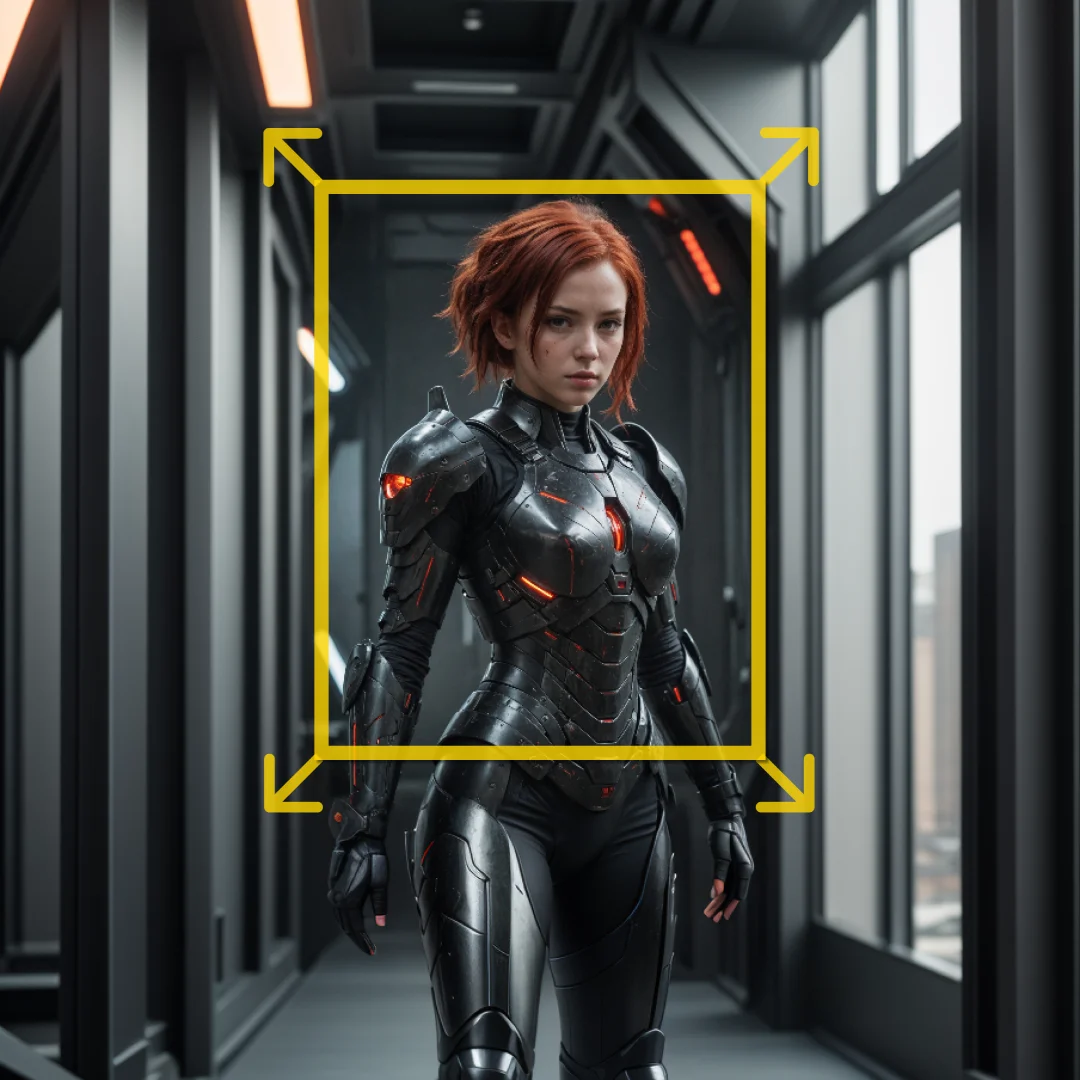
SmartImageCrop is a sophisticated node designed to intelligently crop images while maintaining their essential features and proportions. This node is particularly beneficial for AI artists who need to prepare images for further processing or analysis, ensuring that the cropped sections retain the most relevant parts of the original image. By leveraging advanced techniques, SmartImageCrop can automatically adjust the cropping area based on the content, making it an invaluable tool for tasks that require precision and attention to detail. Its ability to handle different resolutions and aspect ratios ensures that the output is optimized for various applications, whether for artistic purposes or technical analysis.
Smart Image Crop (Still) Input Parameters:
image
This parameter represents the input image that you want to crop. It is the primary source from which the node will extract the desired section.
mask
The mask parameter is used to define specific areas of interest within the image. It helps in identifying which parts of the image should be prioritized during the cropping process.
resolution_mode
This parameter allows you to choose between "Automatic" and "Manual" resolution handling. In "Automatic" mode, the node will adjust the resolution based on the content, while "Manual" mode lets you specify exact dimensions.
max_resolution
This integer parameter sets the maximum resolution limit for the cropped image. If the cropped area exceeds this value, it will be scaled down. The default is 2048, with a range from 256 to 16384.
min_resolution
This integer parameter sets the minimum resolution limit for the cropped image. If the cropped area is smaller than this value, it will be scaled up. The default is 768, with a range from 64 to 2048.
manual_width
In "Manual" resolution mode, this parameter specifies the width of the cropped image. It ranges from 64 to 8192, with a default value of 1024.
manual_height
In "Manual" resolution mode, this parameter specifies the height of the cropped image. It ranges from 64 to 8192, with a default value of 1024.
mask_grow_pixels
This parameter allows you to grow or shrink the detected mask before cropping. Positive values grow the mask, while negative values shrink it. The default is 32, with a range from -1024 to 1024.
patch_mask_holes
A boolean parameter that, when enabled, fills small holes and gaps in the detected mask to ensure a solid shape. The default setting is True.
no_mask_mode
This parameter determines the action when no mask pixels are detected. Options include "Bypass," "Resize Full Image," and "Crop Full Image," with "Bypass" as the default.
Smart Image Crop (Still) Output Parameters:
crop_image
This output provides the cropped image, which is the main result of the node's operation. It retains the essential features of the original image within the specified or automatically determined dimensions.
crop_mask
The crop_mask output gives the mask applied to the cropped image, highlighting the areas that were prioritized during the cropping process.
stitcher_info
This output contains metadata or additional information about the cropping process, which can be useful for further processing or analysis.
preview_overlay
The preview_overlay output provides a visual representation of the cropping operation, allowing you to see how the image was altered and what areas were included.
Smart Image Crop (Still) Usage Tips:
- Use "Automatic" resolution mode for quick and efficient cropping when you are unsure of the exact dimensions needed.
- Adjust the
mask_grow_pixelsparameter to fine-tune the area of interest, especially when dealing with complex images that require precise cropping. - Enable
patch_mask_holesto ensure a clean and solid mask, which is particularly useful when the image has intricate details or textures.
Smart Image Crop (Still) Common Errors and Solutions:
Image dimensions exceed maximum resolution
- Explanation: The cropped image exceeds the specified maximum resolution.
- Solution: Increase the
max_resolutionparameter or switch to "Automatic" resolution mode to allow the node to handle larger dimensions.
No mask detected
- Explanation: The node did not detect any mask pixels in the input image.
- Solution: Check the
maskparameter to ensure it is correctly defined, or adjust theno_mask_modesetting to handle cases with no mask.
Invalid manual dimensions
- Explanation: The specified manual width or height is outside the allowed range.
- Solution: Ensure that
manual_widthandmanual_heightare within the specified limits and adjust them accordingly.