SD 1.5 LoRA Inference: training-matched Stable Diffusion 1.5 generations in ComfyUI#
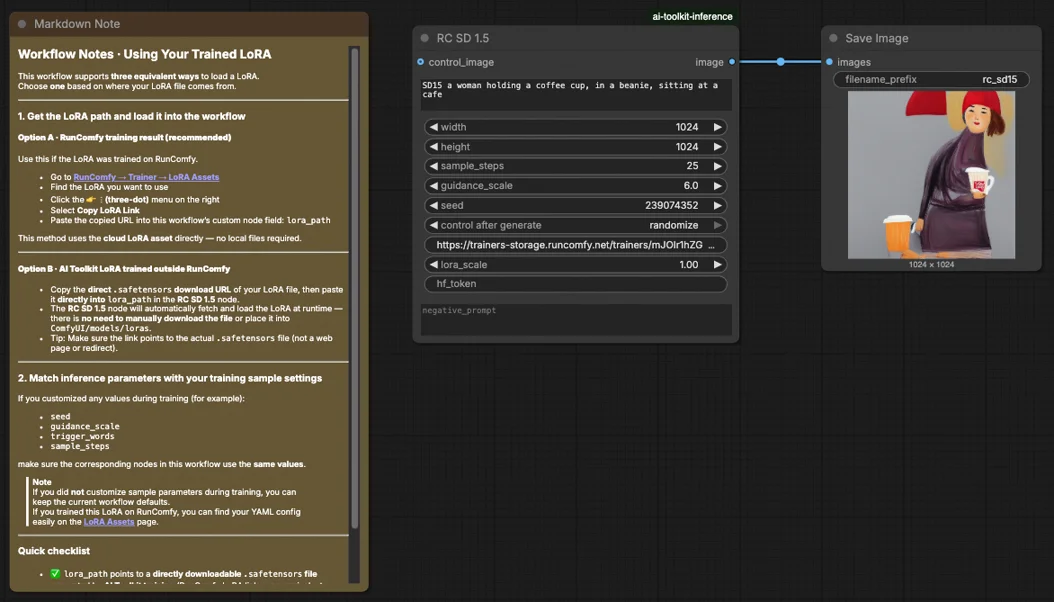
SD 1.5 LoRA Inference is a production-ready RunComfy workflow for running an AI Toolkit–trained LoRA on Stable Diffusion 1.5 in ComfyUI with training-matched behavior. It’s driven by RC SD 1.5 (RCSD15)—a RunComfy-built, open-sourced custom node (source) that routes inference through an SD1.5 pipeline (not a generic sampler graph) and injects your adapter using lora_path and lora_scale.
Why SD 1.5 LoRA Inference often looks different in ComfyUI#
AI Toolkit preview samples for SD1.5 are produced by a model-specific inference pipeline, including its scheduler defaults and where the LoRA is applied in the stack. When you rebuild the run as a “standard” ComfyUI SD graph, small differences (sampler/scheduler choice, conditioning flow, LoRA loader patch points) can add up—so matching prompt, seed, and steps still doesn’t guarantee the same look. In most “preview vs inference” reports, the root cause is a pipeline mismatch, not one missing knob.
What the RCSD15 custom node does#
RCSD15 keeps SD 1.5 LoRA Inference aligned by executing a Stable Diffusion 1.5 pipeline inside the node and applying the AI Toolkit LoRA consistently via lora_path / lora_scale, with SD1.5-correct defaults like an 8-pixel resolution divisor and negative prompt support. Source (RunComfy open-source): runcomfy-com repositories
How to use the SD 1.5 LoRA Inference workflow#
Step 1: Import your LoRA (2 options)#
- Option A (RunComfy training result): RunComfy → Trainer → LoRA Assets → find your LoRA → ⋮ → Copy LoRA Link
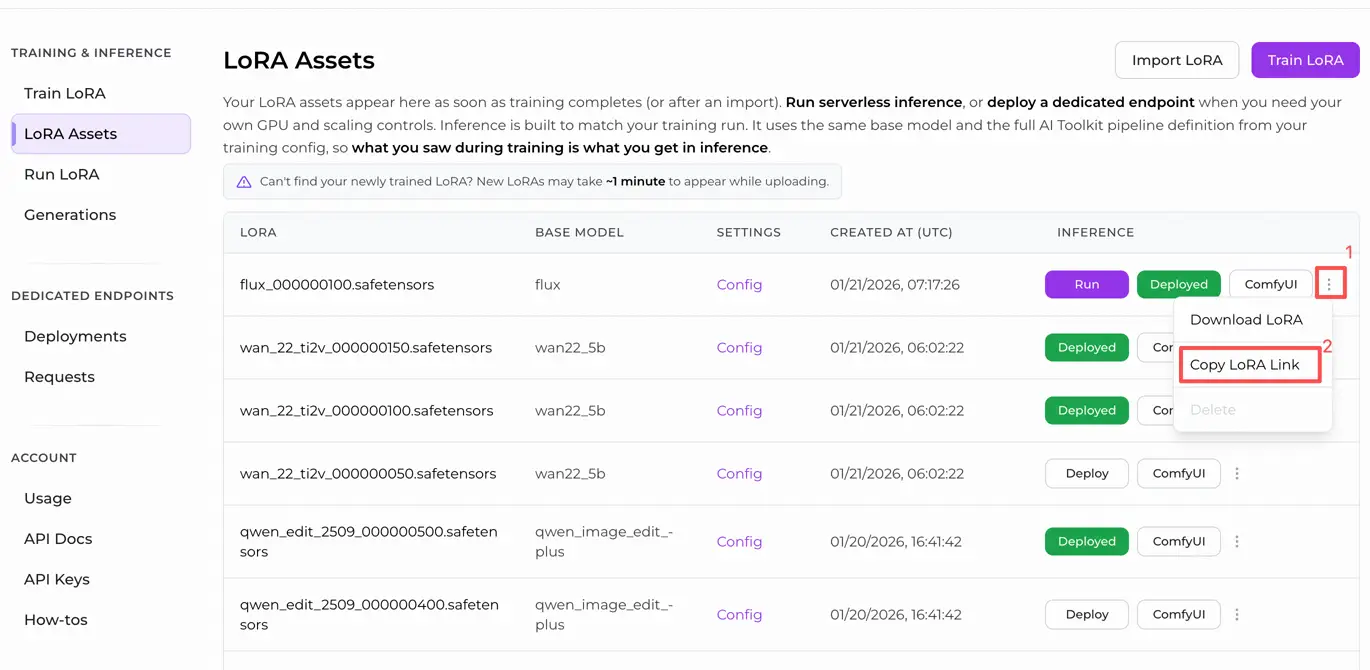
- Option B (AI Toolkit LoRA trained outside RunComfy): Copy a direct
.safetensorsdownload link for your LoRA and paste that URL intolora_path(no need to download intoComfyUI/models/loras)
Step 2: Configure the RCSD15 custom node for SD 1.5 LoRA Inference#
Paste your LoRA link into lora_path on RC SD 1.5 (RCSD15) (either the RunComfy LoRA link from Option A, or a direct .safetensors URL from Option B).
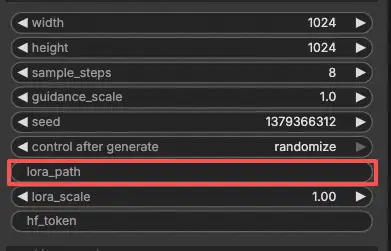
Then set the rest of the node parameters (start by mirroring your training preview/sample values so you can confirm alignment before tuning):
prompt: your positive prompt (keep trigger tokens exactly as used in training, if any)negative_prompt: optional; leave empty if you didn’t use negatives during samplingwidth/height: output size (must be divisible by 8 for SD1.5; 512×512 is a common baseline)sample_steps: inference steps (25 is a typical starting point for SD 1.5 LoRA Inference)guidance_scale: guidance strength (match your preview value first, then adjust gradually)seed: keep fixed while comparing preview vs ComfyUI inference; randomize after your baseline matcheslora_scale: LoRA strength (begin at your preview value, then tune in small increments)
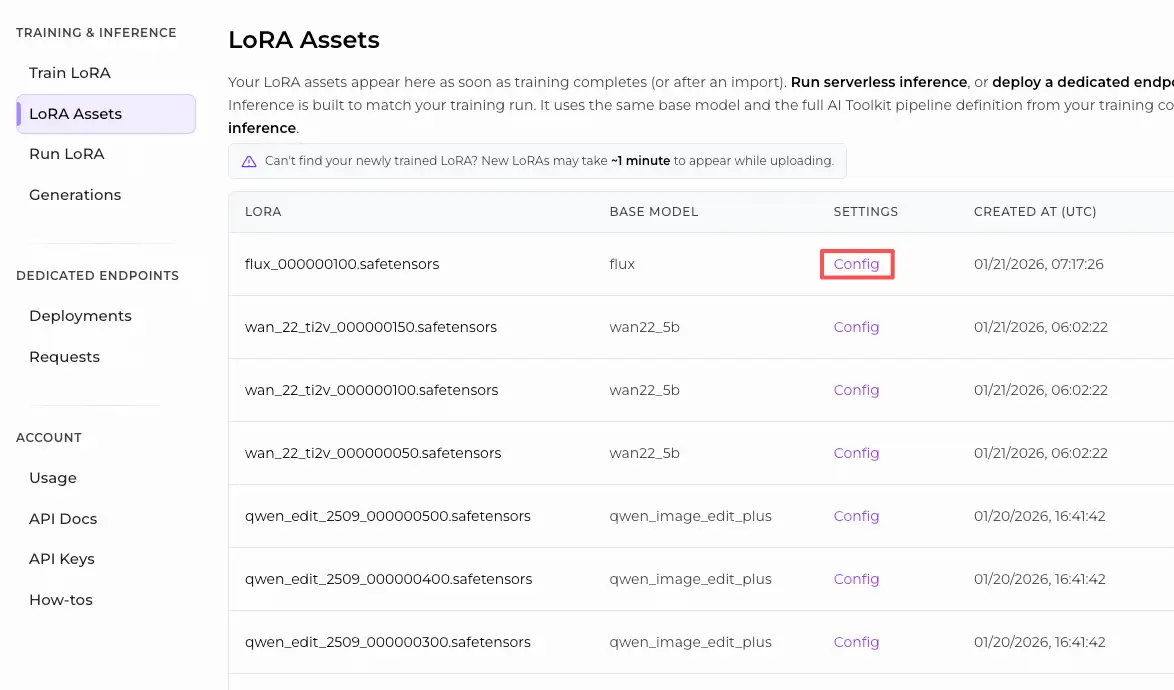
Training alignment note: if you customized sampling during training, open your AI Toolkit training YAML and mirror width, height, sample_steps, guidance_scale, seed, and lora_scale. If you trained on RunComfy, open Trainer → LoRA Assets → Config and copy the preview/sample values into RCSD15.
Step 3: Run SD 1.5 LoRA Inference#
Click Queue/Run. The SaveImage node writes the generated image to your standard ComfyUI output folder.
Troubleshooting SD 1.5 LoRA Inference#
RunComfy’s RC SD 1.5 (RCSD15) custom node is built to bring you back to a training-matched baseline by executing an SD1.5 Diffusers pipeline inside the node (including a DDPMScheduler configuration aligned with AI Toolkit sampling) and injecting your adapter via lora_path / lora_scale at the pipeline level. Use RCSD15 as your baseline first, then tune.
(1)Lora keys not loaded#
Why this happens
In SD 1.5 workflows, this warning almost always means the LoRA contains keys that don’t map cleanly onto the modules currently being patched. The SD1.5-specific causes that show up most often are:
- The LoRA is being applied against a non‑SD1.5 base (e.g., SDXL) or mismatched SD1.5 components.
- The LoRA is being injected through a different route than the one used by AI Toolkit’s preview sampler (so patch points and defaults differ).
- Your local ComfyUI/custom-node stack is out of date relative to the LoRA key format you’re loading.
How to fix (user-reliable SD1.5 approach)
- Start from a pipeline-aligned baseline: run the LoRA through RCSD15 and load it only via
lora_path+lora_scale(avoid stacking extra LoRA loader nodes while debugging). - Keep the whole stack SD 1.5: make sure the base checkpoint you’re using for inference is Stable Diffusion 1.5 (an SD1.5 LoRA won’t fully map onto SDXL modules).
- Re-test after updating: update ComfyUI and your custom nodes, then retry the same RCSD15 run (same prompt/seed/steps) to confirm whether the mismatch is tooling-related or asset-related.
(2)My AI Toolkit preview looks good, but ComfyUI output drifts even with the same prompt/seed/steps#
Why this happens
For SD 1.5, “same prompt + same seed + same steps” can still drift if the scheduler/sampler defaults differ. AI Toolkit’s SD1.5 sampling is tied to a Diffusers SD1.5 pipeline setup, while “standard” ComfyUI SD graphs can end up using different sampler/scheduler behavior and conditioning defaults—so the denoising path changes.
How to fix (pipeline-level alignment first)
- Compare using RCSD15 first: RCSD15 runs an SD1.5 pipeline inside the node (Diffusers
StableDiffusionPipeline) and aligns sampling behavior via a DDPMScheduler configuration, then applies your LoRA vialora_path/lora_scaleinside that same pipeline. - Mirror your AI Toolkit preview values exactly while comparing:
width,height(SD1.5 expects /8 divisibility),sample_steps,guidance_scale,seed,lora_scale. - Lock variables while validating: keep
seedfixed until the baseline matches, then tune only one parameter at a time.
(3)The LoRA loads, but the effect is much weaker (or much stronger) than the AI Toolkit samples#
Why this happens
On SD 1.5, perceived LoRA strength is very sensitive to pipeline + scheduler + CFG + resolution. If the inference pipeline doesn’t match the preview sampler, the same lora_scale can “feel” noticeably different.
How to fix (stable SD1.5 tuning sequence)
- Don’t tune before alignment: validate the baseline through RCSD15 first (pipeline-aligned), then tune.
- Tune
lora_scalewith a fixedseed: small changes are easier to judge when everything else is locked. - Keep SD1.5 resolution rules consistent: ensure
width/heightare divisible by 8 so you’re not introducing unintended resizing artifacts that change detail and perceived strength.
Run SD 1.5 LoRA Inference now#
Open the workflow, paste your LoRA into lora_path, match your preview sampling values, and run RCSD15 to get training-matched Stable Diffusion 1.5 LoRA inference in ComfyUI.