

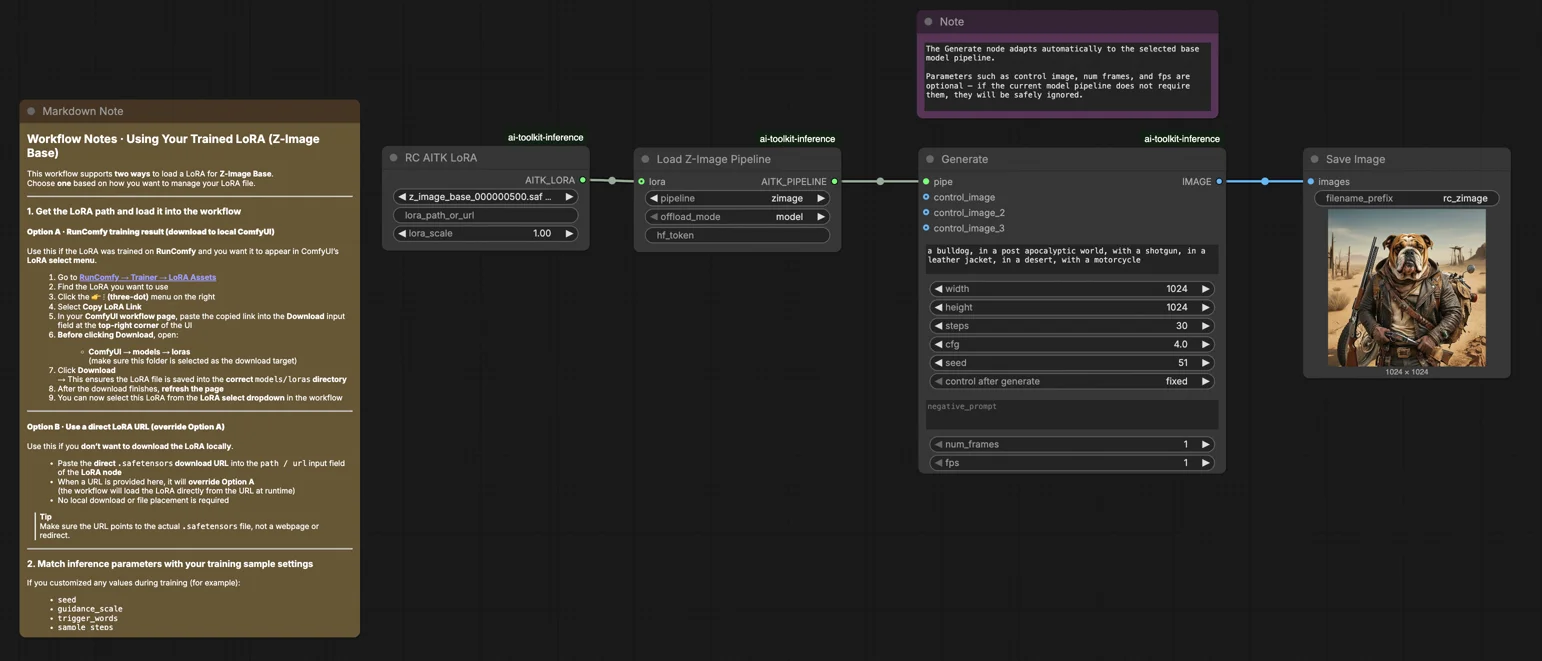
Z-Image Base LoRA ComfyUI Inference: training-aligned generation with AI Toolkit LoRAs#
This production-ready RunComfy workflow lets you run AI Toolkit–trained Z-Image LoRA adapters in ComfyUI with training-matched results. Built around RC Z-Image (RCZimage)—a pipeline-level custom node open-sourced by RunComfy (source)—the workflow wraps the Tongyi-MAI/Z-Image inference pipeline rather than relying on a generic sampler graph. Your adapter is injected via lora_path and lora_scale inside that pipeline, keeping LoRA application consistent with how AI Toolkit produces training previews.
Why Z-Image Base LoRA ComfyUI Inference often looks different in ComfyUI#
AI Toolkit training previews are rendered by a model-specific inference pipeline—scheduler configuration, conditioning flow, and LoRA injection all happen inside that pipeline. A standard ComfyUI sampler graph assembles these pieces differently, so even identical prompts, seeds, and step counts can yield noticeably different output. The gap is not caused by a single wrong parameter; it is a pipeline-level mismatch. RCZimage recovers training-aligned behavior by wrapping the Z-Image pipeline directly and applying your LoRA within it. Implementation reference: `src/pipelines/z_image.py`.
How to use the Z-Image Base LoRA ComfyUI Inference workflow#
Step 1: Get the LoRA path and load it into the workflow (2 options)#
Option A — RunComfy training result → download to local ComfyUI:
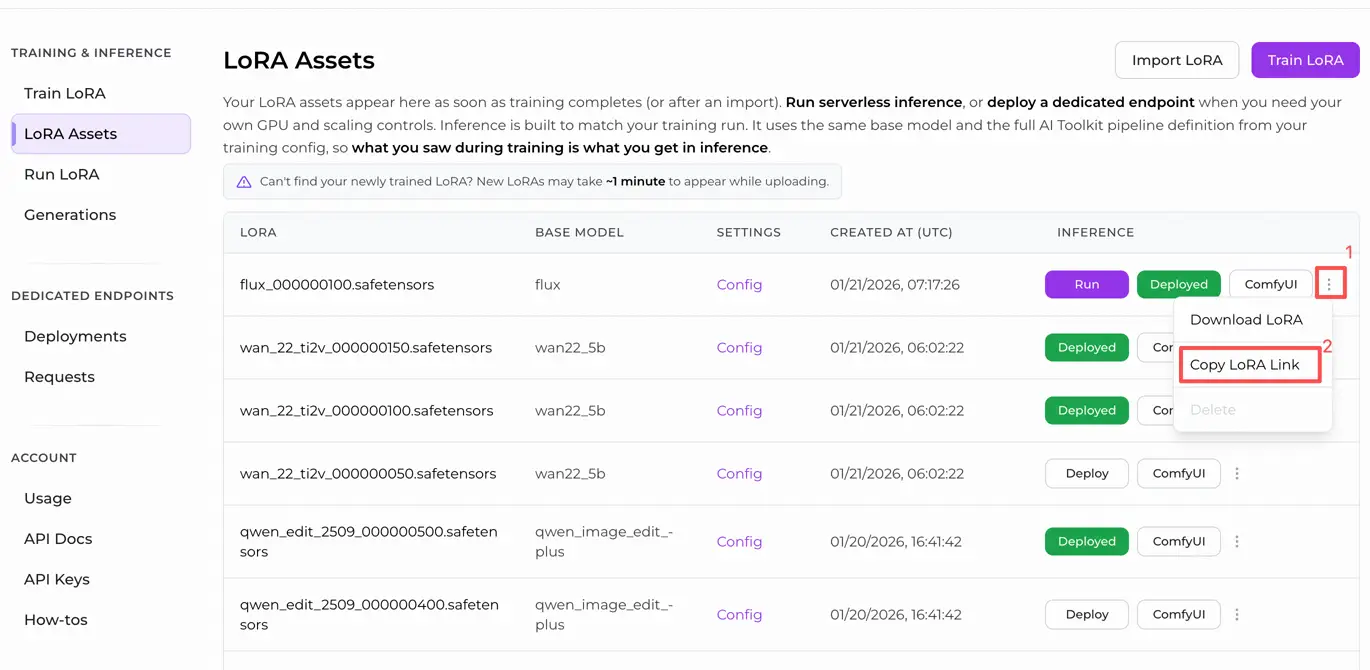
- Go to Trainer → LoRA Assets
- Find the LoRA you want to use
- Click the ⋮ (three-dot) menu on the right → select Copy LoRA Link
- In the ComfyUI workflow page, paste the copied link into the Download input field at the top-right corner of the UI
- Before clicking Download, make sure the target folder is set to ComfyUI → models → loras (this folder must be selected as the download target)
- Click Download — this saves the LoRA file into the correct
models/lorasdirectory - After the download finishes, refresh the page
- The LoRA now appears in the LoRA select dropdown in the workflow — select it
Option B — Direct LoRA URL (overrides Option A):
- Paste the direct
.safetensorsdownload URL into thepath / urlinput field of the LoRA node - When a URL is provided here, it overrides Option A — the workflow loads the LoRA directly from the URL at runtime
- No local download or file placement is required
Tip: the URL must point to the actual .safetensors file, not a webpage or redirect.
Step 2: Match inference parameters with your training sample settings#
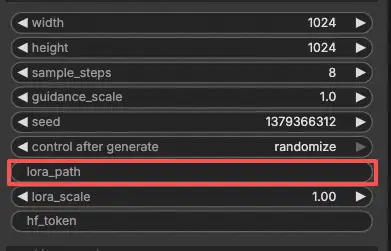
Set lora_scale on the LoRA node — start at the same strength you used during training previews, then adjust as needed.
The remaining parameters live on the Generate node:
prompt— your text prompt; include any trigger words you used during trainingnegative_prompt— leave empty unless your training YAML included negativeswidth/height— output resolution; match your preview size for direct comparison (multiples of 32)sample_steps— number of inference steps; Z-Image base defaults to 30 (use the same count from your preview config)guidance_scale— CFG strength; default is 4.0 (mirror your training preview value first)seed— fix a seed to reproduce specific outputs; change it to explore variationsseed_mode— choosefixedorrandomizehf_token— Hugging Face token; required only if the base model or LoRA repo is gated/private
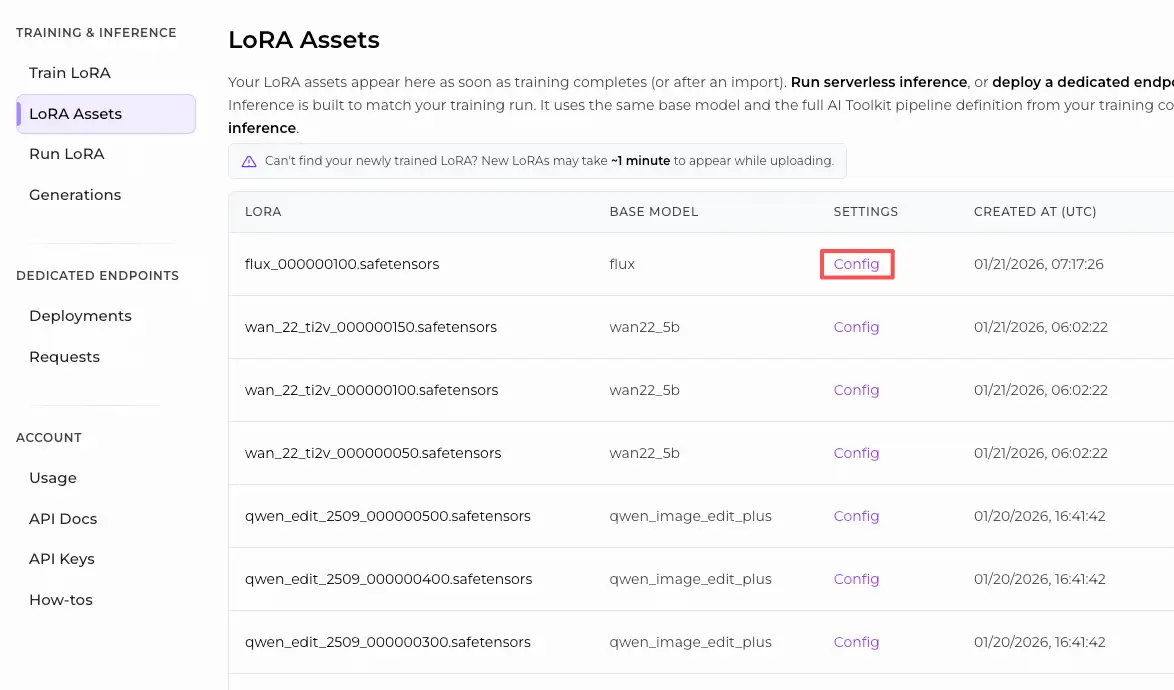
Training alignment tip: if you customized any sampling values during training, copy those exact values into the corresponding fields. If you trained on RunComfy, open Trainer → LoRA Assets → Config to see the resolved YAML and copy preview/sample settings into the node.
Step 3: Run Z-Image Base LoRA ComfyUI Inference#
Click Queue/Run — the SaveImage node writes results to your ComfyUI output folder automatically.
Quick checklist:
- ✅ LoRA is either: downloaded into
ComfyUI/models/loras(Option A), or loaded via a direct.safetensorsURL (Option B) - ✅ Page refreshed after local download (Option A only)
- ✅ Inference parameters match training
sampleconfig (if customized)
If everything above is correct, the inference results here should closely match your training previews.
Troubleshooting Z-Image Base LoRA ComfyUI Inference#
Most “training preview vs ComfyUI inference” gaps for Z-Image Base (Tongyi-MAI/Z-Image) come from pipeline-level differences (how the model is loaded, which defaults/scheduler are used, and where/how the LoRA is injected). For AI Toolkit–trained Z-Image Base LoRAs, the most reliable way to get back to training-aligned behavior in ComfyUI is to run generation through RCZimage (the RunComfy pipeline wrapper) and inject the LoRA via lora_path / lora_scale inside that pipeline.
(1) When using Z-Image LoRA with ComfyUI, the message "lora key not loaded" appears.#
Why this happens This usually means your LoRA was trained against a different module/key layout than the one your current ComfyUI Z-Image loader expects. With Z-Image, the “same model name” can still involve different key conventions (e.g., original/diffusers-style vs Comfy-specific naming), and that’s enough to trigger “key not loaded”.
How to fix (recommended)
- Run inference through RCZimage (the workflow’s pipeline wrapper) and load your adapter via
lora_pathon the RCAITKLoRA / RCZimage path, instead of injecting it through a separate generic Z-Image LoRA loader. - Keep the workflow format-consistent: Z-Image Base LoRA trained with AI Toolkit → infer with the AI Toolkit-aligned RCZimage pipeline, so you don’t depend on ComfyUI-side key remapping/converters.
(2) Errors occurred during the VAE phase when using the ZIMAGE LORA loader (model only).#
Why this happens Some users report that adding the ZIMAGE LoRA loader (model only) can cause major slowdowns and later failures at the final VAE decode stage, even when the default Z-Image workflow runs fine without the loader.
How to fix (user-confirmed)
- Remove the ZIMAGE LORA loader (model only) and re-run the default Z-Image workflow path.
- In this RunComfy workflow, the equivalent “safe baseline” is: use RCZimage +
lora_path/lora_scaleso LoRA application stays inside the pipeline, avoiding the problematic “model-only LoRA loader” path.
(3) Z-Image Comfy format doesn't match original code#
Why this happens Z-Image in ComfyUI can involve a Comfy-specific format (including key naming differences from “original” conventions). If your LoRA was trained with AI Toolkit on one naming/layout convention, and you try to apply it in ComfyUI expecting another, you’ll see partial/failed application and “it runs but looks wrong” behavior.
How to fix (recommended)
- Don’t mix formats when you’re trying to match training previews. Use RCZimage so inference runs the Z-Image pipeline in the same “family” AI Toolkit previews use, and inject the LoRA inside it via
lora_path/lora_scale. - If you must use a Comfy-format Z-Image stack, ensure your LoRA is in the same format expected by that stack (otherwise keys won’t line up).
(4) Z-Image oom using lora#
Why this happens Z-Image + LoRA can push VRAM over the edge depending on precision/quantization, resolution, and loader path. Some reports mention OOM on 12GB VRAM setups when combining LoRA with lower-precision modes.
How to fix (safe baseline)
- Validate your baseline first: run Z-Image Base without LoRA at your target resolution.
- Then add the LoRA via RCZimage (
lora_path/lora_scale) and keep comparisons controlled (samewidth/height,sample_steps,guidance_scale,seed). - If you still hit OOM, reduce resolution first (Z-Image is sensitive to pixel count), then consider lowering
sample_steps, and only then re-introduce higher settings after stability is confirmed. In RunComfy, you can also switch to a larger machine.
Run Z-Image Base LoRA ComfyUI Inference now#
Open the RunComfy Z-Image Base LoRA ComfyUI Inference workflow, set your lora_path, and let RCZimage keep ComfyUI output aligned with your AI Toolkit training previews.