


FLUX.1 Dev LoRA Inference: Match AI Toolkit Training Previews in ComfyUI#
FLUX.1 Dev LoRA Inference: training‑matched, minimal‑step generation in ComfyUI FLUX.1 Dev LoRA Inference is a ready-to-run RunComfy workflow for applying AI Toolkit–trained FLUX.1 Dev LoRAs in ComfyUI with results that stay close to your training previews. It’s built around RC FLUX.1 Dev (RCFluxDev)—a RunComfy-built, open-sourced custom node that routes generation through a FLUX.1 Dev–specific inference pipeline (instead of a generic sampler graph) while injecting your adapter through lora_path and lora_scale. You can browse related source work in the runcomfy-com GitHub organization repositories.
Use this workflow when your AI Toolkit samples feel “right”, but switching to a typical ComfyUI graph makes the same LoRA + prompt drift in style, strength, or composition.
Why FLUX.1 Dev LoRA Inference often looks different in ComfyUI#
AI Toolkit previews are generated by a model-specific inference pipeline. Many ComfyUI graphs reconstruct FLUX from generic components, so “matching the numbers” (prompt/steps/guidance/seed) can still produce different defaults and LoRA application behavior. This “training preview vs ComfyUI inference” gap is usually pipeline-level, not a single wrong knob.
What the RCFluxDev custom node does#
RCFluxDev encapsulates the FLUX.1 Dev inference pipeline used for AI Toolkit-style sampling and applies your LoRA inside that pipeline so adapter behavior stays consistent for this model family. Pipeline source: `src/pipelines/flux_dev.py`
How to use the FLUX.1 Dev LoRA Inference workflow#
Step 1: Import your LoRA (2 ways)#
- Option 1 (RunComfy training result): RunComfy → Trainer → LoRA Assets → find your LoRA → ⋮ → Copy LoRA Link
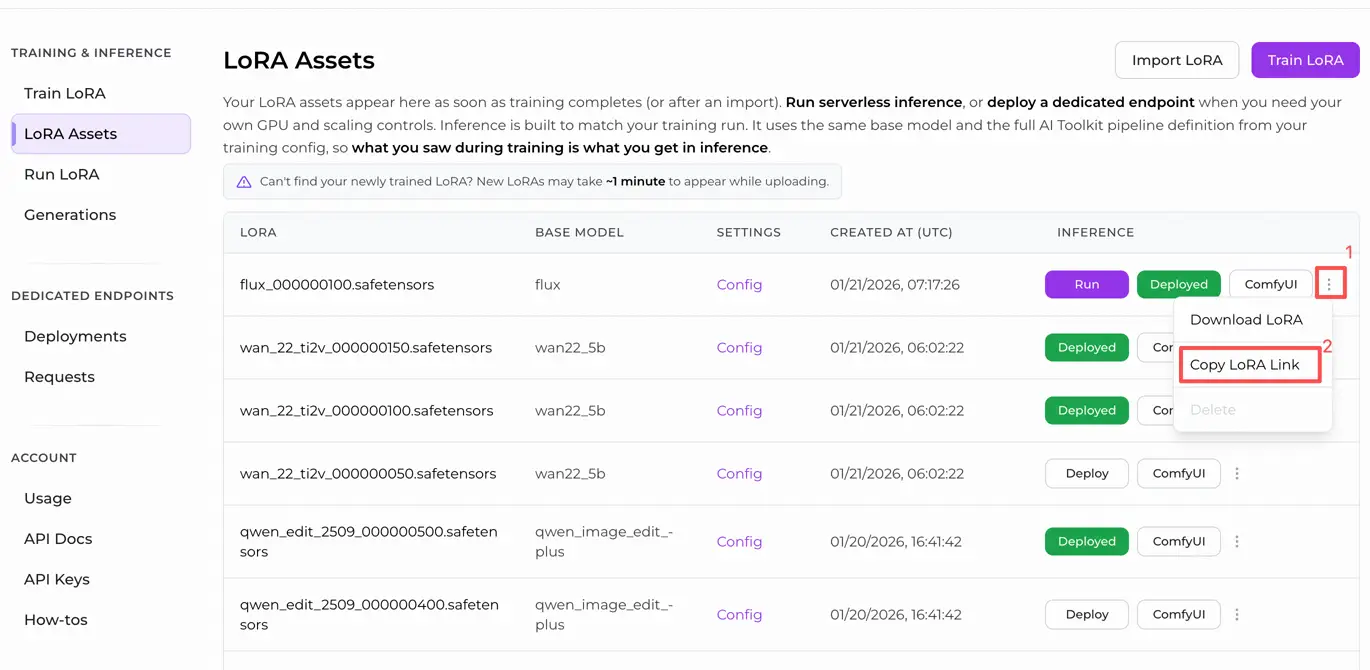
- Option 2 (AI Toolkit LoRA trained outside RunComfy):
Copy a direct .safetensors download link for your LoRA and paste that URL into lora_path.
Step 2: Configure the RCFluxDev custom node for FLUX.1 Dev LoRA Inference#
- In the workflow, select RC FLUX.1 Dev (RCFluxDev) and paste your LoRA URL (or file path) into
lora_path.
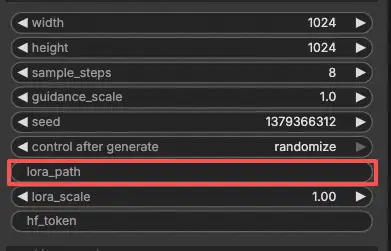
Important (required for first run): to run this custom node you must (1) have Hugging Face access to the gated FLUX.1 Dev repo you’re using, and (2) paste your Hugging Face token into hf_token:
- On the Hugging Face model page, log in and click Request access / Agree (one-time per repo).
- Create a Hugging Face User Access Token with Read permission at huggingface.co/settings/tokens.
- Paste the token into
hf_tokenon RCFluxDev, then re-run the workflow.
Step-by-step guide: FLUX Hugging Face Token - Setup & Troubleshooting
- Then configure the rest of the settings for FLUX.1 Dev LoRA Inference (all in the node UI):
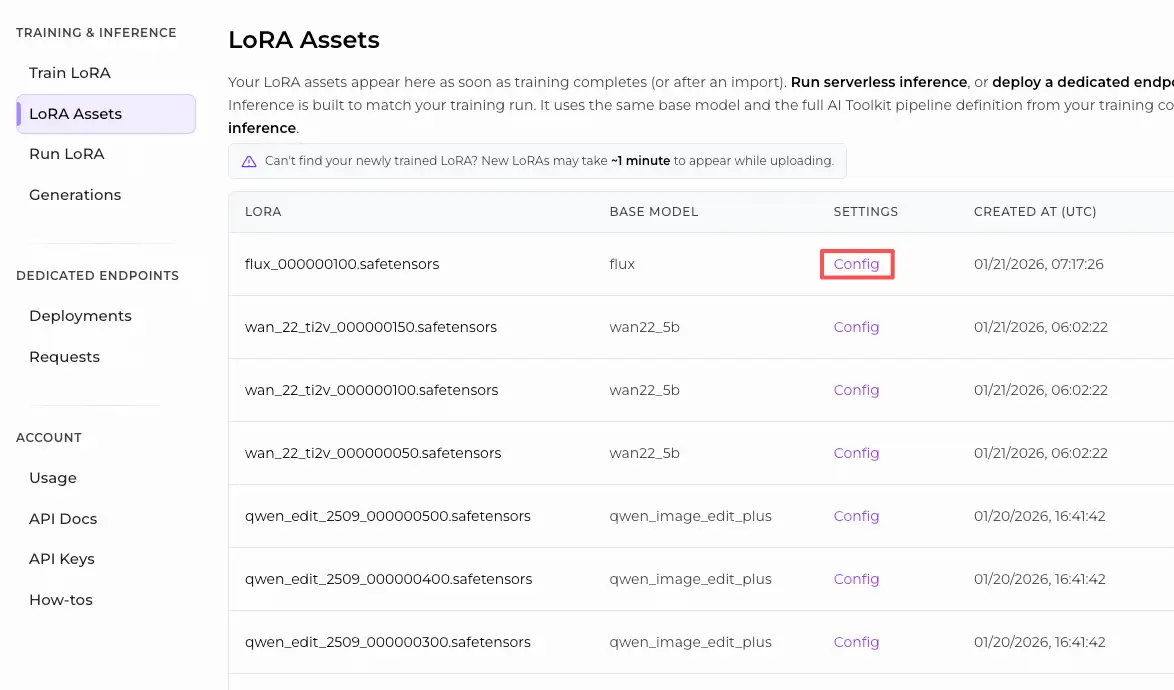
Training alignment tip: when you’re chasing a 1:1 match, don’t “tune by vibes”—mirror the sampling values from the AI Toolkit training YAML you used for previews (especially width, height, sample_steps, guidance_scale, seed). If you trained on RunComfy, open Trainer → LoRA Assets → Config and reuse the preview settings.
prompt: your text prompt (include the trigger tokens you used during training, if any)negative_prompt: optional; keep empty if you didn’t sample with negativeswidth/height: output resolution (match training previews when comparing)sample_steps: number of inference stepsguidance_scale: guidance value used by the FLUX.1 Dev pipelineseed: set a fixed seed to reproduce; change it to explore variationslora_scale: LoRA strength (start near your preview value, then adjust)hf_token: your Hugging Face access token (required for gated FLUX repos)
Step 3: Run FLUX.1 Dev LoRA Inference#
- Click Queue/Run → SaveImage writes results to your ComfyUI output folder automatically
Troubleshooting FLUX.1 Dev LoRA Inference#
Most FLUX.1 Dev “preview vs ComfyUI” issues are caused by pipeline mismatches (how the model is loaded, how conditioning is built, and where/how the adapter is injected), not just a single wrong parameter.
For AI Toolkit–trained FLUX.1 Dev LoRAs, the most reliable way to recover training‑matched behavior in ComfyUI is to run generation through RC FLUX.1 Dev (RCFluxDev), which keeps inference aligned at the pipeline level and applies your adapter consistently via lora_path / lora_scale. If you’re debugging a stubborn issue, start from the minimal reference workflow and add complexity only after you confirm the baseline works.
(1)High lora vram usage after update#
Why this happens
With FLUX.1 Dev, some setups see a large VRAM jump when applying certain LoRAs (including LoRAs trained with AI Toolkit). This often shows up when LoRAs are injected through generic loader paths or when the graph causes extra model copies / reload behavior.
How to fix (recommended)
- Run inference through RCFluxDev and load your adapter only via
lora_pathin the node (avoid mixing multiple LoRA loader nodes for the same model). - Keep your comparison fair: match the training preview sampling values (
width,height,sample_steps,guidance_scale,seed) before judging “it looks off”. - If you still hit OOM: reduce
width/heightfirst (that’s usually the biggest lever for FLUX), then reduce batch/extra nodes, and restart the session to clear any stale caches. What's more, you can launch a higer GPU machine on RunComfy to run.
(2)VAEDecode Given groups=1, weight of size [4, 4, 1, 1], expected input[1, 16, 144, 112] to have 4 channels, but got 16 channels instead#
Why this happens
FLUX latents and “classic SD” latents are not interchangeable. This error is the usual symptom of decoding FLUX latents with a non‑FLUX VAE (a VAE that expects 4‑channel latents, while FLUX latents can be 16‑channel).
How to fix
- Don’t decode FLUX latents with an SD/SDXL VAE path.
- Use the RCFluxDev workflow so the correct FLUX decode path is used end‑to‑end (model loading → sampling → decoding), instead of mixing generic VAE nodes from other pipelines.
- If you’re rebuilding graphs manually, double‑check you’re using the correct FLUX autoencoder assets and not a leftover SD/SDXL VAE.
(3)flux model doesn't work, flux1-dev-fp8.safetensors#
Why this happens
This typically occurs when a FLUX .safetensors UNet is loaded using the wrong type of loader (for example, treating it like a “checkpoint” that ComfyUI should auto-detect like SD/SDXL).
How to fix
- Use the FLUX.1 Dev workflow (RCFluxDev) and let the workflow/node handle model loading; only pass your LoRA through
lora_path. - Don’t load FLUX UNets using SD/SDXL checkpoint loaders.
- If the file was downloaded from a link, re-check it’s a complete, valid
.safetensors(partial downloads can trigger confusing detection errors).
Run FLUX.1 Dev LoRA Inference now#
Open the RunComfy FLUX.1 Dev LoRA Inference workflow, set lora_path, and generate with RCFluxDev to keep ComfyUI results aligned with your AI Toolkit training previews.