



Pixal3D Camera Control:
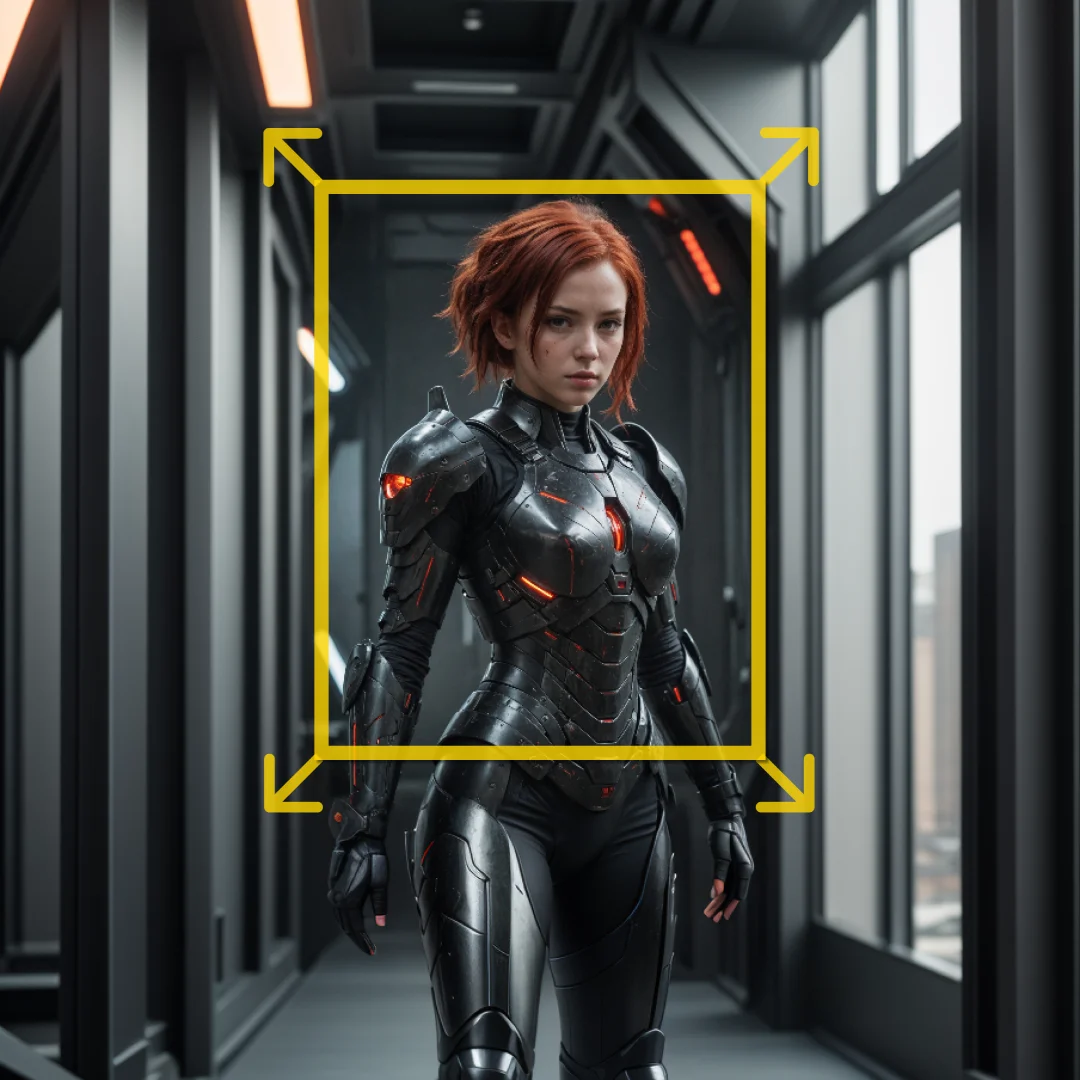
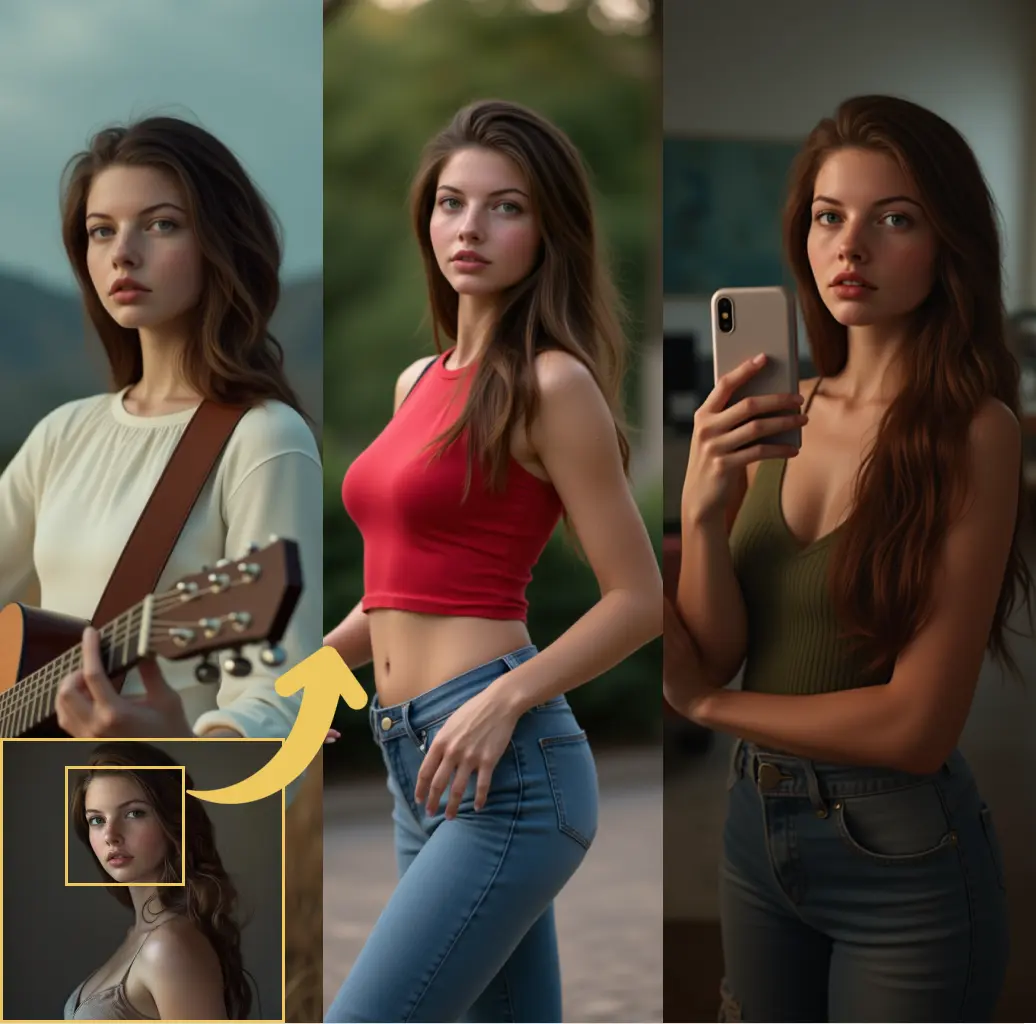
Pixal3DCameraControl is a specialized node designed to manage and manipulate camera settings within the Pixal3D environment, facilitating the conversion of 2D images into 3D models. This node is particularly beneficial for AI artists who wish to have precise control over the camera parameters when generating 3D content from images. It allows for both automatic and manual camera configurations, providing flexibility in how the camera's field of view, distance, and scale are adjusted. By offering detailed control over these parameters, Pixal3DCameraControl enhances the accuracy and quality of the 3D models produced, ensuring that the camera settings align perfectly with the artistic vision. This node is essential for achieving the desired framing and perspective in 3D renderings, making it a valuable tool for artists looking to create immersive and visually appealing 3D content.
Pixal3D Camera Control Input Parameters:
fov_degrees
The fov_degrees parameter specifies the field of view of the camera in degrees. It determines how much of the scene is visible through the camera lens. A larger field of view captures more of the scene, while a smaller field of view focuses on a narrower area. The value must be between 5.0 and 140.0 degrees, ensuring a balance between wide-angle and telephoto perspectives.
distance
The distance parameter defines the distance between the camera and the subject in the scene. It affects the perspective and scale of the objects in the 3D model. A smaller distance brings the camera closer to the subject, making it appear larger, while a larger distance moves the camera further away, making the subject appear smaller. The minimum value for this parameter is 0.1.
mesh_scale
The mesh_scale parameter controls the scale of the mesh used for camera fitting. It is crucial for ensuring that the camera's perspective aligns with the scale of the 3D model. Typically, this value is kept at 1.0 to maintain consistency in the model's proportions. The minimum value for mesh_scale is 0.05.
image
The image parameter is an optional input that allows you to provide a preview image for the camera widget. This image serves as a reference for the camera settings but does not directly affect the output of the node.
Pixal3D Camera Control Output Parameters:
manual_fov
The manual_fov output provides a dictionary containing the manually configured camera parameters, including the field of view in degrees, the camera angle in radians, the distance, and the mesh scale. This output is essential for understanding the specific camera settings applied during the 3D model generation process.
Pixal3D Camera Control Usage Tips:
- When using manual camera mode, ensure that the
fov_degrees,distance, andmesh_scaleparameters are set to values that match your artistic vision for the 3D model. This will help achieve the desired perspective and scale. - If you find that the automatic camera mode (MoGe) is not providing the desired framing, consider switching to manual mode and adjusting the parameters to fine-tune the camera settings.
Pixal3D Camera Control Common Errors and Solutions:
Unsupported camera mode: <camera_mode>
- Explanation: This error occurs when an invalid camera mode is specified. The node supports only "manual" and "moge" modes.
- Solution: Ensure that the
camera_modeparameter is set to either "manual" or "moge" to avoid this error.
ValueError: Invalid fov_degrees value
- Explanation: This error is raised when the
fov_degreesparameter is set outside the allowed range of 5.0 to 140.0 degrees. - Solution: Adjust the
fov_degreesparameter to a value within the specified range to resolve this issue.