Z Image ControlNet workflow for structure‑guided image generation in ComfyUI#
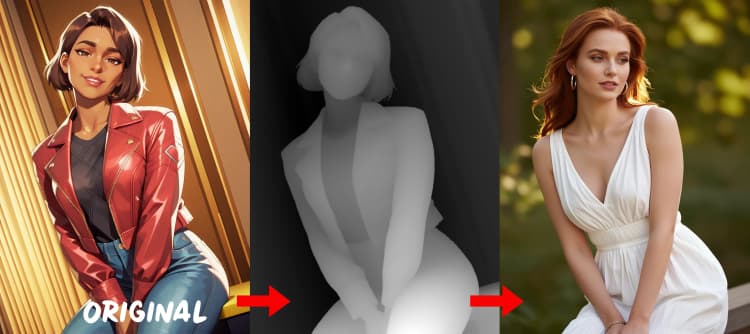
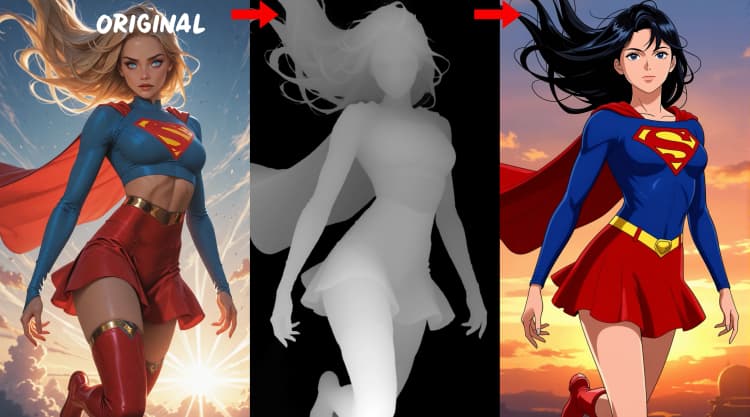
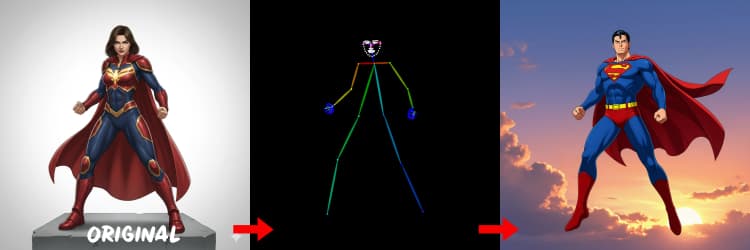
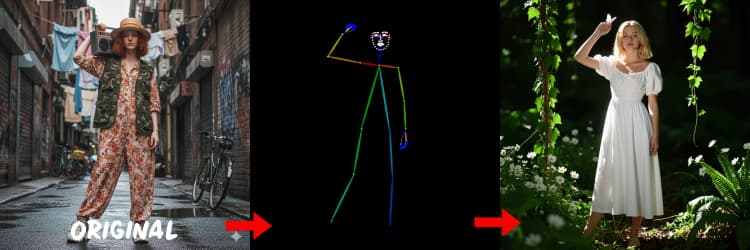
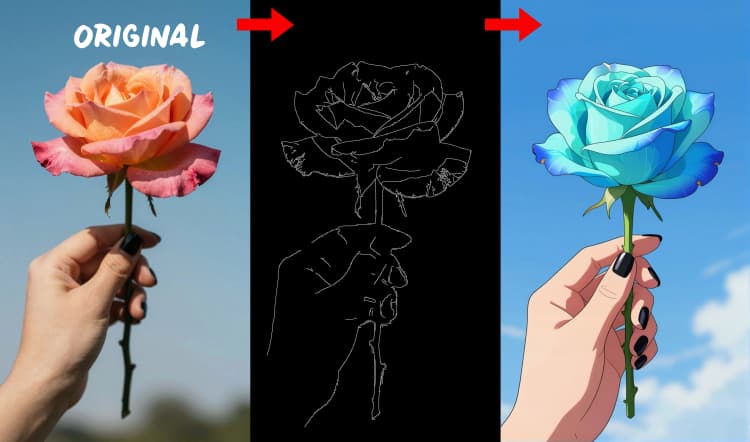
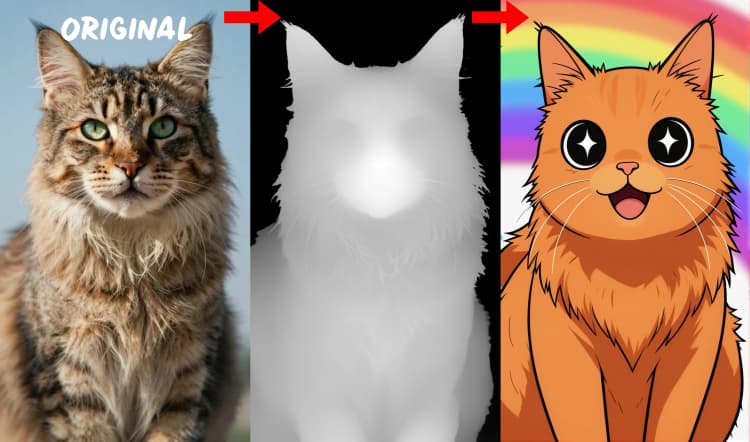
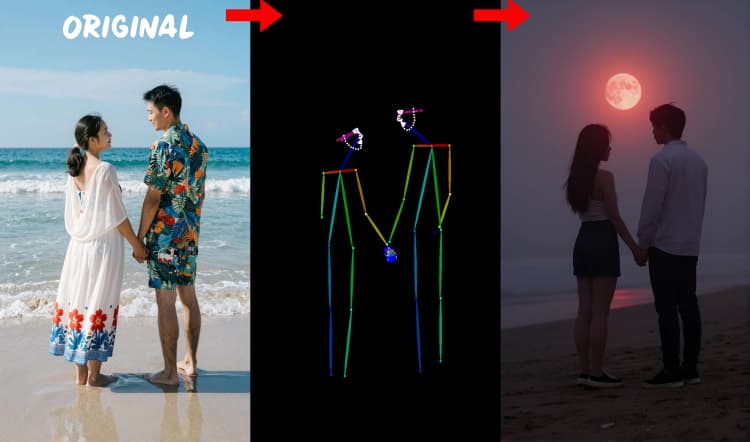
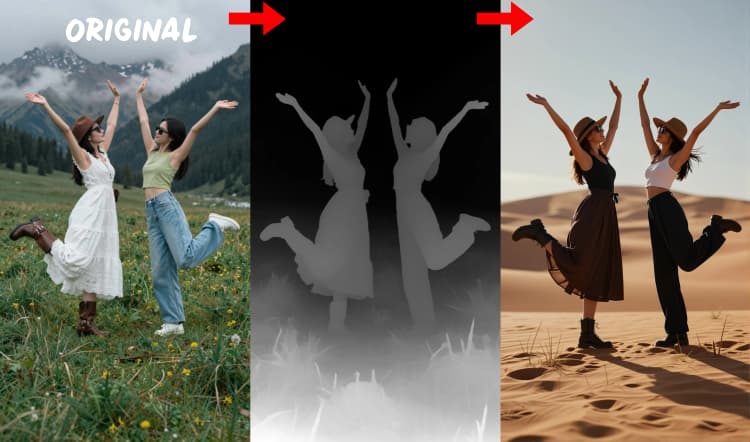
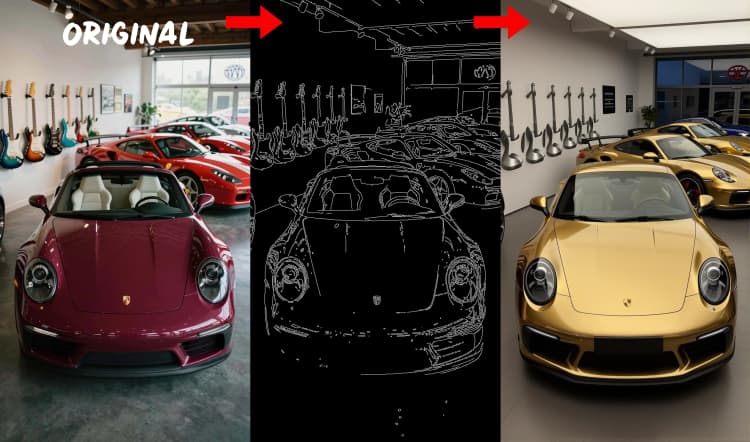
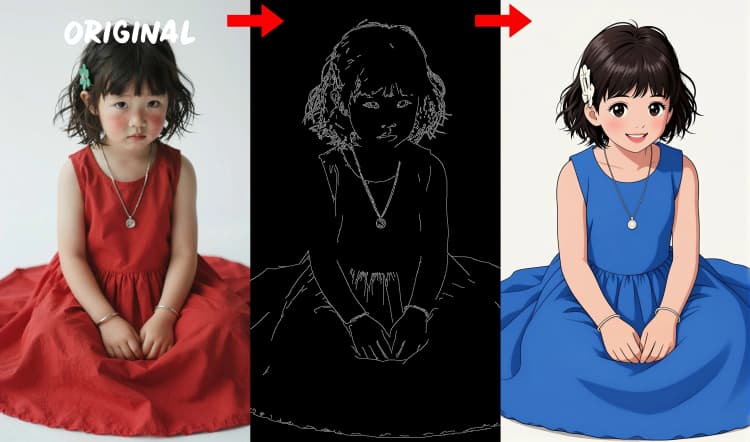
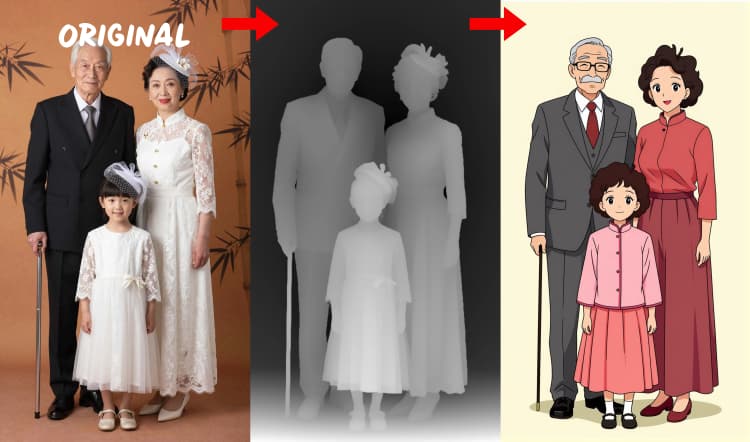
This workflow brings Z Image ControlNet to ComfyUI so you can steer Z‑Image Turbo with precise structure from reference images. It bundles three guidance modes in one graph depth, canny edges, and human pose and lets you switch between them to match your task. The result is fast, high‑quality text or image‑to‑image generation where layout, pose, and composition remain under control while you iterate.
Designed for artists, concept designers, and layout planners, the graph supports bilingual prompting and optional LoRA styling. You get a clean preview of the chosen control signal plus an automatic comparison strip to evaluate depth, canny, or pose against the final output.
Key models in Comfyui Z Image ControlNet workflow#
- Z‑Image Turbo diffusion model 6B parameters. Primary generator that produces photoreal images quickly from prompts and control signals. alibaba-pai/Z-Image-Turbo
- Z Image ControlNet Union patch. Adds multi‑condition control to Z‑Image Turbo and enables depth, edge, and pose guidance in one model patch. alibaba-pai/Z-Image-Turbo-Fun-Controlnet-Union
- Depth Anything v2. Produces dense depth maps used for structure guidance in depth mode. LiheYoung/Depth-Anything-V2 on GitHub
- DWPose. Estimates human keypoints and body pose for pose‑guided generation. IDEA-Research/DWPose
- Canny edge detector. Extracts clean line art and boundaries for layout‑driven control.
- ControlNet Aux preprocessors for ComfyUI. Provides unified wrappers for depth, edges, and pose used by this graph. comfyui_controlnet_aux
How to use Comfyui Z Image ControlNet workflow#
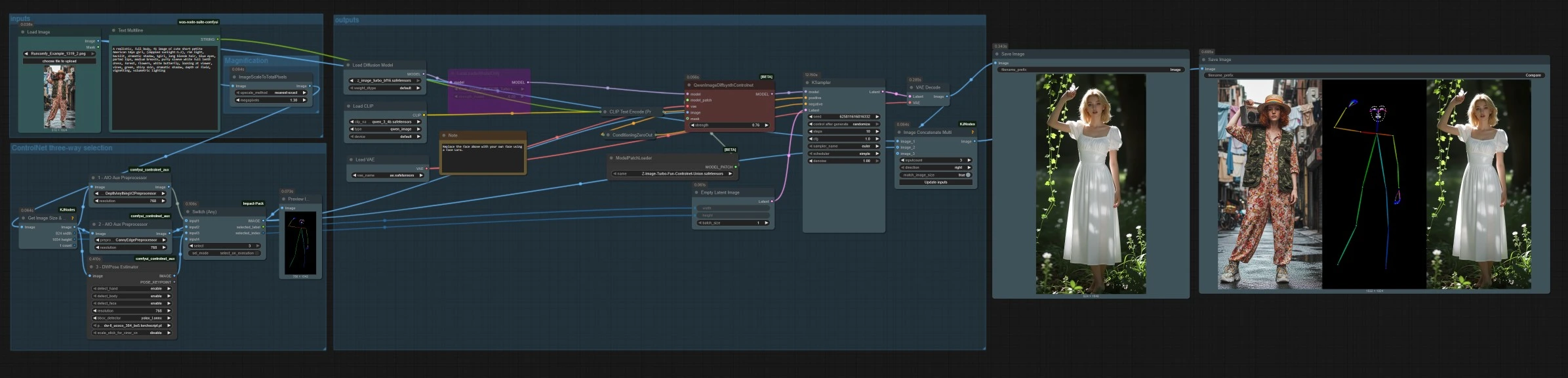
At a high level, you load or upload a reference image, select one control mode among depth, canny, or pose, then generate with a text prompt. The graph scales the reference for efficient sampling, builds a latent at matching aspect ratio, and saves both the final image and a side‑by‑side comparison strip.
inputs#
Use LoadImage (#14) to pick a reference image. Enter your textual prompt in Text Multiline (#17) the Z‑Image stack supports bilingual prompts. The prompt is encoded by CLIPLoader (#2) and CLIPTextEncode (#4). If you prefer purely structure‑driven image‑to‑image, you can leave the prompt minimal and rely on the selected control signal.
ControlNet three-way selection#
Three preprocessors convert your reference into control signals. AIO_Preprocessor (#45) produces depth with Depth Anything v2, AIO_Preprocessor (#46) extracts canny edges, and DWPreprocessor (#56) estimates full‑body pose. Use ImpactSwitch (#58) to select which signal drives Z Image ControlNet, and check PreviewImage (#43) to confirm the chosen control map. Pick depth when you want scene geometry, canny for crisp layout or product shots, and pose for character work.
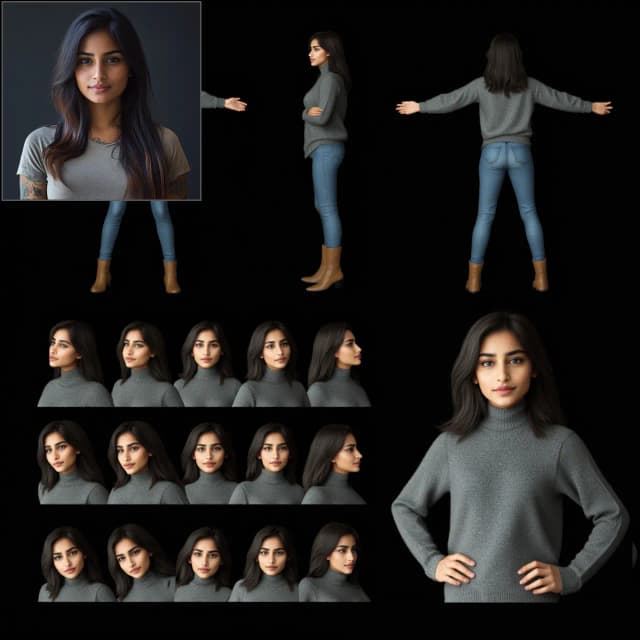
Tips for OpenPose: 1. Best for Full Body: OpenPose works best (~70-90% accuracy) when you include "full body" in your prompt. 2. Avoid for Close-ups: Accuracy drops significantly on faces. Use Depth or Canny (low/med strength) for close-ups instead. 3. Prompting Matters: Prompts heavily influence ControlNet. Avoid empty prompts to prevent muddy results.
Magnification#
ImageScaleToTotalPixels (#34) resizes the reference to a practical working resolution to balance quality and speed. GetImageSizeAndCount (#35) reads the scaled size and passes width and height forward. EmptyLatentImage (#6) creates a latent canvas that matches the aspect of your resized input so composition stays consistent.
outputs#
QwenImageDiffsynthControlnet (#39) fuses the base model with the Z Image ControlNet union patch and the selected control image, then KSampler (#7) generates the result guided by your positive and negative conditioning. VAEDecode (#8) converts the latent to an image. The workflow saves two outputs SaveImage (#31) writes the final image, and SaveImage (#42) writes a comparison strip via ImageConcatMulti (#38) that includes the source, the control map, and the result for quick QA.
Key nodes in Comfyui Z Image ControlNet workflow#
ImpactSwitch (#58)#
Chooses which control image drives the generation depth, canny, or pose. Switch modes to compare how each constraint shapes composition and detail. Use it when iterating layouts to rapidly test which guidance best fits your goal.
QwenImageDiffsynthControlnet (#39)#
Bridges the base model, the Z Image ControlNet union patch, the VAE, and the selected control signal. The strength parameter determines how strictly the model follows the control input versus the prompt. For tight layout matching, raise strength for more creative variation, reduce it.
AIO_Preprocessor (#45)#
Runs the Depth Anything v2 pipeline to create dense depth maps. Increase resolution for more detailed structure or reduce for faster previews. Pairs well with architectural scenes, product shots, and landscapes where geometry matters.
DWPreprocessor (#56)#
Generates pose maps suitable for people and characters. It works best when limbs are visible and not heavily occluded. If hands or legs are missing, try a clearer reference or a different frame with more complete body visibility.
LoraLoaderModelOnly (#54)#
Applies an optional LoRA to the base model for style or identity cues. Adjust strength_model to blend the LoRA gently or strongly. You can swap in a face LoRA to personalize subjects or use a style LoRA to lock in a specific look.
KSampler (#7)#
Performs diffusion sampling using your prompt and control. Tune seed for reproducibility, steps for refinement budget, cfg for prompt adherence, and denoise for how much the output may deviate from the initial latent. For image‑to‑image edits, lower denoise to preserve structure higher values allow larger changes.
Optional extras#
- To tighten composition, use depth mode with a clean, evenly lit reference canny favors strong contrast, and pose favors full‑body shots.
- For subtle edits from a source image, keep denoise modest and raise ControlNet strength for faithful structure.
- Increase the target pixels in the Magnification group when you need more detail, then reduce again for rapid drafts.
- Use the comparison output to A/B test depth vs canny vs pose quickly and pick the most reliable control for your subject.
- Replace the example LoRA with your own face or style LoRA to incorporate identity or art direction without retraining.
Acknowledgements#
This workflow implements and builds upon the following works and resources. We gratefully acknowledge Alibaba PAI for Z Image ControlNet for their contributions and maintenance. For authoritative details, please refer to the original documentation and repositories linked below.
Resources#
- Alibaba PAI/Z Image ControlNet
- Hugging Face: alibaba-pai/Z-Image-Turbo-Fun-Controlnet-Union
Note: Use of the referenced models, datasets, and code is subject to the respective licenses and terms provided by their authors and maintainers.