Qwen Image 2.1 Pose Control with VNCCS PoseStudio#
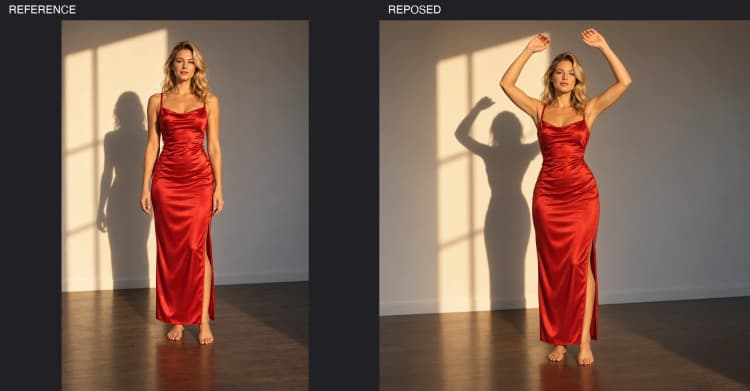
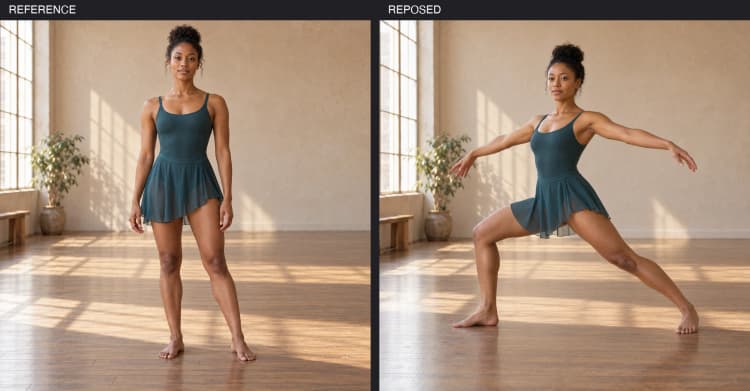
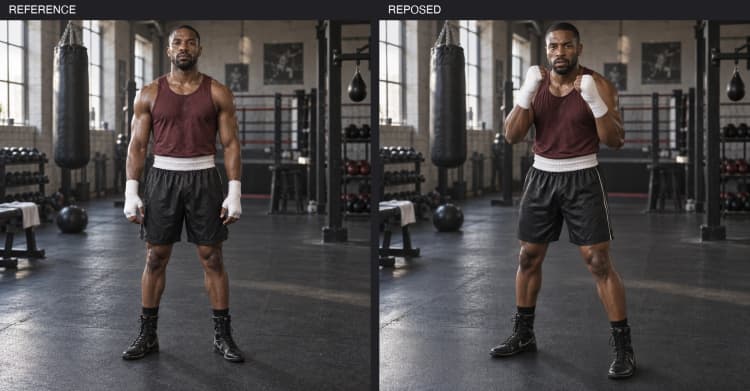
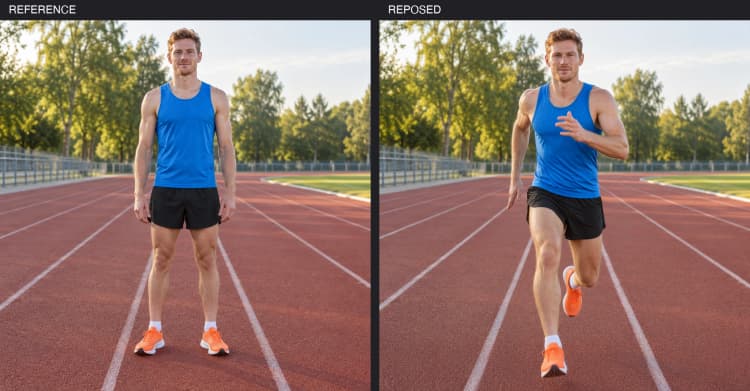
This workflow brings interactive character reposing to ComfyUI using Qwen Image 2.1 Pose Control. You author a target pose in VNCCS PoseStudio’s 3D editor, pair it with a scene prompt, and generate images that keep your character’s identity and clothing intact while precisely matching the pose. It is ideal for creators who need consistent humans across varied actions such as dance, boxing, and running.
The pipeline couples a dedicated VNCCS PoseStudio V1 LoRA with the Qwen image generator so your skeleton edits translate directly into photorealistic or stylized frames. Use a single reference character and explore multiple motions without losing hairstyle, outfit details, or overall likeness.
Key models in Comfyui Qwen Image 2.1 Pose Control workflow#
- Qwen2.1-Image. The core image generation model that synthesizes high quality images from text and conditioning. It balances prompt guidance with image and pose inputs to deliver faithful subjects across diverse scenes.
- VNCCS PoseStudio V1 LoRA for Qwen Image 2.1. A lightweight finetune that teaches the base model to follow VNCCS PoseStudio’s skeleton format for reliable pose adherence. Available from MIUProject on Hugging Face: MIUProject/VNCCS_PoseStudio_QI2.1.
How to use Comfyui Qwen Image 2.1 Pose Control workflow#
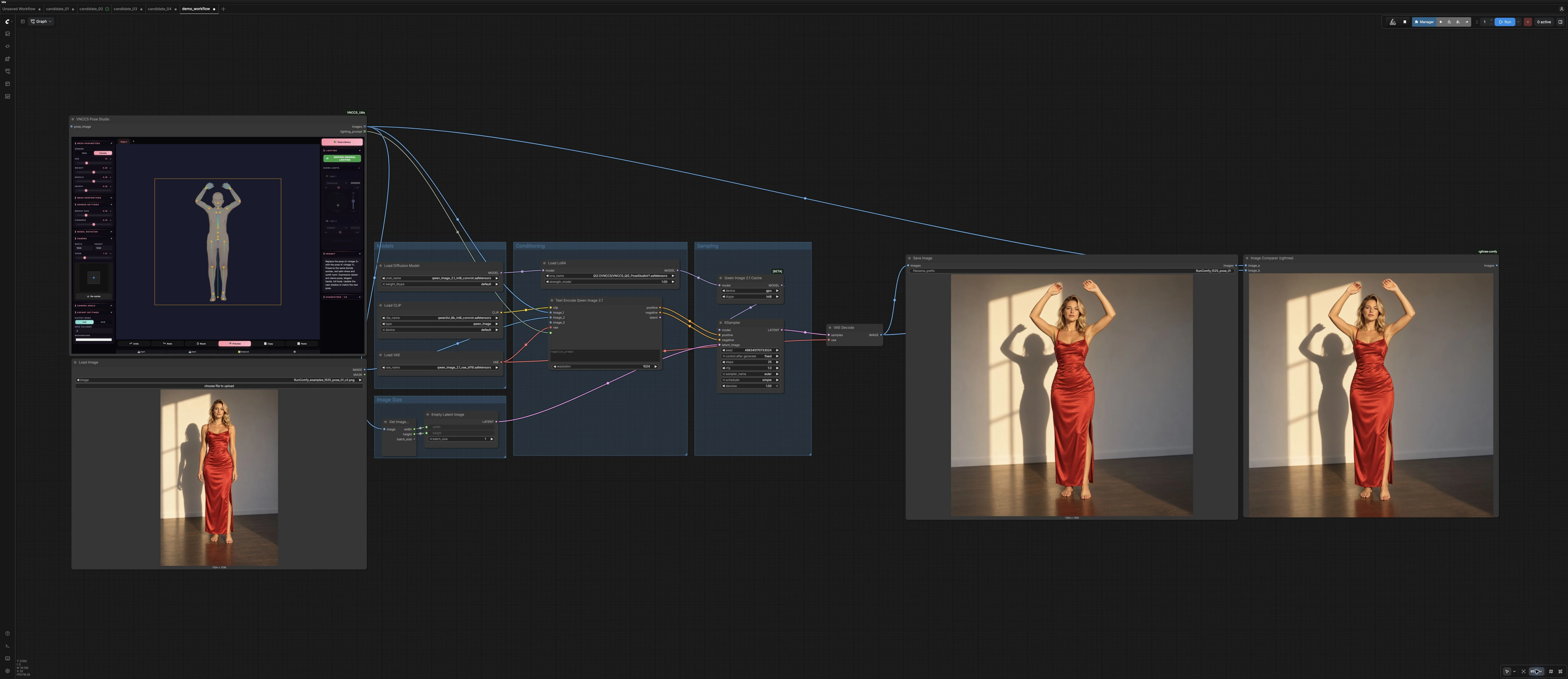
This ComfyUI graph follows a clear path from inputs to outputs: load a character reference, design or import a target pose from VNCCS PoseStudio, describe the scene, then sample and export. The Qwen Image 2.1 Pose Control logic ensures identity retention while the PoseStudio LoRA drives accurate limb placement and body orientation.
Reference character#
Start by loading a clean, front-facing image of your subject. The workflow preserves face structure, hairstyle, and outfit, so choose a photo that clearly shows the clothing you want to keep. If you plan multiple actions in one session, stick to the same reference to minimize drift. You can swap references at any time to repose a different character using the same target pose.
Pose from VNCCS PoseStudio#
Open VNCCS PoseStudio, pick the humanoid rig, and position joints to define the action. Adjust the camera and FOV to roughly match your desired framing. When the pose looks right, send it to ComfyUI through the VNCCS utilities bridge so the skeleton drawing becomes a conditioning signal. The dedicated LoRA is trained on this format, which makes Qwen Image 2.1 Pose Control follow your 3D edits closely. VNCCS utilities are available here: AHEKOT/ComfyUI_VNCCS_Utils.
Scene prompt and style#
Write a concise scene prompt that sets location, attire emphasis, lighting, and camera feel. Keep identity hints like “same outfit” or “keep red dress details” to reinforce clothing consistency. Use a short negative list to avoid artifacts such as extra limbs or distorted hands. You can vary style with compact descriptors like cinematic, studio-lit, or street photography without undermining pose control.
Sampling and refinement#
Generate a first pass to verify pose fidelity and likeness. If the body shape matches but clothing slips, strengthen identity cues in the prompt or slightly increase the LoRA’s influence. If the pose feels stiff, re-open PoseStudio to relax joint angles or nudge balance points like hips and shoulders. Iterate quickly by keeping the seed fixed while you adjust pose and wording so changes are attributable.
Export and upscale#
Once you lock the look, export the final image. You can route the output through your preferred upscaler for a cleaner, high resolution version. Saving the PoseStudio file and the ComfyUI prompt lets you reproduce the same character across new actions without rebuilding the setup.
Example scene prompts to pair with your pose#
- red dress woman with raised arms, spotlight, glossy floor reflections, full body
- female dancer in a side lunge, studio softbox lighting, dynamic motion blur accents
- male athlete in a boxing stance, gym setting, gritty ambient light, sweat detail
- male runner in stride, outdoor track at sunset, shallow depth of field
Optional extras#
- For stronger pose accuracy, finalize limb alignment in VNCCS PoseStudio before sampling rather than forcing changes through the prompt.
- For stronger identity retention, keep the face unobstructed in the reference and mention outfit elements explicitly in the prompt.
- To explore many poses consistently, keep the same seed while you modify the PoseStudio skeleton and scene prompt.
- For sequences such as dance routines, advance PoseStudio keyframes pose by pose, render per frame, then assemble externally.
- Refer to the VNCCS PoseStudio LoRA card for any asset-specific tips: MIUProject/VNCCS_PoseStudio_QI2.1.
Acknowledgements#
This workflow implements and builds upon the following works and resources. We gratefully acknowledge MIUProject for VNCCS PoseStudio QI2.1, AHEKOT for ComfyUI_VNCCS_Utils, and AHEKOT for the “VNCCS PoseStudio Qwen Image 2.1” workflow/discussion for their contributions and maintenance. For authoritative details, please refer to the original documentation and repositories linked below.
Resources#
- AHEKOT/VNCCS PoseStudio Qwen Image 2.1
- Hugging Face: MIUProject/VNCCS_PoseStudio_QI2.1
- Docs / Release Notes: VNCCS PoseStudio Qwen Image 2.1
- MIUProject/VNCCS_PoseStudio_QI2.1
- Hugging Face: MIUProject/VNCCS_PoseStudio_QI2.1
- AHEKOT/ComfyUI_VNCCS_Utils
- GitHub: AHEKOT/ComfyUI_VNCCS_Utils
Note: Use of the referenced models, datasets, and code is subject to the respective licenses and terms provided by their authors and maintainers.