

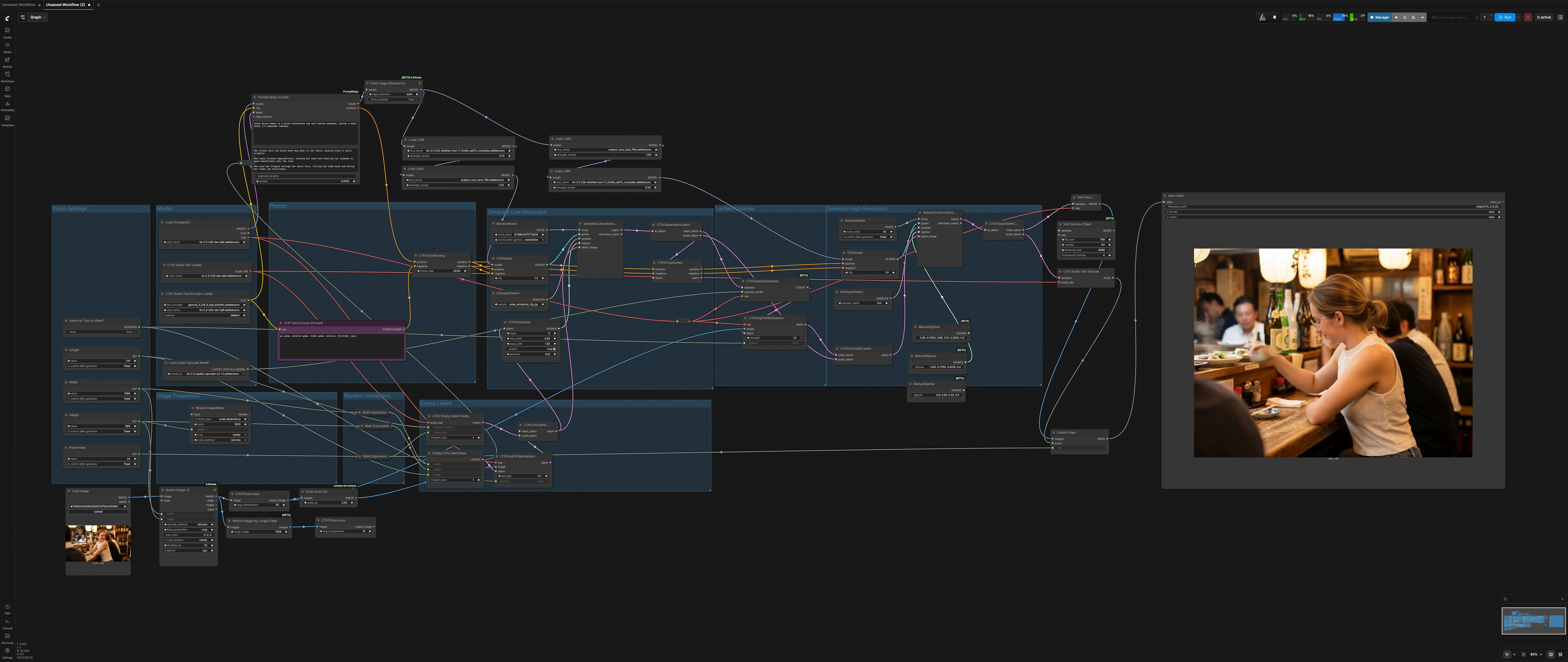
LTX 2.3 Sulphur image to video workflow: cinematic image-to-video with controllable motion#
This LTX 2.3 Sulphur image to video workflow turns a single still into a publish-ready cinematic shot with natural micro‑expressions, believable character motion, and stable atmospheric continuity. It is purpose-built for storytelling shots where you want control over camera feel, mood, and scene dynamics without getting lost in setup details.
The workflow runs a two‑stage diffusion pipeline around LTX‑2.3: a low‑resolution pass to establish motion and timing, followed by a latent upscale and a high‑resolution refinement pass for final detail. A Sulphur style LoRA steers look and skin tones, while prompt segmentation supports evolving beats across the shot. Toggle a single switch to run classic image‑to‑video or pure text‑to‑video as needed.
Key models in Comfyui LTX 2.3 Sulphur image to video workflow#
- Lightricks LTX‑2.3‑22B dev FP8. The base video diffusion checkpoint that drives generation and decoding while keeping memory use practical. Model card
- LTX‑2.3 Spatial Upscaler x2. A latent super‑resolution model used between passes to preserve motion while adding spatial fidelity. Model page
- Gemma 3 12B instruction‑tuned text encoder packaged for LTX‑2. Enables rich, grounded conditioning for global and segment prompts. Repository
- Sulphur style LoRA and LTX‑2.3 distilled LoRA 1.1. Paired LoRAs that stabilize facial realism and cinematic tone while retaining prompt control.
How to use Comfyui LTX 2.3 Sulphur image to video workflow#
Overall flow: set shot dimensions and length, prepare your still image, define a global prompt plus optional local prompt beats, then render. The low‑resolution stage builds motion and timing, the latent upscaler lifts detail, and the high‑resolution stage finalizes texture and lighting before decoding to MP4.
Video Settings#
Choose your target Width, Height, Length (frames), and Frame Rate. Dimensions are set to be divisible by common diffusion grid sizes to avoid artifacts. A single boolean, Switch to Text to Video? (#28), controls whether the still image is injected or bypassed. Keep aspect ratio consistent with the input image for the cleanest framing, especially for faces and hands.
Image Preprocess#
Your source still is loaded, resized, and lightly compressed for diffusion readiness using ImageResizeKJv2 (#75) and LTXVPreprocess (#76). A scaled version is fed to the low‑resolution pass for stable motion seeding, while the higher‑detail version is available to the high‑resolution pass. Use this section to align framing and headroom before generation. Subtle pre‑crop adjustments here pay off in more consistent eye lines and background continuity.
Empty Latent#
EmptyLTXVLatentVideo (#21) and LTXVEmptyLatentAudio (#33) construct synchronized video and audio latents using your shot settings. They are merged by LTXVConcatAVLatent (#32) to establish a timeline scaffold that downstream nodes will refine. The audio branch creates a silent, valid track so the final MP4 plays reliably everywhere. These latents also anchor prompt segments so motion changes land where you expect.
Prompt#
Write your shot description in PromptRelayEncode (#80). Use a concise global prompt for the overall look, then add beat‑specific lines as local prompts, separated by the | character, to evolve micro‑actions across the clip. The LTX text encoder from LTXAVTextEncoderLoader (#5) handles semantics, while CLIPTextEncode (#41) provides a strong realism‑oriented negative prompt. LTXVConditioning (#31) blends positive and negative conditioning and syncs them with the frame rate.
Model#
CheckpointLoaderSimple (#44) loads the LTX‑2.3 base. PathchSageAttentionKJ (#67) optimizes attention for large images. A short LoRA chain applies the Sulphur style and a distilled stability LoRA before each sampling stage. This design balances look consistency with prompt responsiveness so character identity and lighting stay coherent between passes.
Generate Low Resolution#
This first diffusion pass establishes motion. LTXVImgToVideoInplace (#22) injects your preprocessed still into the timeline; if Switch to Text to Video? is enabled, its bypass input cleanly disables image injection for pure T2V. LTXVScheduler (#47) shapes the sigma schedule to control motion amplitude and temporal smoothness. SamplerCustomAdvanced (#9), driven by CFGGuider (#42) and KSamplerSelect (#17), synthesizes a coherent low‑res A/V latent. LTXVSeparateAVLatent (#35) then splits video and audio paths and forwards framing information to LTXVCropGuides (#10) for guide‑aware composition.
Lantent Upscale#
LTXVLatentUpsampler (#13) with the LTX‑2.3 Spatial Upscaler lifts spatial detail in latent space while preserving the learned motion from the first pass. Upscaling here avoids re‑inventing timing and reduces flicker often seen with naive second‑pass regeneration. It hands a sharper, motion‑consistent latent to the final refinement stage.
Generate High Resolution#
The refined stage recombines the upscaled video latent and the audio latent via LTXVConcatAVLatent (#3). CFGGuider (#8) and KSamplerSelect (#6) steer a fast, detail‑oriented sampler in SamplerCustomAdvanced (#36) using a tuned sigma schedule for finishing. If you left image injection enabled, a second LTXVImgToVideoInplace (#14) helps the model honor the still at high resolution without losing the motion already established. The result is a stable, cinematic sequence with natural eye and mouth dynamics.
Output#
VAEDecode (#68) turns the final video latent into frames while LTXVAudioVAEDecode (#23) reconstructs the silent audio track. CreateVideo (#38) muxes frames and audio at your selected frame rate, and SaveVideo (#45) writes an H.264 MP4 for immediate review and sharing. Use a descriptive filename prefix per shot to keep iterations organized.
Number conversion#
A small utility block computes half‑scale sizes for latent construction to manage VRAM and speed. You usually do not need to touch these, but they ensure the upstream width and height drive everything consistently. If you change base resolution, these adapt automatically.
Key nodes in Comfyui LTX 2.3 Sulphur image to video workflow#
PromptRelayEncode(#80). Centralizes a global prompt and beat‑by‑beat local prompts aligned to the timeline. Use it to script micro‑expressions and small camera reveals across the shot. Keep local prompts short and specific so they complement rather than fight the global look.LTXVImgToVideoInplace(#22, #14). Injects the still image into low‑ and high‑resolution latents. Increasestrengthwhen you want the final to adhere tightly to the reference frame; reduce it for more freedom. Thebypassinput is wired to the Text‑to‑Video switch so you can disable image injection cleanly for T2V runs.LTXVScheduler(#47). Controls how noise levels evolve during the low‑resolution pass, which directly affects motion intensity and smoothness. Use it to tame overly active shots or to add a subtle push when things feel static. Adjustments here are most noticeable on faces, hair, and handheld‑like camera energy.LTXVLatentUpsampler(#13). Performs x2 latent upscaling with LTX’s spatial upscaler, preserving motion cues learned in the first pass. Use it to add crisp texture and edge definition before the high‑resolution refinement without re‑rolling timing.CFGGuider(#42, #8). Balances how strongly the model follows your prompts versus its learned priors. If faces drift or style weakens, nudge guidance up; if details look over‑forced or plastic, ease it down. Pair changes with a quick look at the negative prompt to maintain realism.KSamplerSelect(#17, #6). Lets you choose the sampling algorithm per stage. Favor a robust, expressive sampler for the low‑resolution pass and a fast, detail‑friendly option for the finishing pass. Keep the choice consistent across iterations when comparing looks.
Optional extras#
- For deliberate camera behavior, you can add a camera‑control LoRA like Dolly‑Left from the LTX family to your LoRA loader chain when you want a consistent lateral push. Model page
- Keep width and height divisible by 32 to avoid misalignment in latent operations and to maintain VRAM efficiency.
- Use short, active verbs in local prompts to choreograph beats, for example tighten grip, glance away, soften smile.
- If you target very high output sizes, consider swapping
VAEDecodewithVAEDecodeTiled(#43) to decode frames more memory‑efficiently. - When faces matter most, iterate by adjusting only prompt text and
CFGGuiderbefore changing sampler or resolution. This keeps comparisons meaningful and surfaces the best wording for the LTX 2.3 Sulphur image to video workflow.
Acknowledgements#
This workflow implements and builds upon the following works and resources. We gratefully acknowledge RunningHub for the workflow reference, Lightricks for the LTX 2.3 family (model, spatial upscaler, and camera-control LoRA), and Comfy-Org for the LTX text encoder for their contributions and maintenance. For authoritative details, please refer to the original documentation and repositories linked below.
Resources#
- RunningHub/RunningHub workflow reference
- Docs / Release Notes: runninghub.ai post
- Lightricks/LTX 2.3 model source
- Hugging Face: Lightricks/LTX-2.3-fp8
- Lightricks/LTX 2.3 spatial upscaler source
- Hugging Face: Lightricks/LTX-2.3
- Lightricks/LTX camera-control LoRA source
- Hugging Face: Lightricks/LTX-2-19b-LoRA-Camera-Control-Dolly-Left
- Comfy-Org/LTX text encoder source
- Hugging Face: Comfy-Org/ltx-2
Note: Use of the referenced models, datasets, and code is subject to the respective licenses and terms provided by their authors and maintainers.