

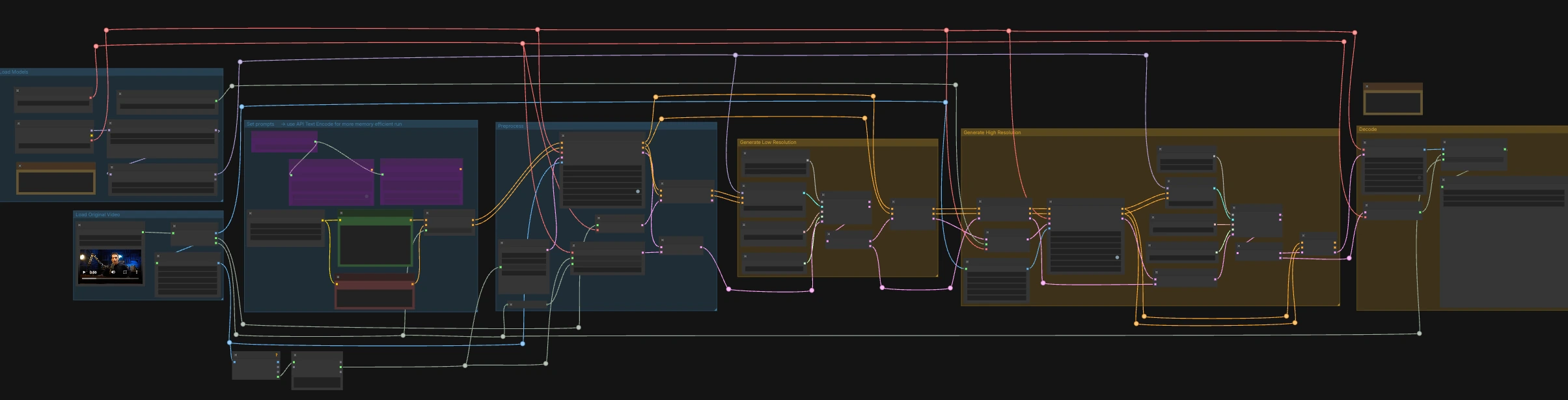
LTX-2.3 ICLoRA LipDub for ComfyUI#
LTX-2.3 ICLoRA LipDub is a two-pass, video-and-audio controlled ComfyUI workflow that dubs a talking person while keeping identity and motion consistent. It combines Lightricks LTX-2.3 text and video conditioning with the LipDub IC-LoRA to align mouth motion precisely to supplied speech, then refines the result at higher resolution for crisp detail. The graph is prepared for RunComfy with standardized input/output names so you can swap media and repeat runs reliably.
This ComfyUI LTX-2.3 ICLoRA LipDub workflow is ideal for creators who need multilingual dubbing, rephrasing, or ADR-like fixes while preserving the original performance. Provide a source video that already includes the target speech, describe the scene and what the person should say, and the workflow will synthesize synchronized visuals and audio into a finished clip.
Key models in Comfyui LTX-2.3 ICLoRA LipDub workflow#
- LTX-2.3 22B base video model. The foundation diffusion model that generates the video and governs how prompts steer appearance, motion, and style.
- LTX-2.3 IC-LoRA LipDub. A LoRA specialized for lip dubbing that conditions the model to follow the supplied speech and align mouth shapes to phonemes while preserving identity and head motion. Model card
- LTX-2.3 Audio VAE. Encodes the input speech into an audio latent that can be injected into text conditioning and later decoded back to waveform, ensuring timing stays locked to frames.
- LTX-2.3 Spatial Upscaler x2. Upscales video latents to higher spatial resolution before the high-resolution refinement pass, improving texture without changing motion.
- LTX-2.3 Distilled LoRA (384). A strengthening LoRA used alongside the base checkpoint to improve detail and temporal stability without overfitting to the reference frame.
How to use Comfyui LTX-2.3 ICLoRA LipDub workflow#
This workflow runs in two coordinated stages: a low-resolution pass to lock timing and lip shapes to the audio, followed by a high-resolution pass that upscales and refines detail while preserving synchronization. Start by loading a source video that already contains the speech you want, then write the text line you want the person to say.
Load Original Video#
The LoadVideo (#5002) node imports your source clip with embedded audio. GetVideoComponents (#5010) extracts frames, audio, and frame rate; the frame rate is shared throughout the graph so video and audio stay aligned. Two resizers, Resize Image/Mask (s1 size) (#5009) and Resize Image/Mask (s2 size) (#5003), prepare working image streams for the low- and high-resolution passes. Frame count is measured and rounded for sampler-friendly lengths so decoding remains stable.
Load Models#
CheckpointLoaderSimple (#5017) loads the LTX-2.3 22B base model and VAE used across the graph. Two loaders, LoraLoaderModelOnly (#5018) and LTXICLoRALoaderModelOnly (#5012), add the distilled LoRA and the IC-LoRA LipDub on top of the base so the generator follows speech while preserving identity. LTXVAudioVAELoader (#4010) provides the audio VAE for encoding/decoding the soundtrack. The IC-LoRA loader’s latent_downscale_factor output is intentionally unused here because LipDub training assumes full-resolution reference frames, matching the included note.
Set prompts#
Write your scene description and exact spoken line in CLIP Text Encode (Positive Prompt) (#2483). Use CLIP Text Encode (Negative Prompt) (#2612) to minimize undesired traits or artifacts. These feed into LTXVConditioning (#1241), which adapts conditioning to the video domain and carries the frame-rate context forward. For low-VRAM runs, the graph also includes API-based encoders (🅛🅣🅧 Gemma API Text Encode - POSITIVE (#4980) and ... - NEGATIVE (#4981)) gated by the LTX API KEY string (#4979); the default wiring uses local encoders.
Preprocess#
LTXVAudioVAEEncode (#5005) converts the source speech into an audio latent, and LTXVSetAudioRefTokens (#5006) injects that latent into the text conditioning so the generator “hears” the timing and phonemes. EmptyLTXVLatentVideo (#3059) prepares a placeholder video latent with the correct spatial size and a frame count aligned to the input. LTXAddVideoICLoRAGuide (#5004) attaches the IC-LoRA reference guidance using the s1 frames, establishing identity and mouth-region attention before sampling.
Generate Low Resolution#
A standard diffusion loop is formed by CFGGuider (#4828), KSamplerSelect (#4831), ManualSigmas (#4984), and SamplerCustomAdvanced (#4829). The sampler operates on an audio+video latent composed by LTXVConcatAVLatent (#4528), ensuring audio conditioning participates in every step. After sampling, LTXVSeparateAVLatent (#4845) splits the latent so LTXVSetAudioRefTokens (#5013) can freeze the same speech representation for the high-resolution pass. This stage locks lip shapes to speech and sets the motion baseline at s1 size.
Generate High Resolution#
LTXVLatentUpsampler (#4975) lifts the video latent using the Spatial Upscaler x2, preserving motion while adding capacity for spatial detail. LTXAddVideoICLoRAGuide (#5014) reapplies IC-LoRA at s2 size using the higher-resolution frames so identity, mouth region, and fine features are reinforced. A second diffusion loop (CFGGuider (#4964), KSamplerSelect (#4976), ManualSigmas (#4985), SamplerCustomAdvanced (#4971)) refines the upscaled latent while LTXVConcatAVLatent (#4969) keeps the frozen speech latent in lockstep. LTXVCropGuides (#5011, #5015) manages safe crops and region guides so the face remains properly framed across both passes.
Decode#
LTXVTiledVAEDecode (#4995) converts the final video latent to images using tiles for VRAM efficiency, and LTXVAudioVAEDecode (#4848) returns the synchronized audio. CreateVideo (#4849) assembles the frames and audio at the original frame rate, and SaveVideo (#4852) writes the file with the prefilled RunComfy name; change this value to brand your outputs. The result is a fully synchronized LTX-2.3 ICLoRA LipDub clip ready for review or delivery.
Key nodes in Comfyui LTX-2.3 ICLoRA LipDub workflow#
LTXICLoRALoaderModelOnly (#5012)#
Loads the LipDub IC-LoRA and attaches it to the base model so lip motion follows the input speech without overriding identity. If you need stronger or subtler lip-control, adjust the LoRA weight here; keep it coordinated with any additional LoRA you apply in the stack to avoid over-conditioning.
LTXAddVideoICLoRAGuide (#5004)#
Applies IC-LoRA guidance at the low-resolution stage using the downscaled reference frames. This is where the workflow first locks identity and mouth-region attention; use it for A/B testing by toggling the guide to see the effect of reference guidance on timing and articulation.
LTXAddVideoICLoRAGuide (#5014)#
Reapplies IC-LoRA guidance at high resolution with the s2 frames so the refined pass preserves the same speaker identity and accurate lip shapes. If you change the high-resolution frame size, revisit this node to keep the reference guide consistent with your target output.
LTXVSetAudioRefTokens (#5006)#
Binds the encoded speech to your text conditioning so the sampler aligns visemes with phonemes. Use the same audio latent across passes for stable results; this graph handles that automatically, but if you swap audio mid-run you should refresh both the conditioning and concatenated latent.
LTXVLatentUpsampler (#4975)#
Upscales the video latent with the LTX-2.3 Spatial Upscaler x2 to make room for fine details before the high-resolution sampler. If VRAM is tight, pair this with smaller s2 dimensions or lighter tiling in the decoder to balance quality and throughput.
LTXVTiledVAEDecode (#4995)#
Decodes the final latent to frames using tiling to fit large outputs on limited GPUs. Tune tile count and overlap here to trade speed for memory footprint; fewer tiles are faster but require more VRAM, while more tiles reduce VRAM at the cost of time.
Optional extras#
- Prompting for dubbing: include the exact words you want spoken; the model does not translate automatically. Use the native script of the target language, keep to a single speaker, and aim for similar length to the original line so pacing stays natural.
- Performance tips: if you hit VRAM limits, reduce the s2 resize in
Resize Image/Mask (s2 size)(#5003) and increase tiling inLTXVTiledVAEDecode(#4995). For repeatability, keepRandomNoiseseeds fixed in both passes. - Workflow defaults: the example input file name is prefilled in
LoadVideo(#5002), and the saver sets a consistent output name. Replace both to batch multiple LTX-2.3 ICLoRA LipDub runs without overwriting results. - Framing: if the face drifts near the edges, adjust
LTXVCropGuides(#5011, #5015) so the mouth region remains in a stable crop through both passes.
Acknowledgements#
This workflow implements and builds upon the following works and resources. We gratefully acknowledge Lightricks for the LTX-2.3-22b-IC-LoRA-LipDub model and RunComfy for the shared ComfyUI workflow (Cloud Save source) for their contributions and maintenance. For authoritative details, please refer to the original documentation and repositories linked below.
Resources#
- Lightricks/LTX-2.3-22b-IC-LoRA-LipDub
- GitHub: Lightricks/LTX-2
- Hugging Face: Lightricks/LTX-2.3-22b-IC-LoRA-LipDub
- arXiv: arXiv:2601.22143
- RunComfy/Cloud Save source
- Docs / Release Notes: RunComfy shared workflow
Note: Use of the referenced models, datasets, and code is subject to the respective licenses and terms provided by their authors and maintainers.