

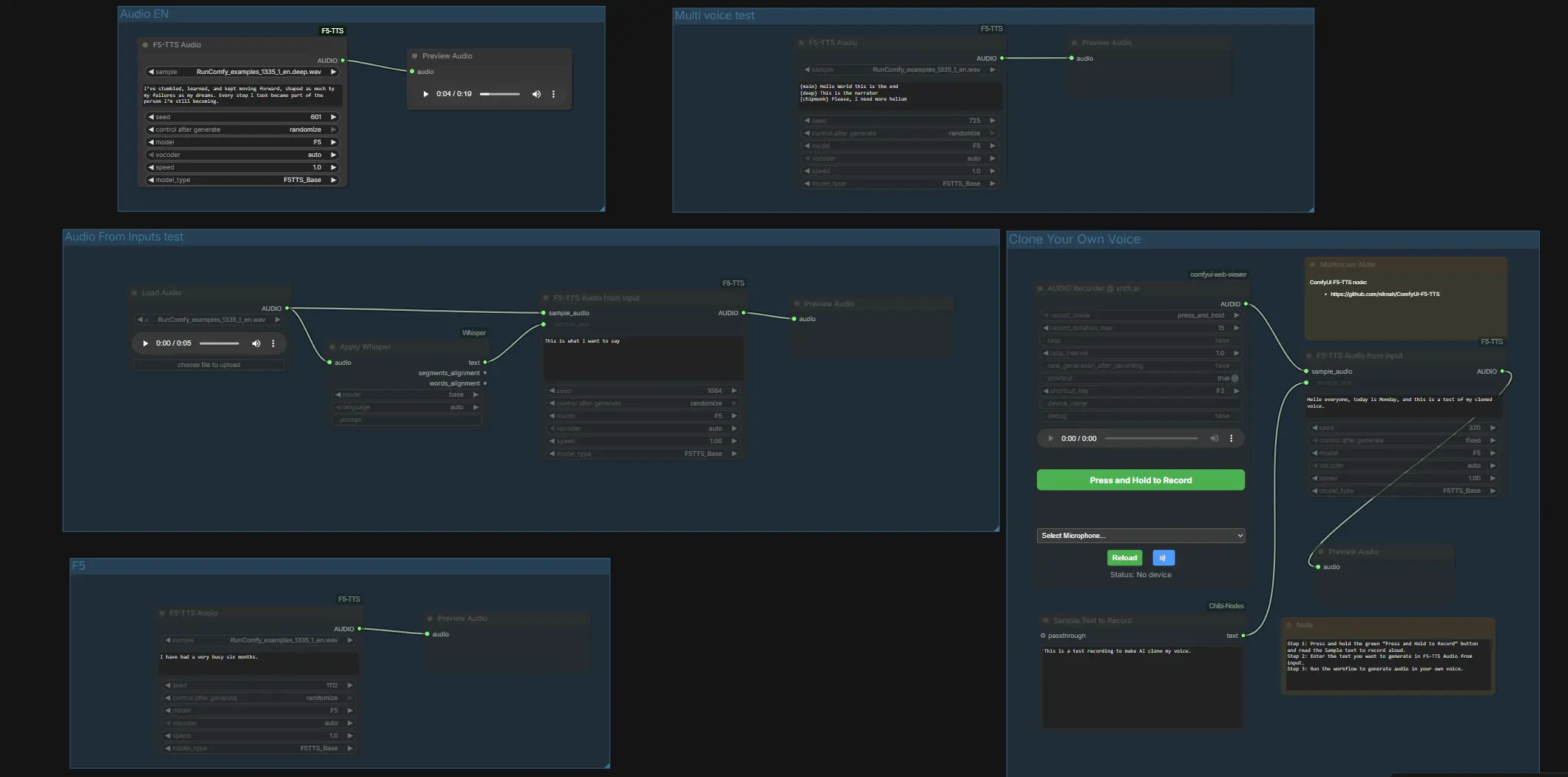
ComfyUI F5 TTS: zero-shot text-to-speech and voice cloning in one workflow#
This ComfyUI F5 TTS workflow lets you generate natural speech from text and clone voices directly inside ComfyUI. It is powered by the ComfyUI-F5-TTS custom nodes and includes a complete path for reference-based cloning: provide a short WAV plus a matching transcript to condition the model, then synthesize new lines that follow the reference speaker’s timbre and style. The graph also ships with ready-to-run tests for multiple model variants, languages, and vocoders, so you can compare outputs quickly and decide what best suits narration, voiceovers, character dialogue, or product demos.
Everything is arranged into clear groups so you can use ComfyUI F5 TTS in two ways: fast, one-click TTS in English, French, German, and Japanese, or voice cloning via a built-in recorder or paired files. A compact Whisper transcription path is included to help you obtain an accurate sample transcript when you already have a clean recording.
Key models in ComfyUI F5 TTS workflow#
- Fish Audio F5-TTS. Zero-shot TTS that learns a speaker’s characteristics from a short reference and produces high-quality speech in multiple languages. See the project for model details and training background. GitHub
- OpenAI Whisper. Speech recognition used here to auto-transcribe your reference clip so the sample text matches exactly, which improves cloning quality. GitHub
- BigVGAN. A high-fidelity neural vocoder available as a decoding option for sharper, crisper output. GitHub
- Vocos. A fast, lightweight neural vocoder alternative focused on speed and low latency. GitHub
- ComfyUI-F5-TTS custom nodes. The ComfyUI integration that wires F5-TTS and compatible backends into nodes used throughout this graph. GitHub
How to use ComfyUI F5 TTS workflow#
At a high level, the workflow offers independent groups for quick model comparisons and a dedicated cloning lane. Start by auditioning the preconfigured groups to confirm the voice and vocoder you prefer, then move to cloning with your own sample. Each subsection below explains what the group does and the few inputs that matter.
Audio From Inputs test#
This lane demonstrates reference transcription plus conditioning. LoadAudio (#4) brings in a WAV, Apply Whisper (#13) transcribes it, and F5TTSAudioInputs (#26) uses both the sample audio and Whisper text to condition the voice before preview. Provide a clean, spoken sample and let Whisper fill the transcript port so the pair matches exactly. If you want to supply files directly, place a paired .wav and .txt with the same filename in ComfyUI/input, then restart ComfyUI so the graph can see them.
Multi voice test#
This group shows stylistic switching within one line using a single synthesis node. F5TTSAudio (#17) reads a script with labeled segments, so you can audition multiple character styles or emphasis changes in one pass. It is a quick way to hear how ComfyUI F5 TTS handles contrasting timbres or narrator-versus-character pacing.
Audio EN#
Use F5TTSAudio (#15) for straightforward English TTS. Enter your script and preview to assess baseline pronunciation and pacing with the default F5 preset. This lane is ideal for fast iteration before you commit to cloning or multi-voice mixing.
F5v1#
This path runs the F5TTSAudio (#33) node against the F5 v1 variant so you can compare tone and prosody with the main F5 preset. Use the same text as the EN lane to make differences easy to judge. It is helpful when choosing a default model for a longer project.
Audio FR#
This lane targets French synthesis with F5TTSAudio (#27) configured for a French preset. Provide a French script and preview the output to check nasal vowels and liaison handling. Switch back and forth with the EN lane to compare clarity and speed.
Audio DE bigvgan#
Here F5TTSAudio (#30) uses a German preset and the BigVGAN vocoder for a brighter, crisper decode. Use this lane when you want more presence or a studio-like sheen. If you prefer a softer rendering, compare against a Vocos lane.
Audio JP#
This path uses F5TTSAudio (#25) with a Japanese preset. Paste a Japanese script to evaluate pitch accent and mora timing. It is a good starting point for anime-style reads or product lines destined for Japanese audiences.
E2 test#
This group exercises F5TTSAudio (#29) with an E2-compatible preset and the Vocos vocoder to audition an alternative backend. Use it to compare latency and timbre characteristics with your F5 runs.
Clone Your Own Voice#
Record, pair, and clone directly in ComfyUI. Press the microphone in VrchAudioRecorderNode (#43) and read the prompt displayed in the “Sample Text to Record” box Textbox (#42). The recorder routes your WAV to F5TTSAudioInputs (#44) along with the exact text you spoke, which conditions the model on your timbre and style before preview in PreviewAudio (#45). For best results, speak in a quiet room and ensure the reference text matches what you said verbatim; then type any new lines you want the cloned voice to say and run the graph.
Key nodes in ComfyUI F5 TTS workflow#
F5TTSAudio (#15)#
The core single-pass TTS node used across the EN, FR, DE, JP, F5v1, and E2 groups. Supply your script and choose the model preset and vocoder that suit your language and delivery. If you want reproducible takes, keep the seed fixed; if you want variety, randomize between runs. The implementation is provided by the ComfyUI-F5-TTS extension. GitHub GitHub - FishAudio/F5-TTS
F5TTSAudioInputs (#44)#
The cloning entry point that consumes a reference WAV and its matching transcript to build a speaker representation, then synthesizes new lines in that voice. Use a clean sample with consistent loudness and ensure the transcript is exact to maximize similarity and reduce artifacts. Switch model presets or vocoders here if you need a brighter or more neutral decode. GitHub - FishAudio/F5-TTS
Apply Whisper (#13)#
Automatic transcription for your reference sample. Pick a Whisper size that balances speed and accuracy for your hardware and language, then feed its output text to the cloning node so the audio and text are perfectly aligned. This prevents conditioning errors that can happen when the sample text differs from what was actually spoken. GitHub
VrchAudioRecorderNode (#43)#
An in-graph recorder that captures a short spoken prompt for cloning, removing the need for external tools. Hold to record, release to stop, and immediately hear how ComfyUI F5 TTS sounds in your own voice. Keep the mic close and reduce room noise for the cleanest result.
Optional extras#
- Use 5 to 15 seconds of clean speech for the reference, with no music or effects.
- Make sure the sample transcript exactly matches the recording; even small mismatches can reduce cloning fidelity.
- Compare Vocos and BigVGAN on the same line to decide between speed and detail.
- Keep a fixed seed when you need consistent retakes; randomize when exploring style.
- For multilingual projects, audition the EN, FR, DE, and JP lanes first, then finalize cloning once you are happy with pronunciation and pacing.
Acknowledgements#
This workflow implements and builds upon the following works and resources. We gratefully acknowledge niknah for the ComfyUI-F5-TTS node, niknah for the F5TTS-test-all.json example workflow, and the r/StableDiffusion community for the “Voice Cloning with F5-TTS in ComfyUI” guide for their contributions and maintenance. For authoritative details, please refer to the original documentation and repositories linked below.
Resources#
- niknah/ComfyUI-F5-TTS
- GitHub: niknah/ComfyUI-F5-TTS
- niknah/ComfyUI-F5-TTS (Example Workflow: F5TTS-test-all.json)
- r/StableDiffusion/Community Guide (Voice Cloning with F5-TTS in ComfyUI)
Note: Use of the referenced models, datasets, and code is subject to the respective licenses and terms provided by their authors and maintainers.