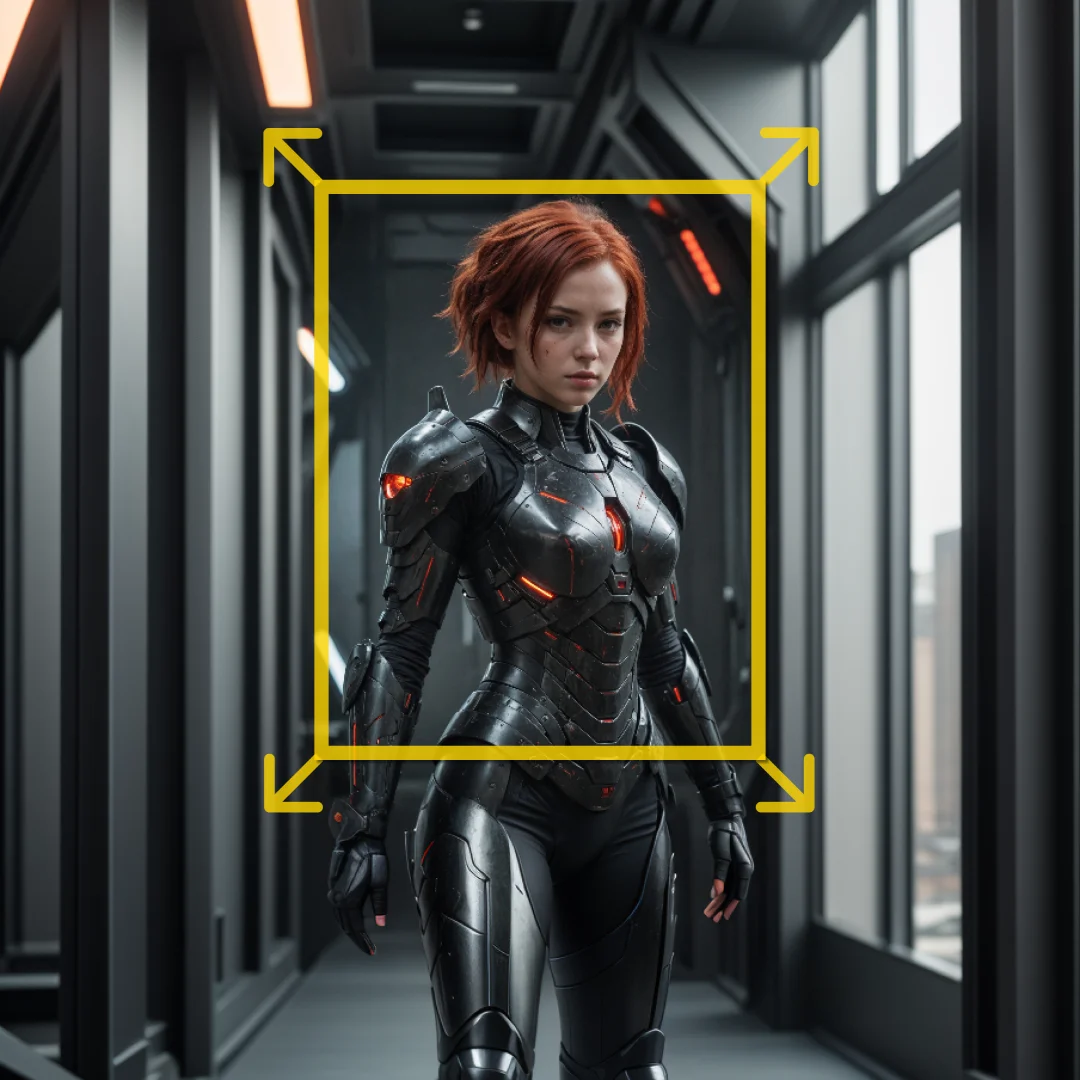
Smart Image Stitcher (Still):
The SmartImageStitcher is a sophisticated node designed to seamlessly integrate processed image patches back into their original context, ensuring a cohesive and visually appealing final image. This node is particularly beneficial for AI artists who work with high-resolution images and need to maintain the integrity of the original image while incorporating enhancements or modifications. By utilizing advanced techniques such as feathering and color matching, the SmartImageStitcher ensures that the transitions between the original and processed sections are smooth and natural. This node is optimized for still images, making it an essential tool for artists looking to enhance specific areas of an image without compromising the overall quality. Its ability to handle various blending modes and resizing options provides flexibility and control over the final output, allowing for creative freedom and precision in image editing.
Smart Image Stitcher (Still) Input Parameters:
original_image
The original_image parameter is the base image that serves as the canvas for stitching the processed patches. It is crucial as it provides the context and background into which the enhancements will be integrated. This parameter should be a high-resolution image to ensure that the final output maintains quality.
processed_image
The processed_image parameter contains the modified patches that need to be stitched back into the original image. These patches are typically high-resolution and have been enhanced or altered to improve specific areas of the original image. The quality and resolution of these patches directly impact the final output.
stitcher_info
The stitcher_info parameter is a dictionary containing metadata about the stitching process, such as coordinates and dimensions of the patches. This information is essential for accurately placing the processed patches back into their original positions within the base image. It ensures that the modifications align correctly with the original content.
feather_pixels
The feather_pixels parameter determines the number of pixels over which the transition between the original and processed images is blended. A higher value results in a smoother transition, reducing visible seams and creating a more natural integration. This parameter is crucial for achieving a seamless look.
blend_mode
The blend_mode parameter specifies the method used to blend the processed patches with the original image. Options include "Box Feather" and "Mask Feather," each offering different blending techniques. The choice of blend mode affects the visual outcome and should be selected based on the desired effect.
resize_full_image_output
The resize_full_image_output parameter controls whether the final stitched image should be resized to match the original image's dimensions. Options include "Restore Original Size" and "Keep Resized Image." This parameter is important for maintaining consistency in image dimensions.
enable_color_match
The enable_color_match parameter is a boolean that determines whether color matching should be applied to the processed patches. When enabled, it adjusts the colors of the patches to better match the original image, ensuring a cohesive look. This is particularly useful when the processed patches have different color tones.
color_match_amount
The color_match_amount parameter specifies the intensity of the color matching process. It ranges from 0 to 1, with higher values resulting in more significant color adjustments. This parameter allows for fine-tuning the color integration between the original and processed images.
mask
The mask parameter is an optional input that defines specific areas of the processed patches to be blended with the original image. It provides additional control over the blending process, allowing for selective integration of modifications. This parameter is useful for complex edits requiring precise control.
Smart Image Stitcher (Still) Output Parameters:
stitched_image
The stitched_image is the final output of the SmartImageStitcher node, representing the original image with the processed patches seamlessly integrated. This output maintains the high resolution and quality of the original image while incorporating the desired enhancements. It is the culmination of the stitching process, showcasing the artist's modifications in a cohesive and visually appealing manner.
Smart Image Stitcher (Still) Usage Tips:
- To achieve the best results, ensure that the
processed_imagepatches are of high quality and resolution, matching theoriginal_imageas closely as possible. - Experiment with different
blend_modesettings to find the most visually pleasing transition between the original and processed areas, especially when dealing with complex edits. - Utilize the
enable_color_matchandcolor_match_amountparameters to harmonize the color tones between the original and processed images, ensuring a natural look.
Smart Image Stitcher (Still) Common Errors and Solutions:
Missing stitcher_info keys
- Explanation: This error occurs when the
stitcher_infodictionary lacks required keys such as "x," "y," "w," or "h." - Solution: Ensure that the
stitcher_infoparameter includes all necessary keys and that they contain valid data for the stitching process.
Invalid feather_pixels value
- Explanation: An invalid value for
feather_pixelscan lead to poor blending results, with visible seams between the original and processed images. - Solution: Adjust the
feather_pixelsvalue to ensure a smooth transition, typically starting with a moderate value and fine-tuning as needed.
Color mismatch issues
- Explanation: When
enable_color_matchis set to true, but thecolor_match_amountis not appropriately configured, color discrepancies may occur. - Solution: Adjust the
color_match_amountto achieve a better color balance between the original and processed images, ensuring a cohesive final output.