
MOSS-Image Layout-Guided Text to Image for posters and product visuals#
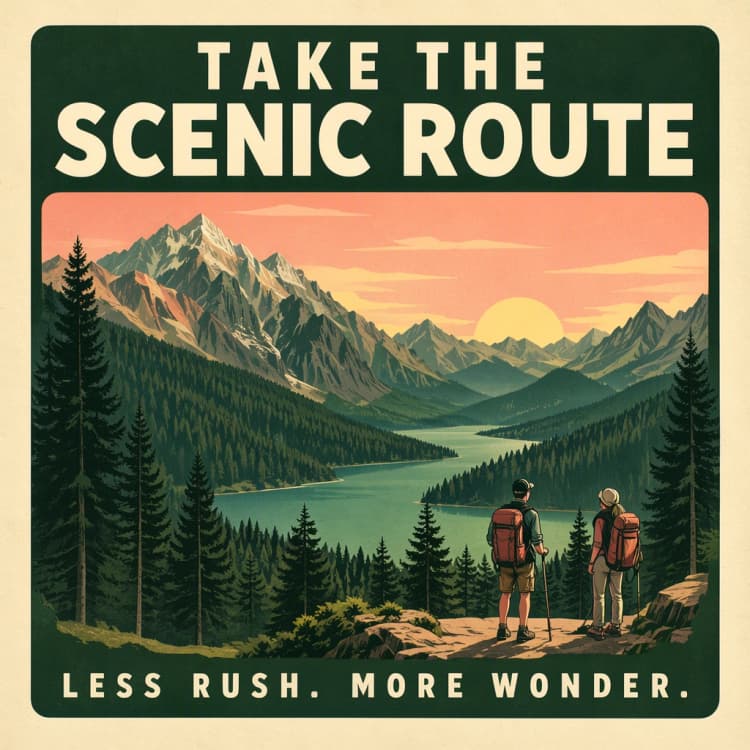
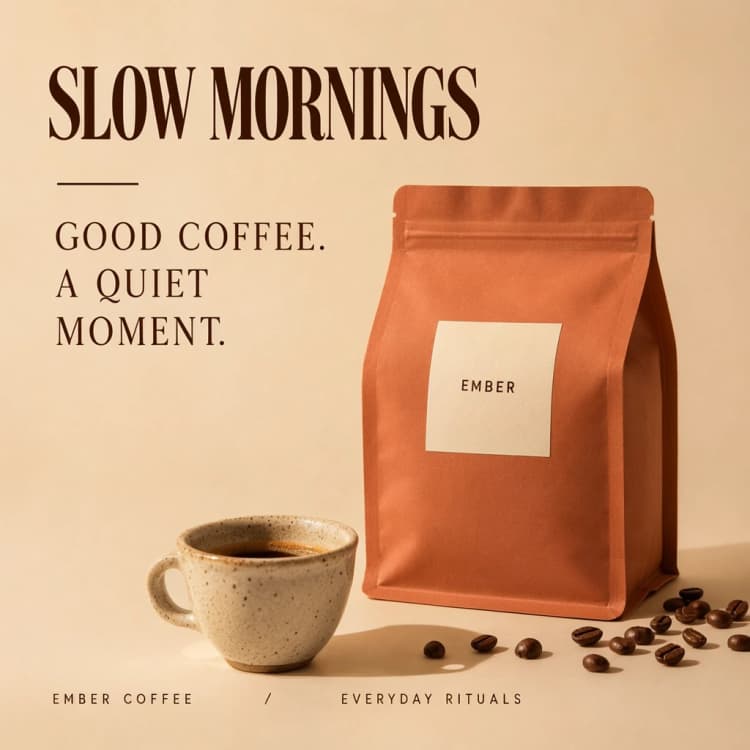
This ComfyUI workflow turns structured layouts into finished images using MOSS-Image. It lets you plan typography and object placement with bounding boxes, then renders clean, readable designs that respect your composition. The MOSS-Image Layout-Guided Text to Image approach is ideal for promotional artwork, product hero shots, and illustrated travel posters where text hierarchy and focal points matter.
The workflow ships with the prompt upsampler disabled so the structured layout prompt is preserved. You control where text and objects go, and MOSS-Image fills each region with the requested content and style. For dependable legibility, prefer short, well-spaced lines over dense small print, which is a general best practice with MOSS-Image Layout-Guided Text to Image generation.
Key models in Comfyui MOSS-Image Layout-Guided Text to Image workflow#
- MOSS-Image SFT diffusion model. The supervised fine-tuned checkpoint powers layout-aware generation and strong bilingual text rendering. It is the core image generator used by this workflow. Model card
- Qwen 3.5 9B GPTQ text encoder. This encoder interprets your caption and the layout prompt so the model understands both content and typography intent. The weights are distributed in the same repository as MOSS-Image. Repository
- FLUX.2 small VAE. This decoder reconstructs high quality images from latents while keeping sharp edges that help with readable type and crisp shapes. Repository
- MOSS-Image skills and reference prompts. The official project documents the captioning style and layout prompting that the model was trained to follow. Project
- Official layout template. The reference template shows the same layout-driven pattern used here for MOSS-Image Layout-Guided Text to Image. Template
How to use Comfyui MOSS-Image Layout-Guided Text to Image workflow#
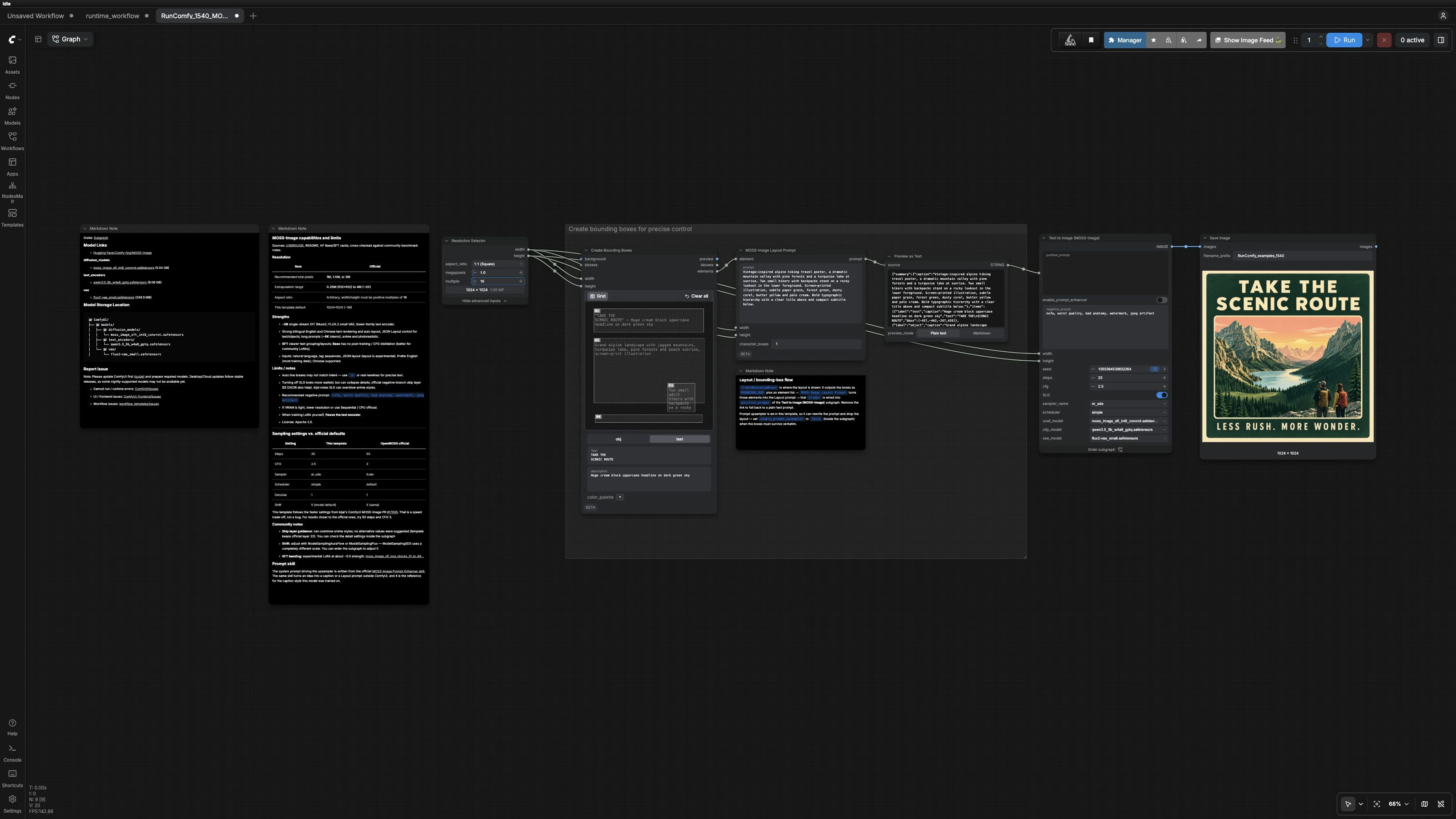
At a high level, you define a canvas size, draw bounding boxes for text and objects, convert those boxes into a structured layout prompt, and generate the final image. The bounding box group runs first, then the layout prompt feeds the MOSS-Image generator, which produces your result.
Set the canvas size (ResolutionSelector (#19))#
Choose the aspect and resolution for your design. The node outputs width and height that propagate to both the layout tools and the generator, keeping everything in sync. For best results with MOSS-Image Layout-Guided Text to Image, start near 1 megapixel for speed and scale up once you like the composition. Width and height must be multiples of 16.
Create bounding boxes for precise control (CreateBoundingBoxes (#25))#
Draw text and object regions directly on the canvas and add short copy where needed. Each box carries its role, optional text, and a brief visual description that guides what should appear there. Treat these descriptions like micro-prompts for each region. Keep headlines concise and add manual line breaks where you need them to appear.
Turn boxes into a layout prompt (MOSSImageLayoutPrompt (#27))#
This node converts your elements into one structured layout prompt that MOSS-Image understands. It merges regional descriptions with your global style description so the model knows what goes where. Use vivid but concrete language for palette, medium, and mood. If you plan a strict hierarchy, describe it clearly so the layout prompt encodes that intent.
Inspect the final positive prompt (PreviewAny (#26))#
Preview the assembled layout prompt before rendering. This is the best place to check that every intended line of text is quoted and that regional descriptions make sense. Tighten wording here for more reliable MOSS-Image Layout-Guided Text to Image results. If you see unwanted phrasing, adjust the boxes or global style line and preview again.
Generate the image (Text to Image (MOSS-Image) (#18))#
The subgraph loads the MOSS-Image SFT model, encodes the final prompt, and samples latents into an image. The workflow disables the prompt enhancer by default so the layout prompt passes through verbatim. If you are not using boxes and want the model to elaborate your idea, enable the enhancer to let MOSS-Image rewrite the caption more freely. Skip Layer Guidance is available inside the subgraph to emphasize structure; you can toggle it when you want either tighter text placement or a looser, more natural look.
Save the result (SaveImage (#9))#
Your image is decoded by the FLUX.2 VAE and written to disk. Re-run with a different seed to explore variations that keep the same layout. When a composition works, increase resolution for a production-quality export.
Key nodes in Comfyui MOSS-Image Layout-Guided Text to Image workflow#
CreateBoundingBoxes (#25) This is the layout authoring surface. Use it to define text and object regions with brief, concrete descriptions. Short, well-spaced copy improves reliability, and explicit line breaks control wrapping. Keep boxes generous around text to avoid collisions when the model renders letterforms.
MOSSImageLayoutPrompt (#27) It compiles every box into a single structured prompt that the generator respects. Treat global style as the art direction and per-box text or object notes as local constraints. If exact layout fidelity is required, keep the prompt enhancer disabled so no rewriting drops your layout instructions.
ComfySwitchNode (#16) This switch selects between the raw layout prompt and an enhanced prompt generated by the built-in caption skill. Leave it off to protect layout-guided instructions. Turn it on only when you want free caption expansion and are not relying on bounding boxes for strict placement. The switch affects the positive prompt that drives the whole render.
SkipLayerGuidanceDiTSimple (#15) This guidance path can emphasize structure and readability. Use it when you want clearer text grouping or stronger adherence to the layout, especially in posters. If you prefer a softer, more photographic feel, try disabling it and compensate with stylistic wording in the prompt.
KSampler (#7) This is the global quality and speed control for sampling. More steps tend to refine detail and text edges, while stronger guidance can overconstrain style if pushed too high. Adjust these cautiously and evaluate changes at the same resolution so you can compare outcomes fairly.
ResolutionSelector (#19) Canvas size drives both the layout grid and the model’s latent. Choose sizes that fit your target medium and remember that higher resolutions cost more VRAM and time. Because the boxes scale with the canvas, you can iterate quickly at smaller sizes and upscale later.
Optional extras#
- Keep visible text brief and add manual line breaks for predictable wrapping.
- Avoid specifying real font names; describe typographic feel such as block serif, condensed sans, or monospaced.
- Define a limited color palette in natural terms to help the model keep a coherent brand look.
- If you want plain text-to-image without layout, disconnect the layout prompt wire and enable the enhancer for richer captions.
- For advanced users, community LoRAs for MOSS-Image exist for style tuning. Evaluate them carefully on your use case.
Acknowledgements#
This workflow implements and builds upon the following works and resources. We gratefully acknowledge Comfy-Org for the MOSS-Image ComfyUI tutorial, Comfy-Org for the official layout workflow template, and OpenMOSS for the MOSS-Image model for their contributions and maintenance. For authoritative details, please refer to the original documentation and repositories linked below.
Resources#
- Comfy-Org/MOSS-Image ComfyUI tutorial
- GitHub: OpenMOSS/MOSS-Image
- Hugging Face: Comfy-Org/MOSS-Image
- arXiv: MOSS-Image Technical Report
- Docs / Release Notes: MOSS-Image in ComfyUI: Text-to-Image and Layout Workflows
- Comfy-Org/Official layout workflow template
- GitHub: image_moss_image_t2i_bboxes.json
- Comfy-Org/MOSS-Image model files
- Hugging Face: Comfy-Org/MOSS-Image
Note: Use of the referenced models, datasets, and code is subject to the respective licenses and terms provided by their authors and maintainers.