minimax-h3-open/reference-to-video
Open-weights reference-to-video from image, video, and audio cues.
Open-weights reference-to-video from image, video, and audio cues.

Turn stills into cinematic motion clips with camera and audio control.
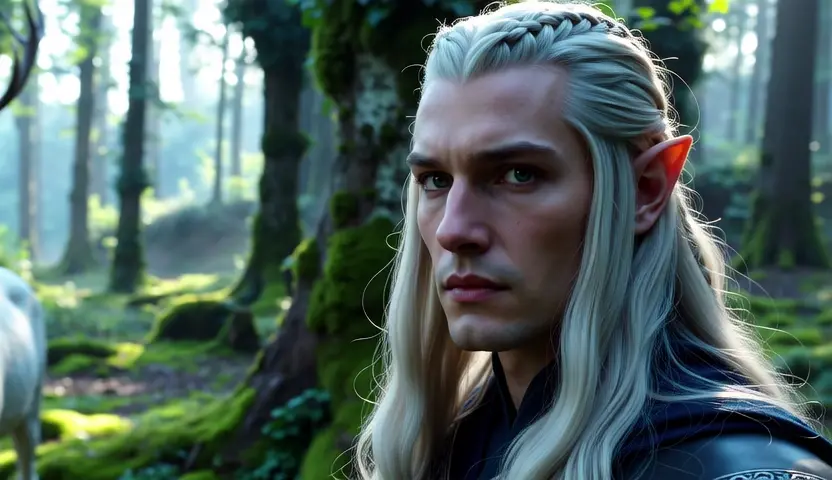
Cinema-grade AI videos with precise dual-prompt control

Create lifelike videos from voices with accurate sync and adaptive dubbing.

Seamlessly lengthen shots with frame-consistent context control and audio blending for refined video creation.

Transform existing footage with fast, identity-safe restyling for precise, text-guided video edits.
Overview of Kling AI 1.6:
Advanced AI Video Generator: Kling 1.6 is the latest iteration of an AI-powered video generation tool developed by Kuaishou Technology. It converts text prompts and images into dynamic, cinematic videos.
Enhanced Features: Kling 1.6 builds on previous models by offering better prompt adherence, smoother motion, improved scene composition, and more realistic visuals. Kling 1.6 supports both text-to-video and image-to-video generation with advanced customization options.
Use Cases: Kling 1.6 is used for creating short cinematic clips, marketing videos, educational content, and artistic projects with an emphasis on realism and consistency.
Prompt Adherence & Scene Understanding: Kling 1.6 follows detailed prompts much more accurately. It better handles complex scene descriptions and object relationships, whereas Kling 1.5 sometimes misses or misplaces elements.
Motion & Cinematic Quality: Kling 1.6 offers smoother, more natural motion and improved camera transitions that create a more cinematic feel. In contrast, Kling 1.5’s motion can feel a bit jerky or static.
Visual Realism: The latest update delivers enhanced textures, lighting, and overall realism. Although Kling 1.6 takes a bit longer to render, its output quality is significantly higher than that of Kling 1.5.
Experience Kling 1.5 here and see for yourself how it compares to Kling 1.6.
Craft Clear, Detailed Prompts: When using Kling 1.6, be as specific as possible about subjects, movements, lighting, and scene context. Detailed inputs help the model produce output that closely matches your vision.
Use the Creativity/Relevance (Prompt Strength) Slider: For highly accurate outputs, slide the control toward “Relevance” (high strength) so that the AI adheres more strictly to your prompt. Adjusting this balance is key to achieving the desired level of detail.
Start with High-Quality Inputs: Whether using Kling 1.6 text-to-video or image-to-video modes, ensure your source image is high resolution and that your prompt is well-structured.
Test Short Clips First: Generate shorter segments to fine-tune settings before committing to longer videos.
Utilize Professional (Pro) Mode: Kling 1.6 mode provides enhanced detail and texture, ideal for polished, cinematic results.
Kling 1.6 "Relevance" (Prompt Strength) setting controls how closely the model follows your written prompt. A higher relevance setting means Kling 1.6 model will produce visuals that strictly match the details provided in your prompt. Lowering relevance allows for more creative and artistic liberties, but may lead to deviations from your exact specifications. For precise control—especially with detailed prompts—keeping the slider toward relevance is recommended.
Kling 1.6 natively generates videos in high-quality 1080p (Full HD) resolution.
RunComfy is the premier ComfyUI platform, offering ComfyUI online environment and services, along with ComfyUI workflows featuring stunning visuals. RunComfy also provides AI Models, enabling artists to harness the latest AI tools to create incredible art.